Documentation / Advanced Configurations
AWS Template
AWS CloudFormation Scanner
Some teams must provision every AWS resource through an approved CloudFormation template. Prancer supports this by spinning up the pentest scanner (Task Definition, Cluster, Security Group, etc.) from a CloudFormation JSON/YAML you keep in Git, instead of letting Prancer create resources directly.
Before you start
- A Git repository (private or public) and an access token that can clone it. See PAC file on Git.
- An AWS account with permissions to deploy CloudFormation stacks and run ECS Fargate tasks.
- A CloudFormation template based on the sample ECS template, with these placeholders parameterised:
Family,ExecutionRoleArn,TaskRoleArn(underMyTaskDefinition)Name,Image(underContainerDefinitions)ClusterName(underECSCluster)GroupDescription(underEcsSecurityGroup)
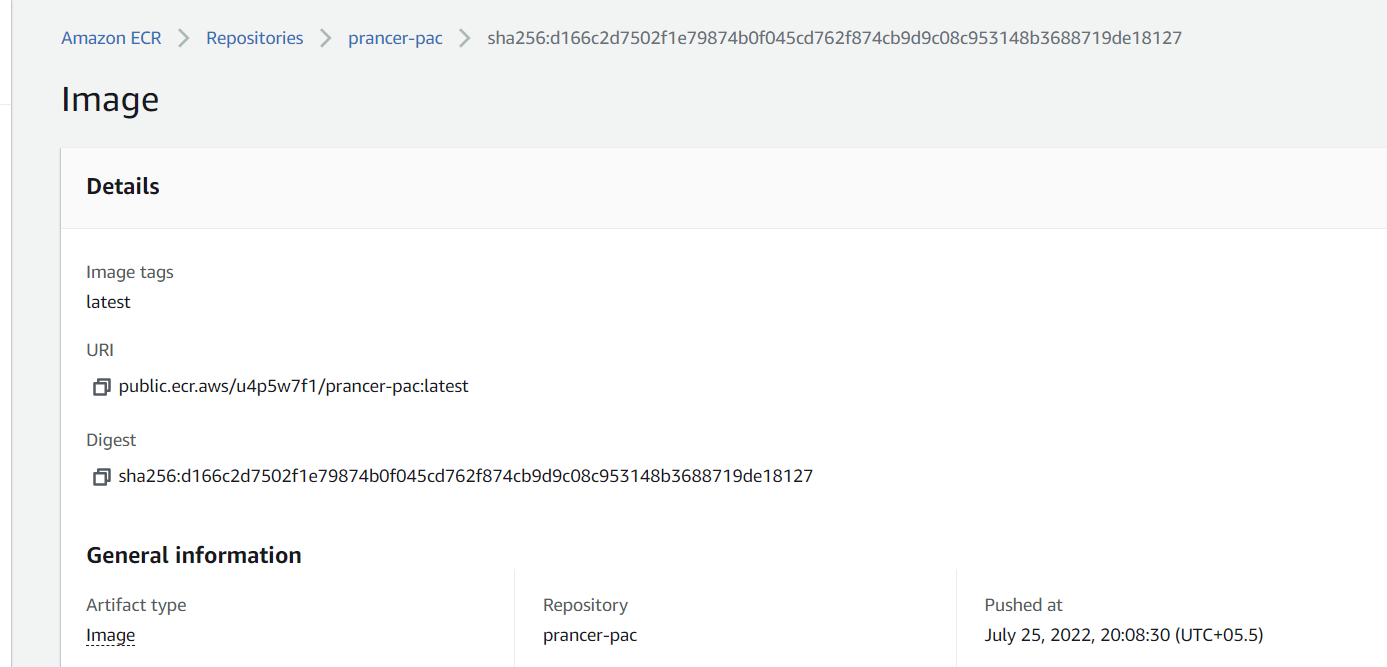
Tip: Two image sources are supported:
-prancer/prancer-pac→ resolves tohub.docker.com/prancer/prancer-pac:latest.
- public.ecr.aws/u4p5w7f1/prancer-pac:latest → pulls from Amazon's public ECR.
1. Create the PAC application
Follow Create PAC Config (AWS) to scaffold the application.
2. Upload the Git connector
Follow PAC file on Git to register the repository that holds your CloudFormation template.
3. Add the AWS template block to the PAC config
Open PAC Management and edit your PAC configuration.
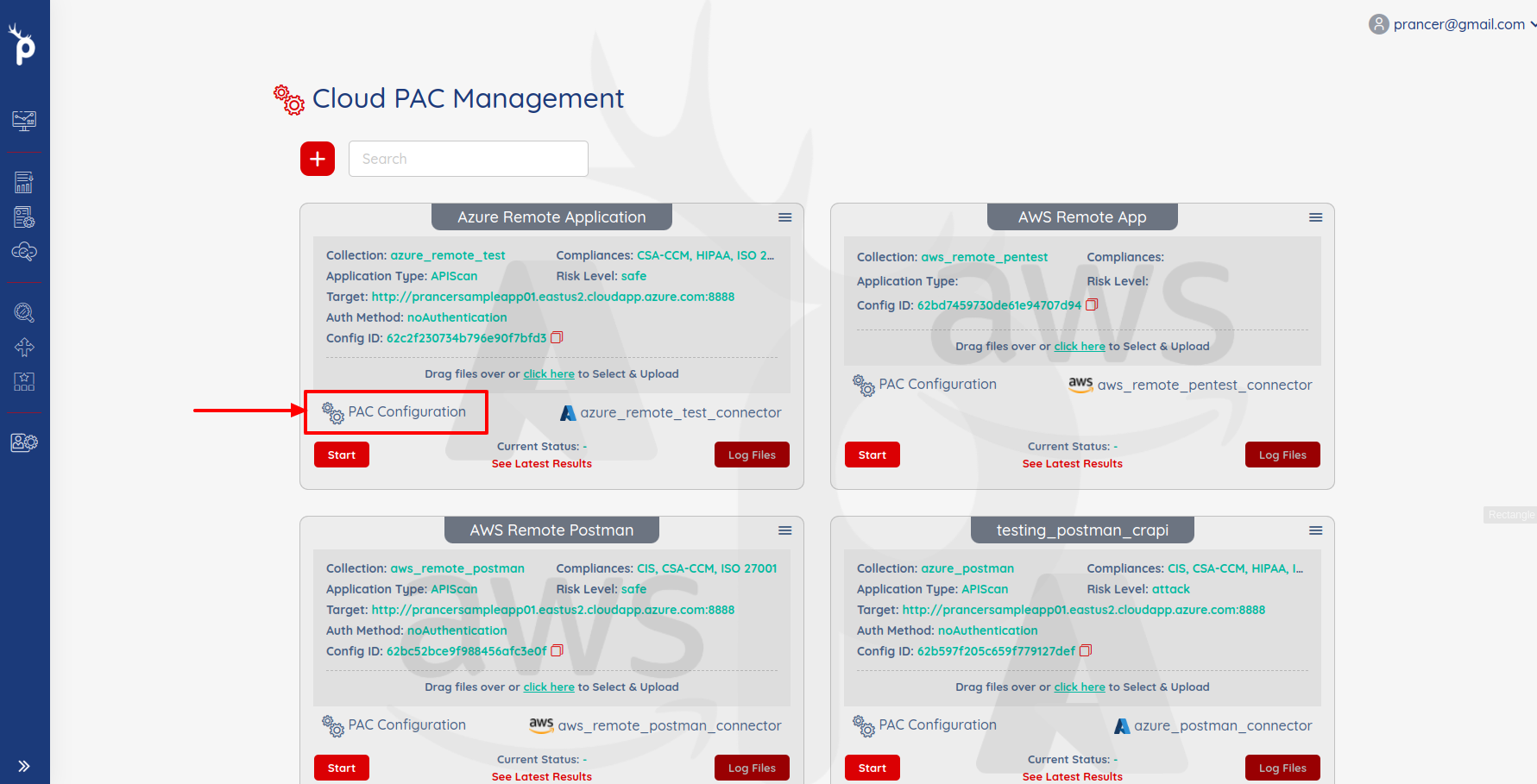
Scanner:
  Cloud:
    Platform:
      AWS:
        Connector: <git-connector-name>
        StackName: <stack-name>
        TemplateFile: /cloud-formation/existing/ecs-template.json
        ParamsFile:   /cloud-formation/existing/ecs-params.json
| Field | Description |
| --- | --- |
| Connector * | Git connector that holds the template. |
| TemplateFile * | Path to the CloudFormation template inside the repo. |
| ParamsFile | Optional path to a CloudFormation parameter file. |
| StackName | Name of the CloudFormation stack to create. |
4. Complete PAC file example
Collection: aws
ConnectionName: aws_connector
CloudType: aws
ApplicatioName: template_safe_001
RiskLevel: safe
Compliance: [CIS, HIPAA]
ApplicationType: WebScan
Schedule: onetime
Target: <your target endpoint>
Scanner:
  Cloud:
    Platform:
      AWS:
        AfterRun: delete
        Connector: github_connector_collection
        TemplateFile: /cloud-formation/existing/ecs-template.json
        StackName: prancer-external-scanner
        NewFargate:
          External:
            AccountId: "<account-id>"
            Region: us-west-2
            TaskDefinition: pentest-task
            ClusterName: pentest-cluster
            SecurityGroup: pentest-security-group
            ContainerName: prancer-scanner
            SubnetId: <subnet-id>
AuthenticationMethod: noAuthentication
AddOns:
  - accessControl
  - ascanrulesBeta
- sqlipluginWarning:AfterRun: deleteremoves the stack when the scan finishes. Usekeeponly for debugging — leftover stacks incur AWS charges.
5. Run the pentest
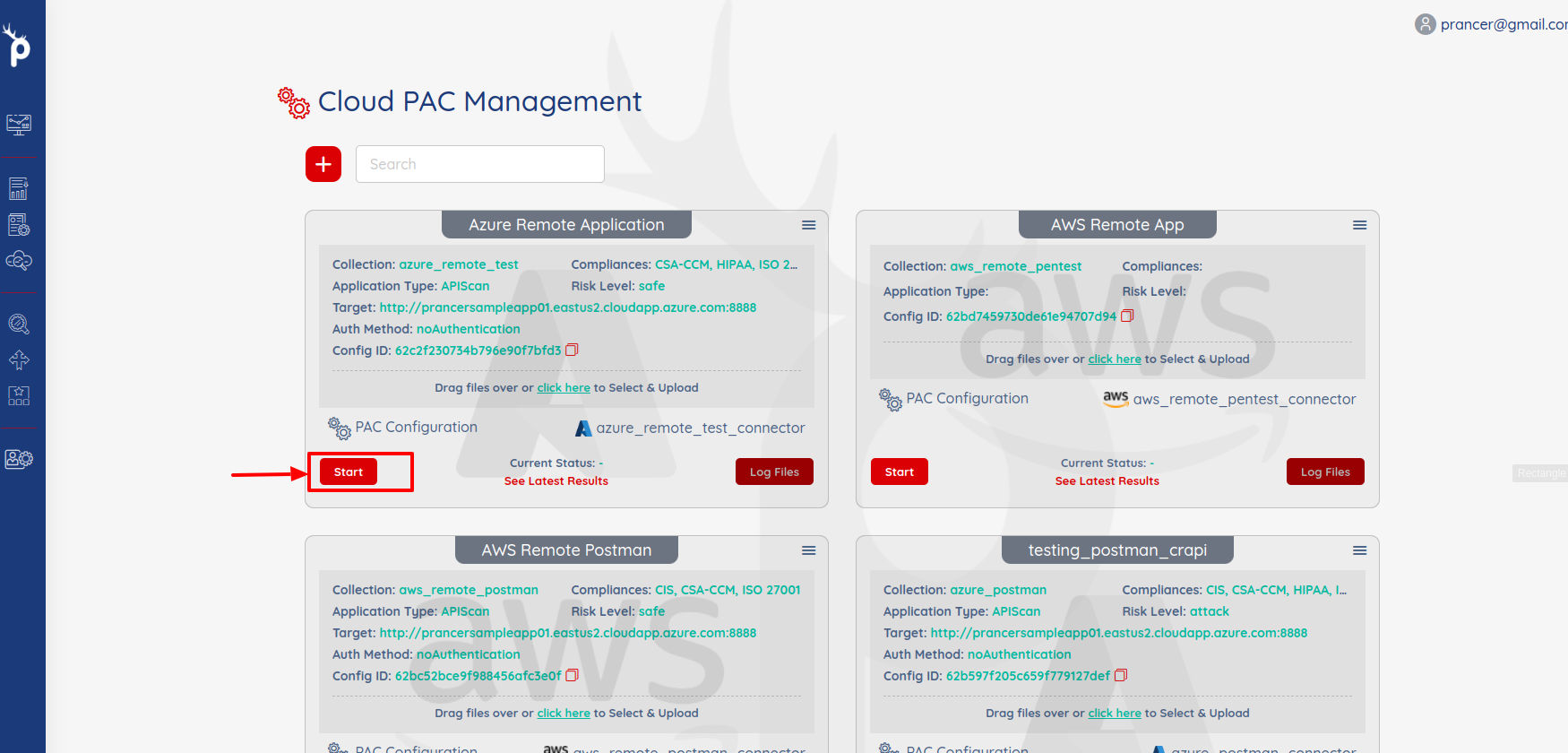
Click Start in PAC Management.
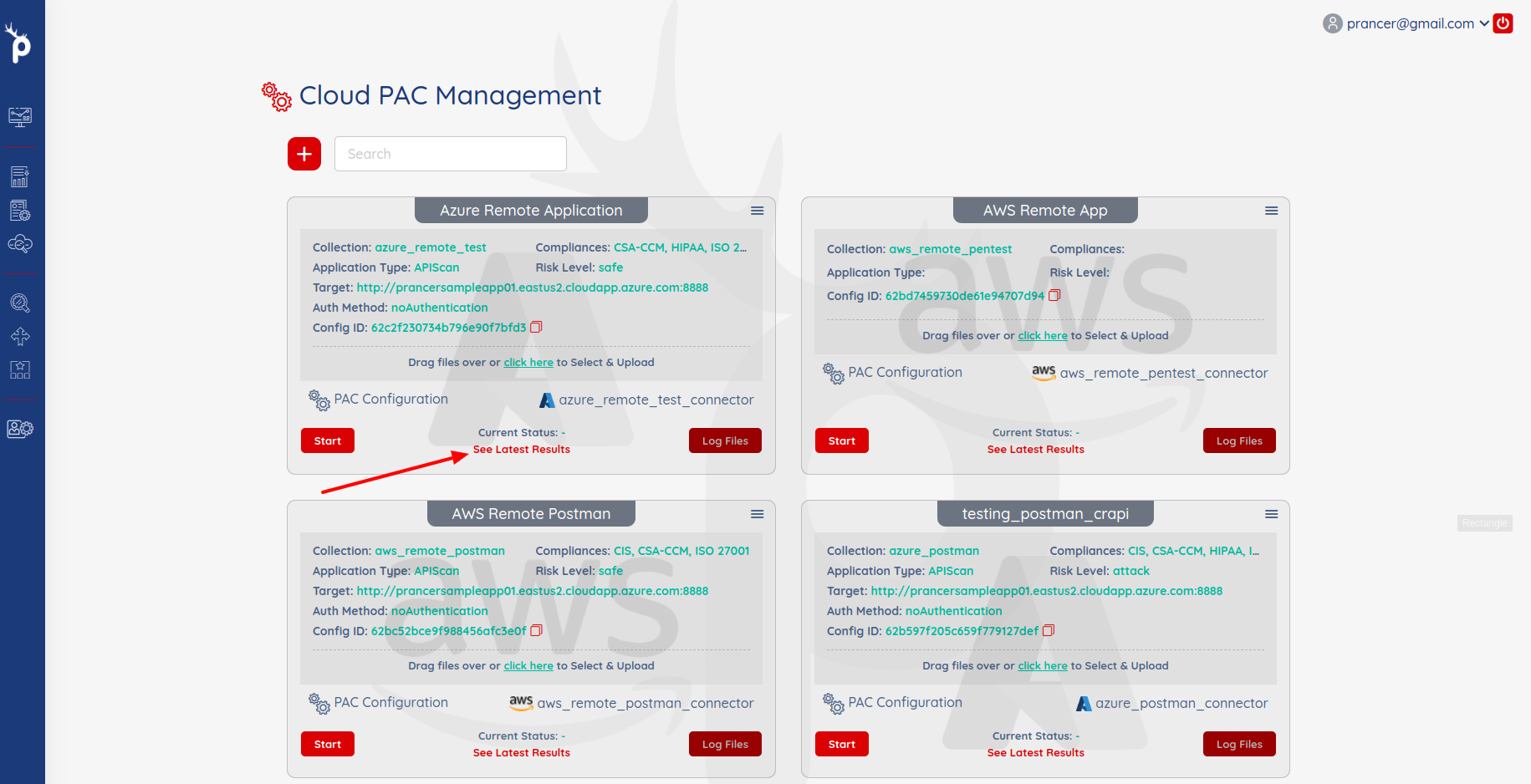
When the scan finishes, open See Latest Results.
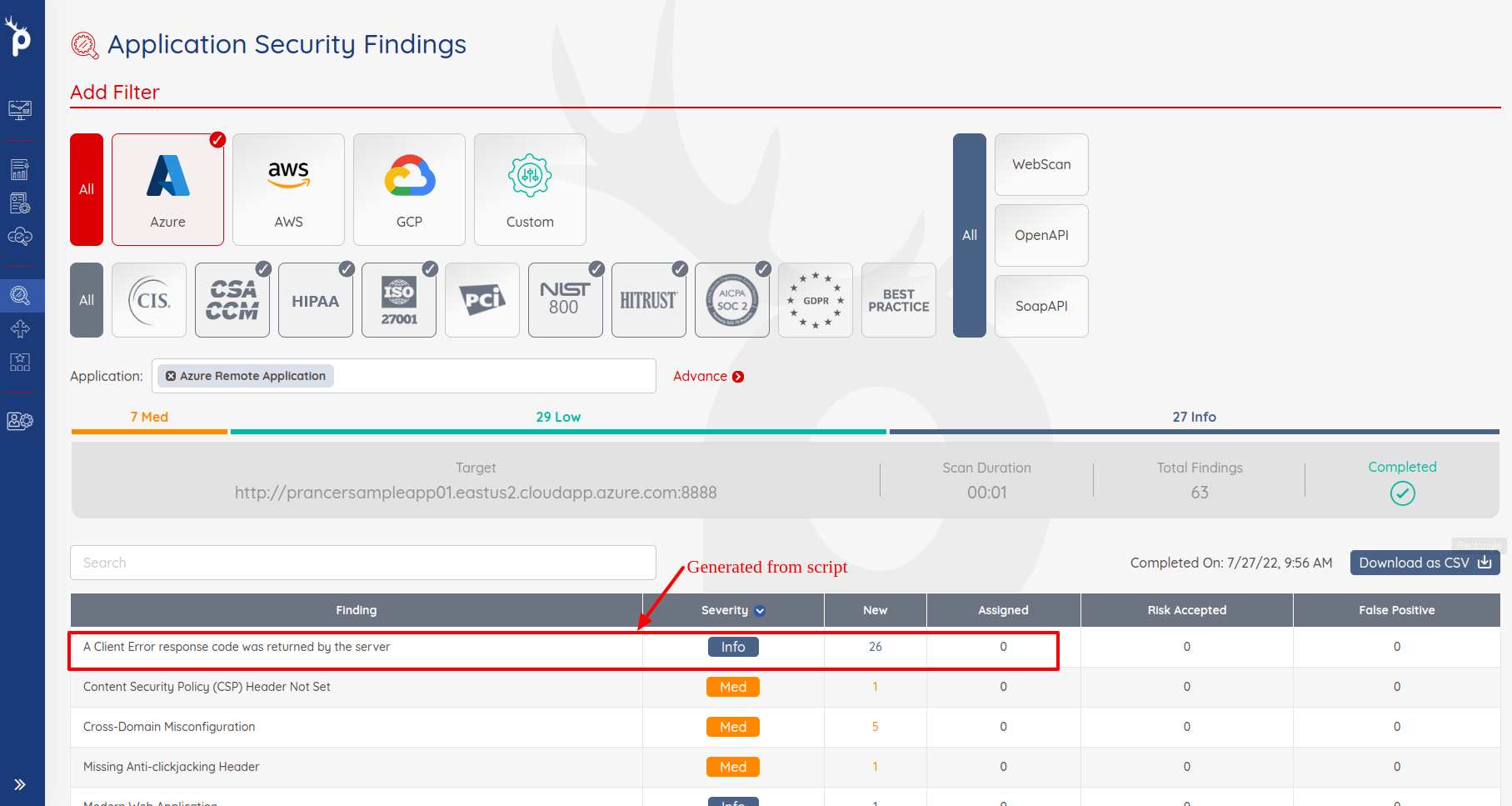
Review findings in Application Security Findings.
Next steps
- External AWS Scanner with new VPC — let Prancer create an isolated VPC for the scan.
- Azure Template Scanner — same flow on Azure with ARM templates.
- PAC CLI in CI/CD — trigger this scan from your pipeline.