Documentation / Cloud Posture Setup (CSPM)
Wizard - AWS Cloud
Wizard — AWS Cloud
The AWS wizard onboards an AWS account end-to-end: it generates the connector, master snapshot, and master compliance files, runs the Crawler, and kicks off the first Compliance Run — no JSON authoring required.
Before you start
- An AWS access key + secret key with at least read access to the resources you want to scan. See Create an AWS access key.
- For Monitor and Remediate mode: write permissions on the resource types you intend to remediate (typically IAM, Security Groups).
- A unique collection name.
Tip: Use a dedicated IAM user with only the permissions Prancer needs — never reuse a personal admin key.
1. Pick the wizard type
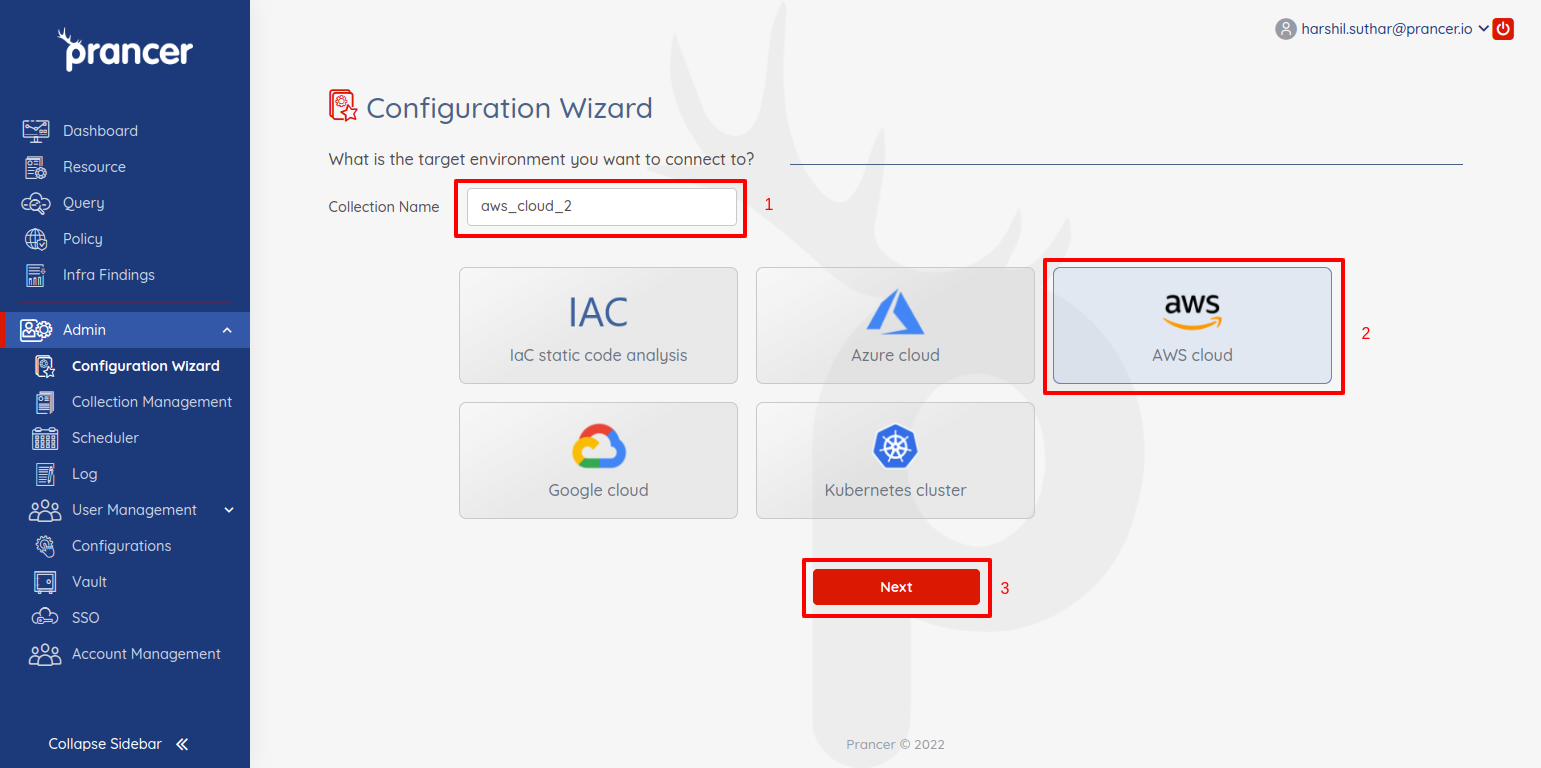
In the Configuration Wizard, enter the collection name, choose AWS Wizard, and click Next.
2. Provide connection details
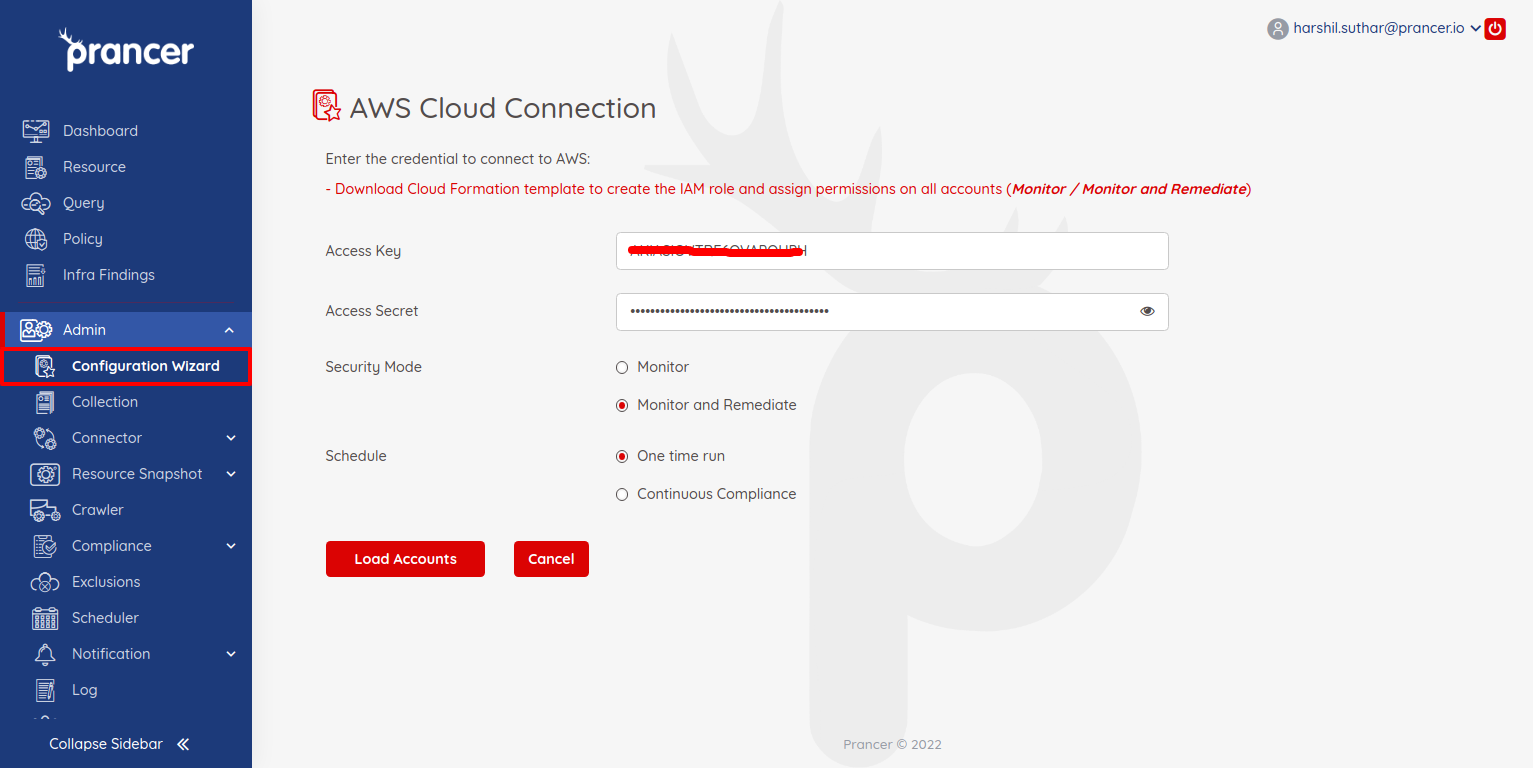
| Field | Description |
| --- | --- |
| Access Key | AWS access key ID. |
| Access Secret | AWS secret access key. |
3. Choose a security mode
| Mode | What it does |
| --- | --- |
| Monitor | Loads resources, runs compliance on a schedule, generates reports. |
| Monitor and Remediate | All of the above, plus auto-remediation of policy violations on the cloud. |
Warning: Remediate mode makes real changes to your cloud account. Trial it in a non-prod account first.
4. Load accounts
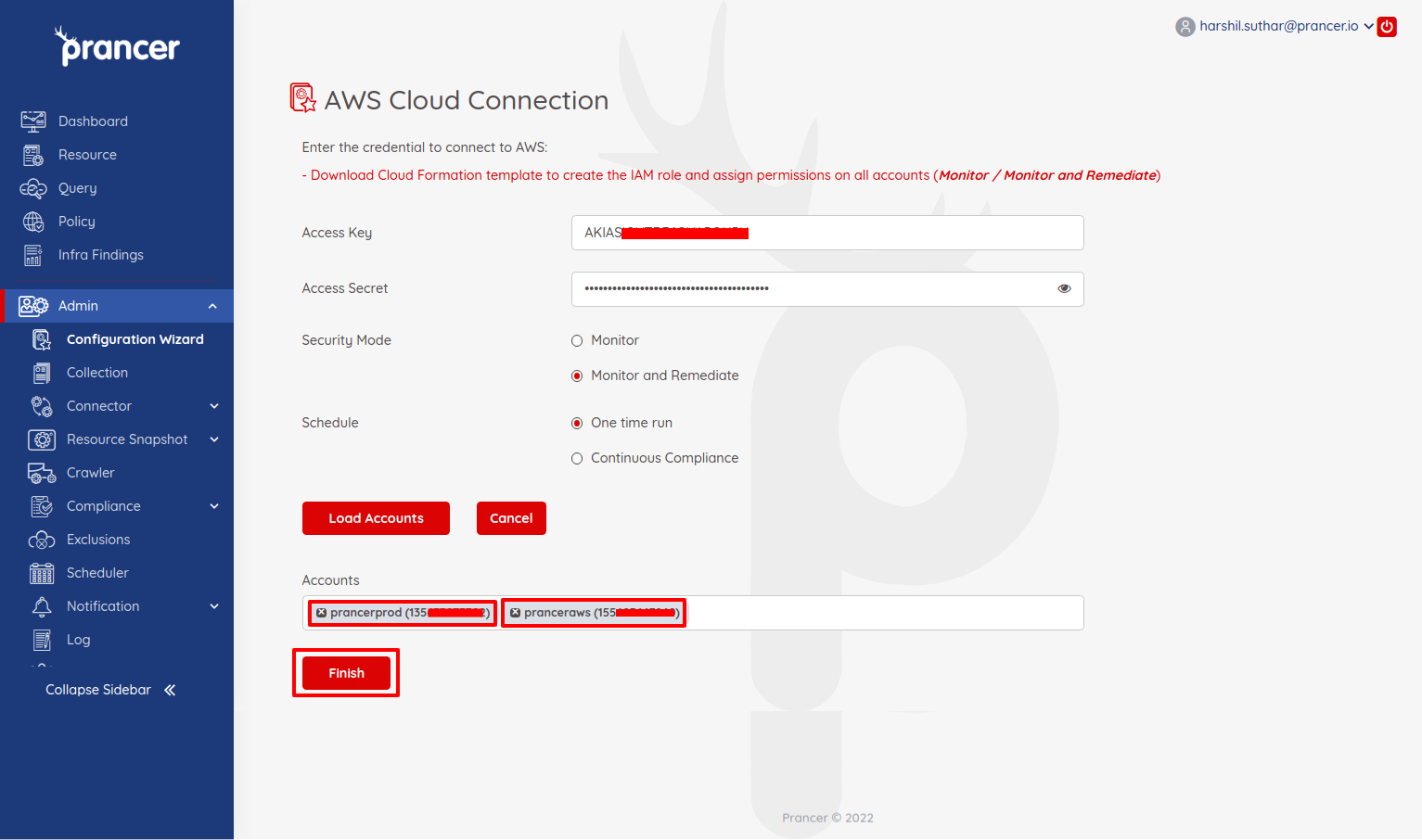
Click Load Accounts. Prancer enumerates the AWS accounts your credentials can reach.
5. Finish
Pick the account and click Finish. Prancer will:
1. Create the Connector configuration 2. Create the Master Snapshot configuration 3. Create the Master Compliance configuration 4. Run the Crawler to enumerate resources 5. Run the policy compliance against them
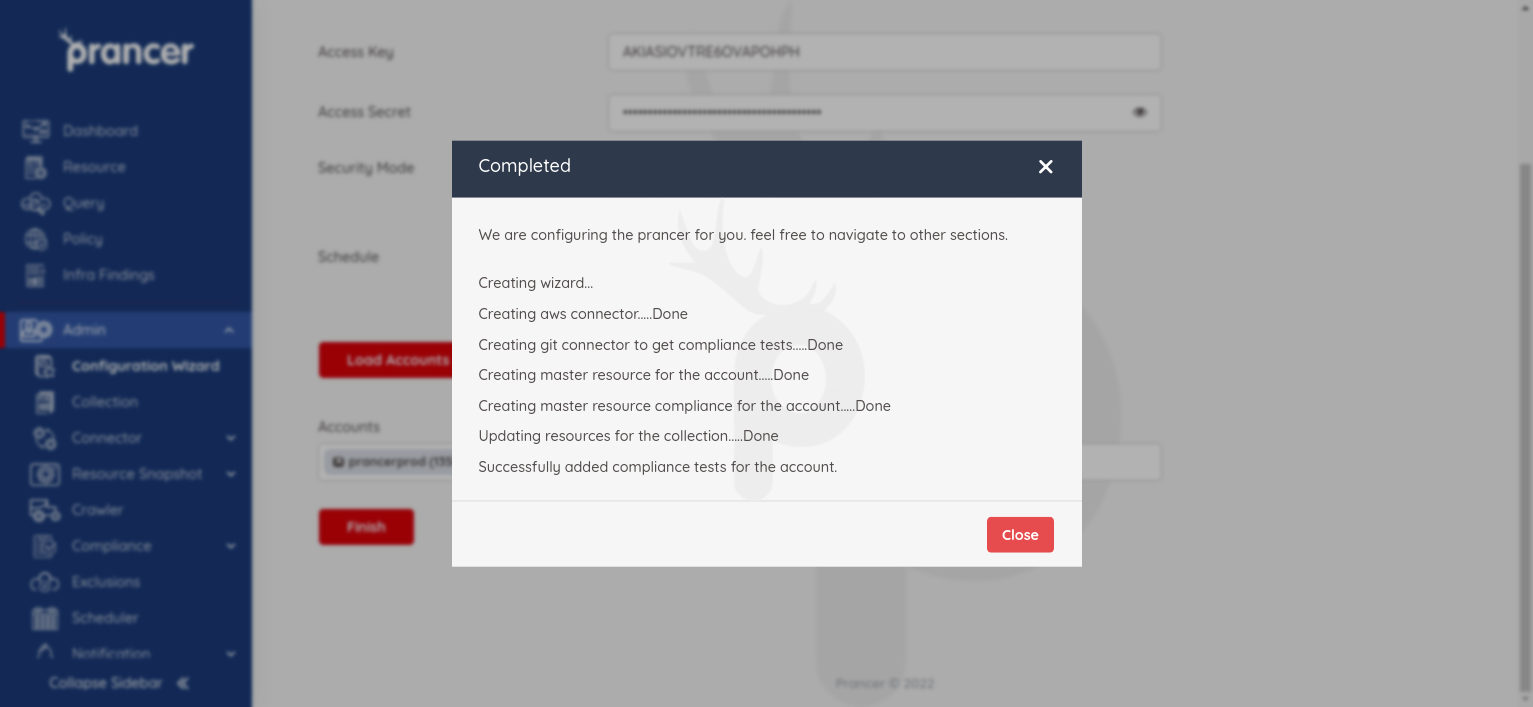
When it completes, results appear in Infra Findings and execution details in Logs.
Next steps
- Compliance Run — re-run compliance any time.
- Drift Detection — pair with IaC for drift visibility.
- Remediation — fix findings automatically.