Documentation / Infrastructure as Code (IaC) Setup
Wizard - IaC ADO
Wizard — IaC Azure DevOps
Connect an Azure DevOps repository to Prancer for IaC static analysis. Once authorised, the wizard generates the full configuration set, runs the Crawler, and triggers the first Compliance Run.
Before you start
- An Azure DevOps organisation containing the repos you want to scan.
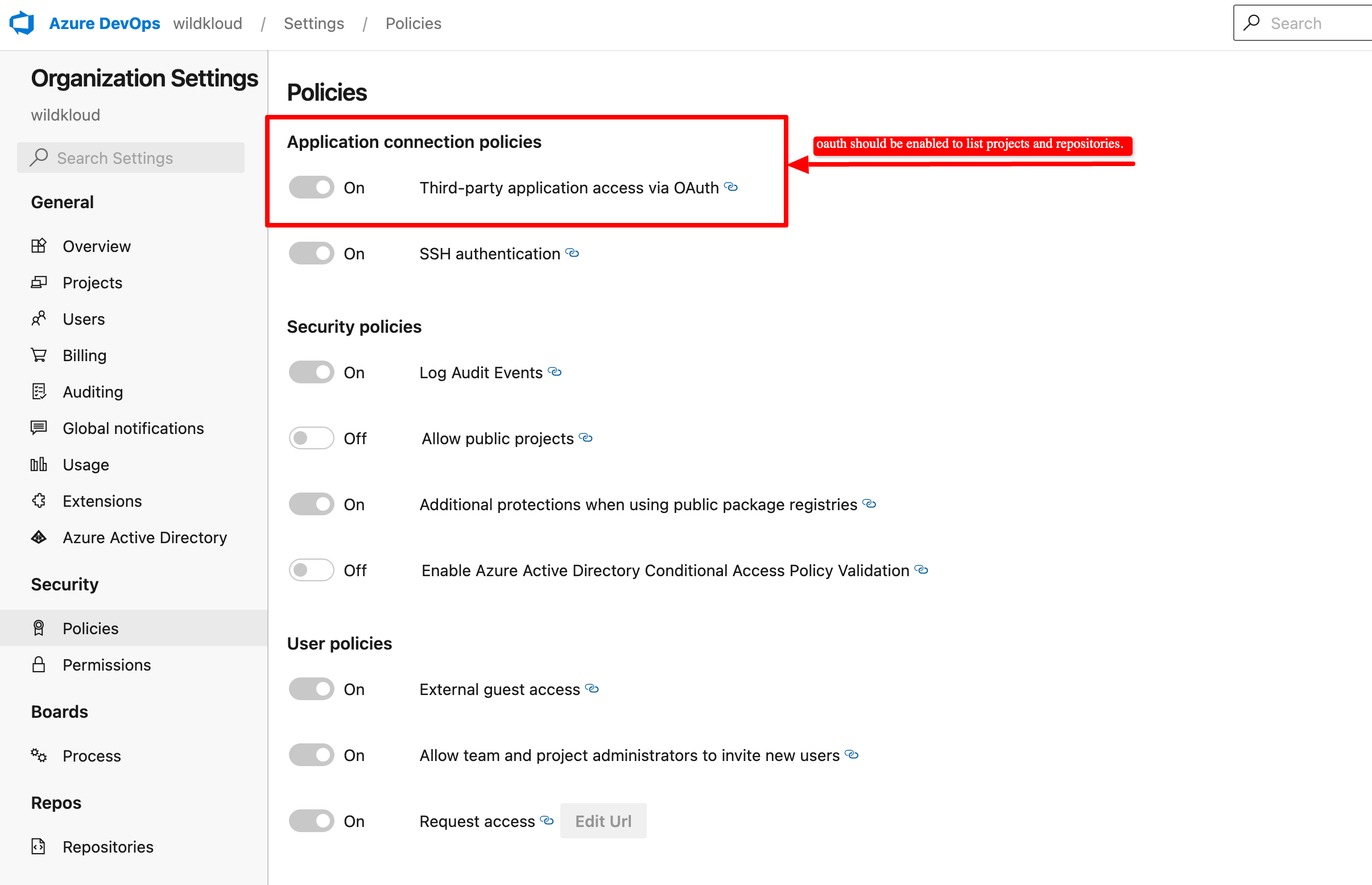
- Organisation OAuth policy enabled (required so Prancer's OAuth app can list repos across all projects).
- Permission to authorise the prancer-io OAuth app on the organisation.
- A unique collection name.
Warning: Without OAuth enabled at the organisation level, Prancer can authenticate but the repository list will be empty.
Enable OAuth on the organisation
In Azure DevOps → Organization settings → Policies, enable Third-party application access via OAuth.
1. Open the IaC wizard
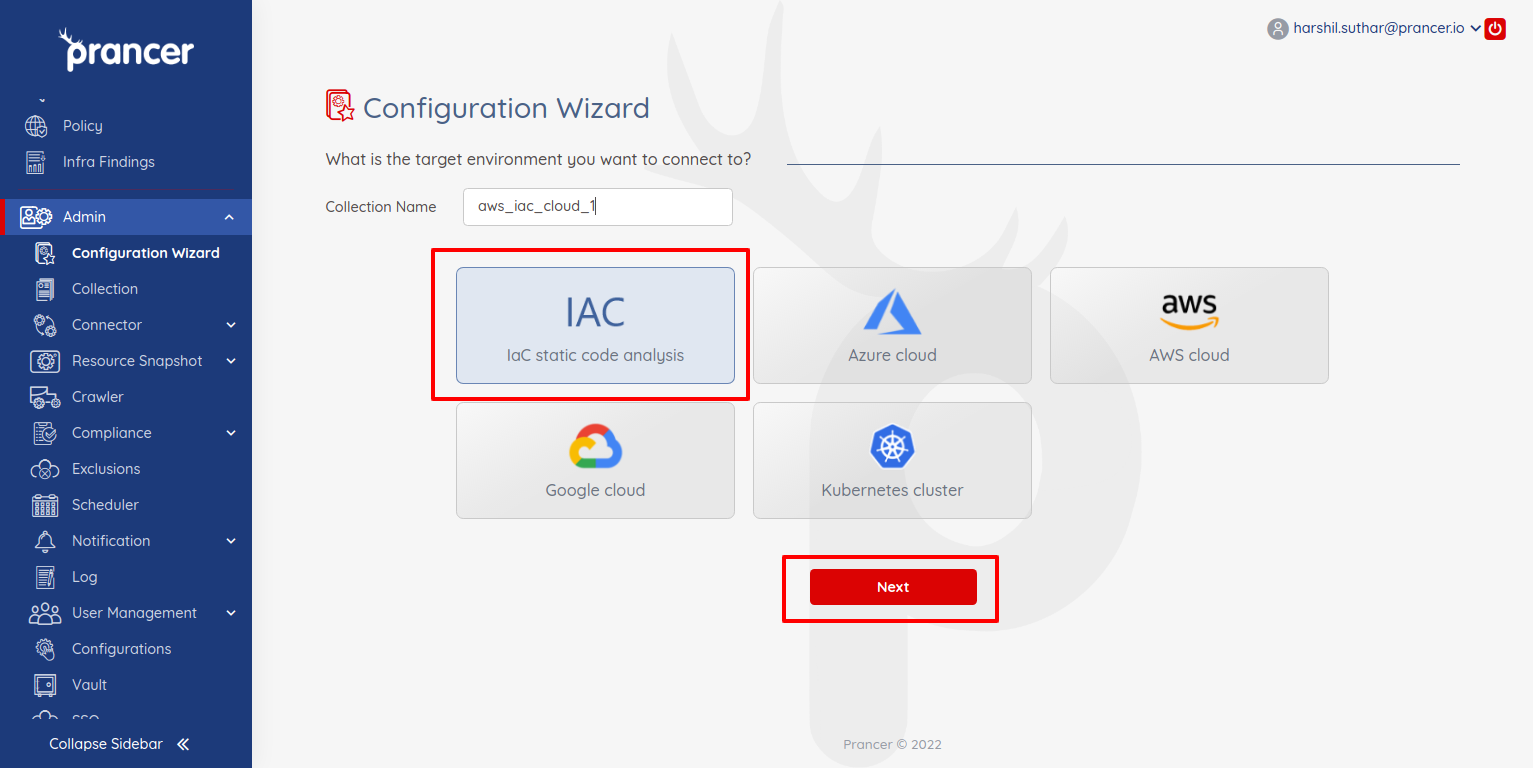
In the Configuration Wizard, choose IaC and click Next.
2. Pick Azure DevOps
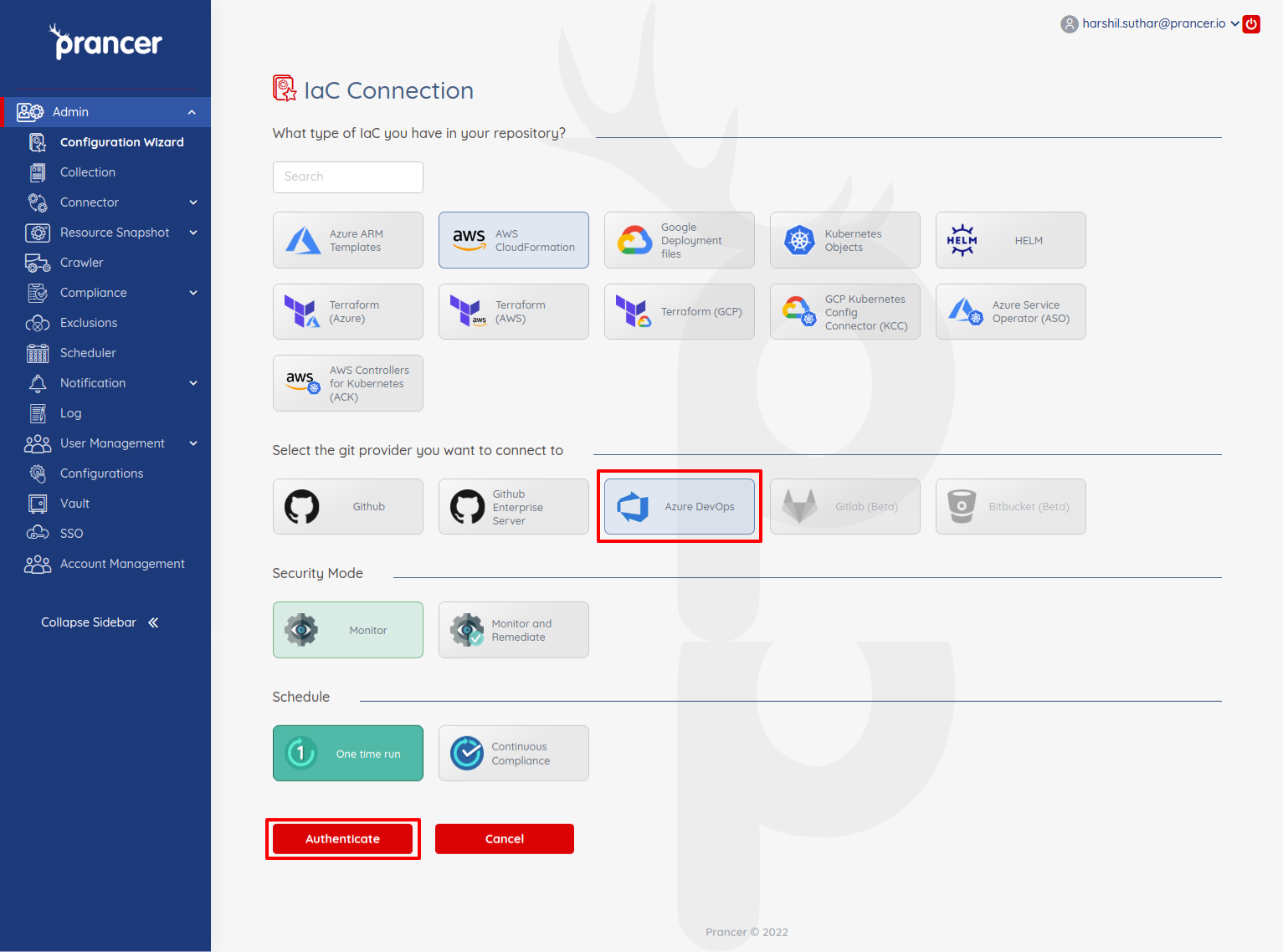
Select Azure DevOps from the Git providers.
| Setting | Description |
| --- | --- |
| Security mode | Monitor (compliance only) or Monitor and Remediate (auto-fix via PRs). |
| Schedule | One time run or Continuous Compliance (daily). |
Click Authenticate.
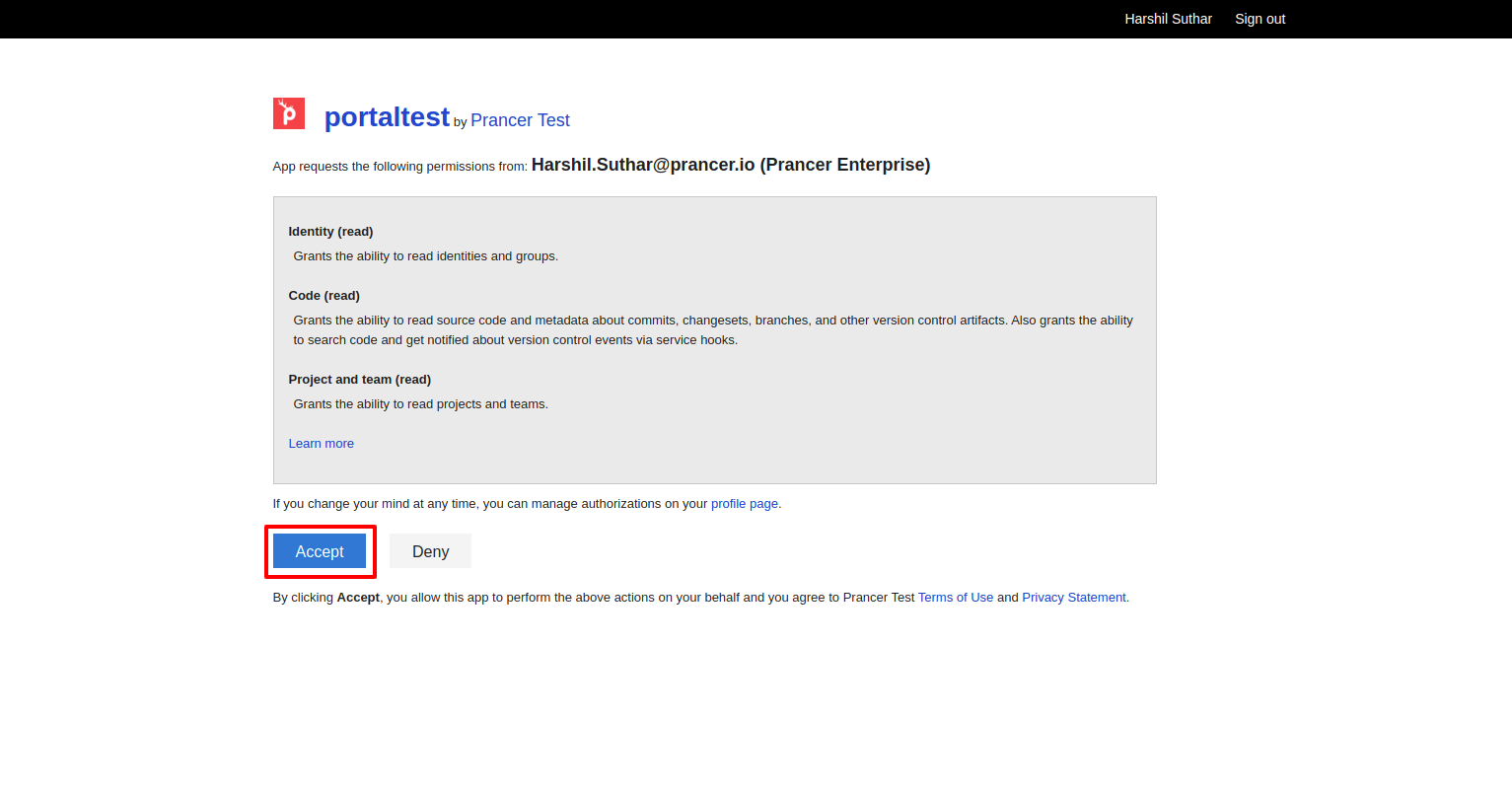
3. Grant access to prancer-io
Click Accept on the consent screen.
4. Pick the repository
You'll be redirected back to Prancer with a searchable list of ADO repos. Pick one.
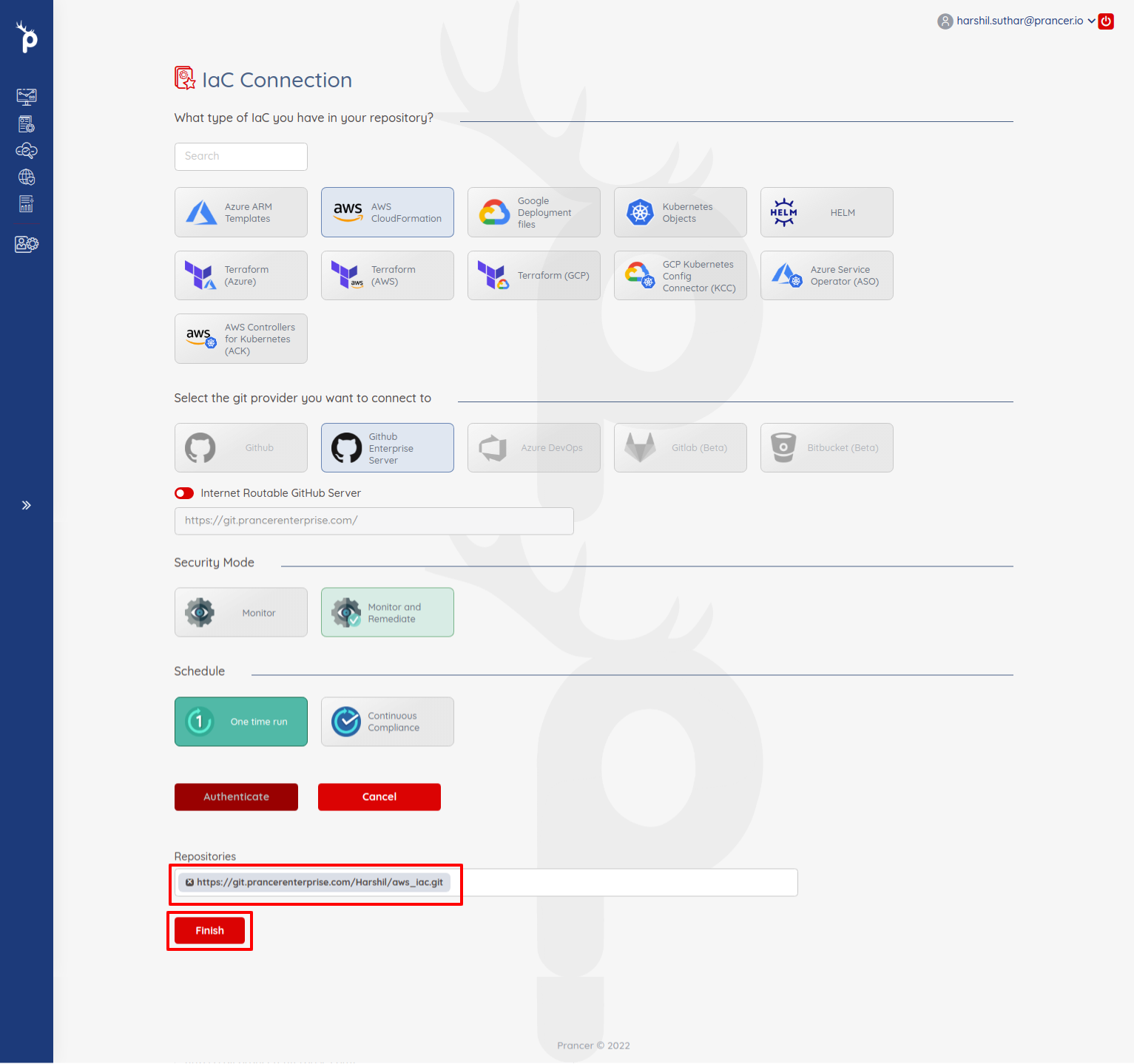
5. Finish
Click Finish. Prancer will:
1. Create the Connector configuration 2. Create the Master Snapshot configuration 3. Create the Master Compliance configuration 4. Run the Crawler against the IaC files 5. Run policy compliance
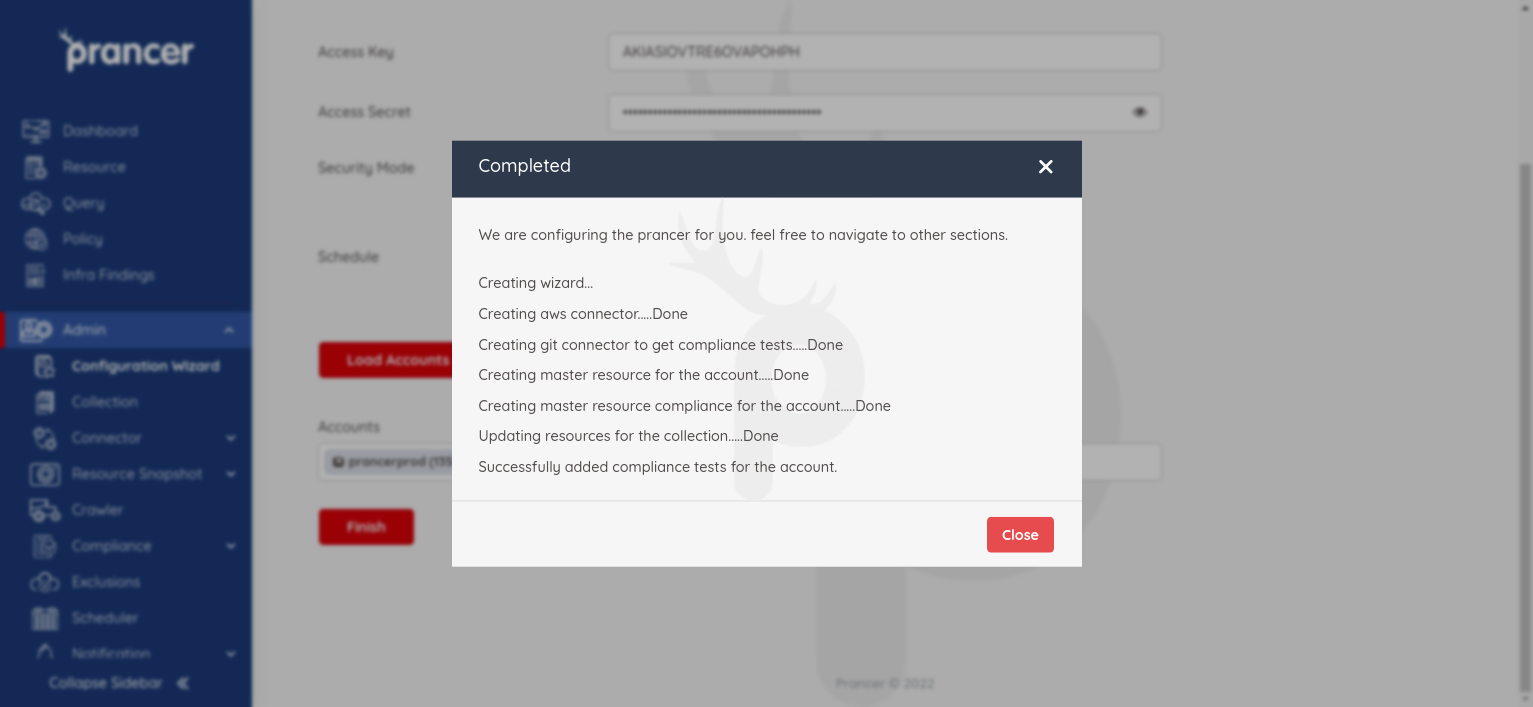
Results land in Infra Findings and details in Logs.
Tip: Pair this wizard with an ADO build pipeline using the PAC CLI so every PR is scanned before merge.
Next steps
- PAC CLI in CI/CD — block PRs that introduce critical findings.
- Wizard — IaC GitHub Enterprise — same flow for GitHub Enterprise.
- Drift Detection — compare scanned IaC to the live cloud.