Documentation / Tools and Integrations
Microsoft Sentinel Backend Integration
Microsoft Sentinel Backend Integration
Stream Prancer pentest results into your Microsoft Sentinel workspace as CEF-formatted logs. Once configured, every PAC run pushes its findings to the workspaces you select — ready for Sentinel detection rules and analytics.
Before you start
- An Azure connector configured in Prancer with permission to list Log Analytics workspaces.
- A Microsoft Sentinel workspace with the Common Event Format (CEF) data connector enabled.
- Owner / Contributor on the resource group hosting the workspace.
Integration flow
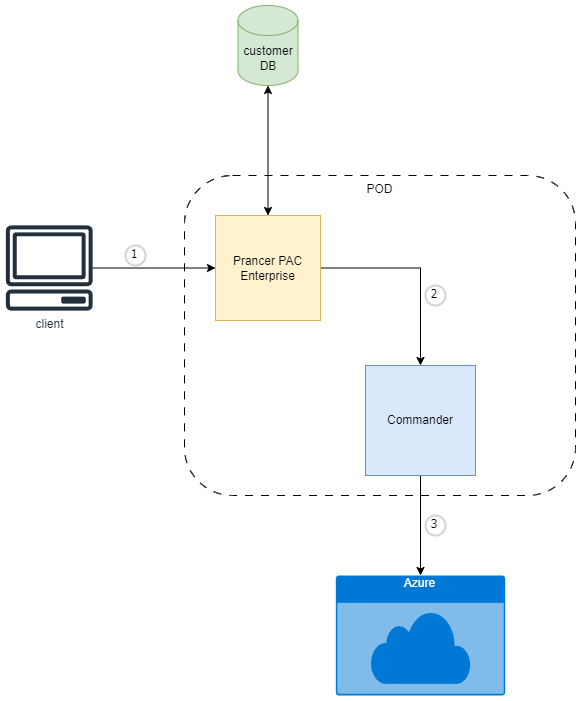
1. List valid workspaces — Prancer's Commander Service uses the Go SDK to enumerate workspaces accessible by your Azure connector. 2. Select workspaces — pick one or more workspaces. Selections are persisted in MongoDB and tied to the connector.
Push logs
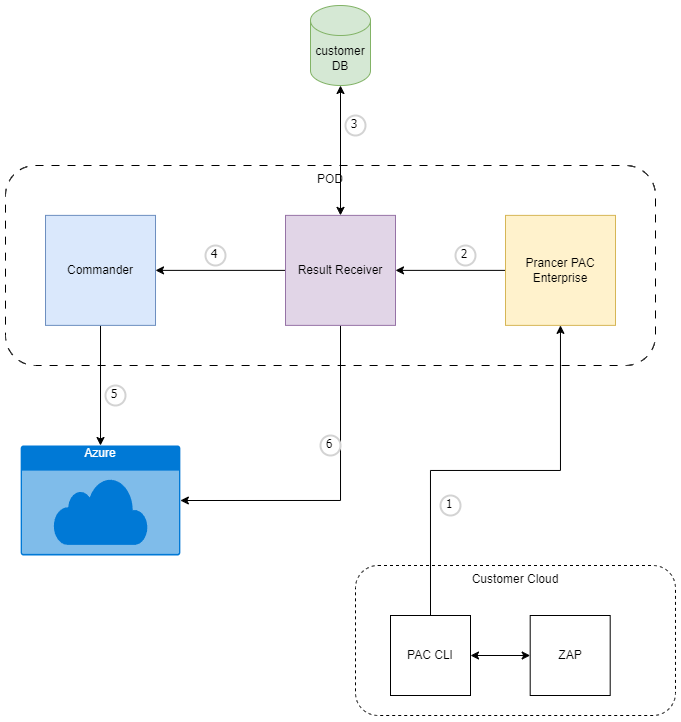
When a PAC pentest finishes, the Result Receiver Service transforms findings to CEF and ingests them into each selected Sentinel workspace.
Sentinel connector format
Add a connector file of type: sentinel to the collection:
{
  "fileType": "structure",
  "type": "sentinel",
  "connector": "azureconnector1",
  "workspaces": [
    {
      "workspaceid": "<workspaceid>",
      "workspacename": "<workspacename>",
      "ResourceGroup": "<RG>"
    }
  ]
}
| Field | Description |
| --- | --- |
| connector | The Azure connector that has access to the workspace. |
| workspaces[].workspaceid | Sentinel workspace GUID. |
| workspaces[].workspacename | Display name of the workspace. |
| workspaces[].ResourceGroup | Resource group hosting the workspace. |
Tip: You can target multiple workspaces (e.g. SecOps and Audit) from a single Prancer connector by adding more entries to workspaces.