Documentation / Pentesting as Code (PAC)
PAC for GCP Cloud
PAC for GCP Cloud
Run an autonomous pentest against a GCP-hosted application. PAC generates a YAML manifest, provisions a Google Kubernetes Engine (GKE) scanner via your Cloud Function, runs the test, and ships findings to the Pentest Findings page.
Before you start
You'll need:
- A GCP Service Account JSON with these roles:
- Cloud Functions Service Agent — manage Cloud Function resources.
- Kubernetes Engine Developer — manage Kubernetes objects.
- Service Account User — run as the SA.
- IAM Workload Identity Pool Viewer — read pools.
- Secret Manager Viewer — read secret metadata.
- A deployed GCP Cloud Function that Prancer uses to manage GKE — see GCP Cloud function setup.
- The
defaultVPC network must exist *(only if creating a new GKE cluster)*. - *(For authenticated scans)* secrets stored in GCP Secret Manager.
Open Pentest Wizard from the side menu.
Step 1 — Connect to your GCP tenant
Pick Google Cloud, then reuse an existing connection or click New connection.
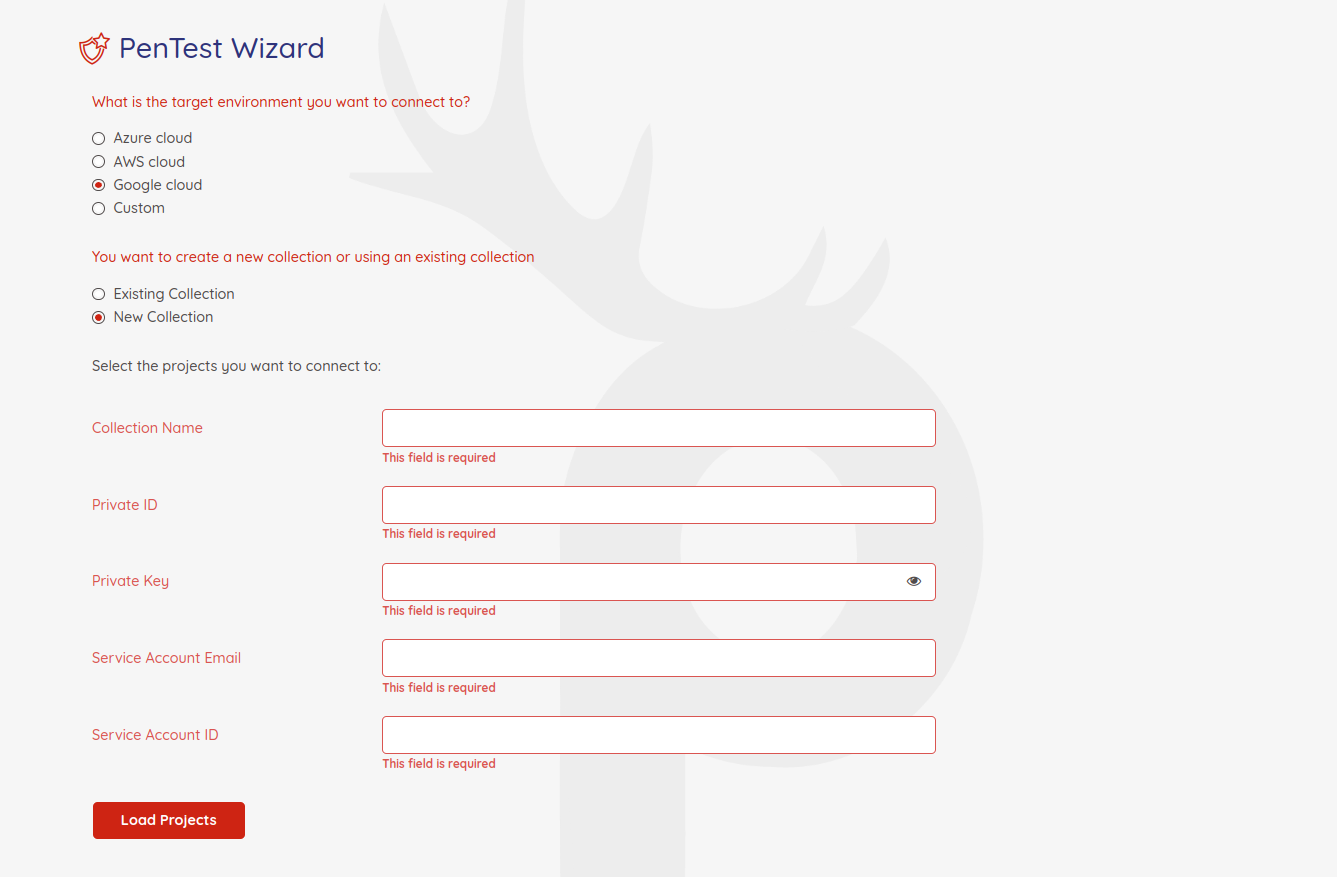
| Field | What to enter |
| ------- | --------------- |
| Collection Name | Label for this pentest project. |
| Private ID | Service account private_key_id. |
| Private Key | Service account private_key. |
| Service Account Email | client_email. |
| Service Account ID | client_id. |
Warning: never paste the private key into a config file or public repo. Store it in the Vault and reference it.
Click Load Projects, pick projects, Next.
Step 2 — Application information
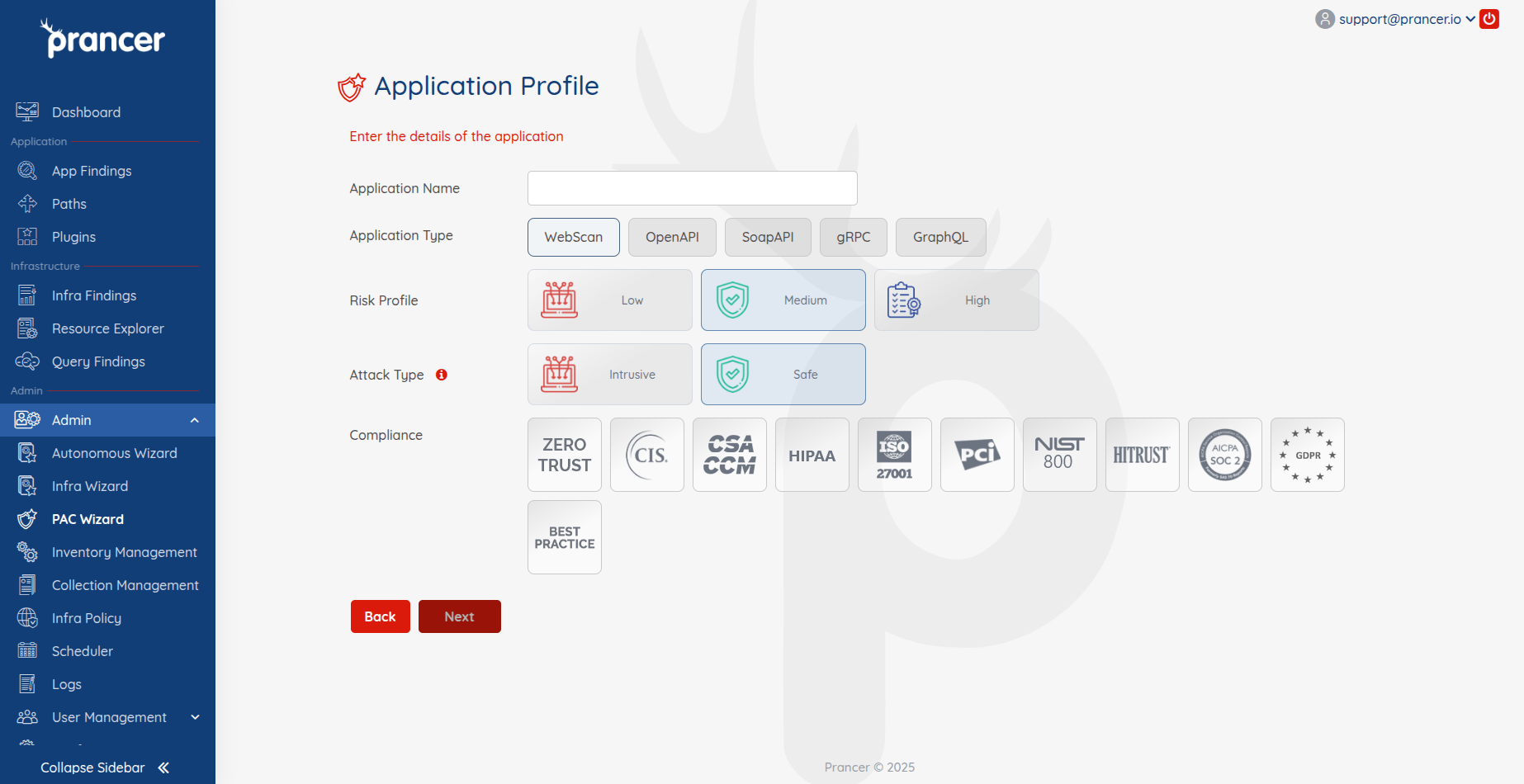
| Field | Notes |
| ------- | ------- |
| Application Name | Identifier. |
| Application Type | Web, Open API, SOAP. |
| Risk Level | Safe, Attack, or Standard. |
| Compliance | Standards to label and filter findings. |
| Schedule | One-time or recurring. |
| Scanner Instance | Stop or delete after the run. |
Note: scanners run on Google Kubernetes Engine (GKE).
Step 3 — Scanner setup
Option A — Existing GKE cluster
!Existing GKE cluster selection
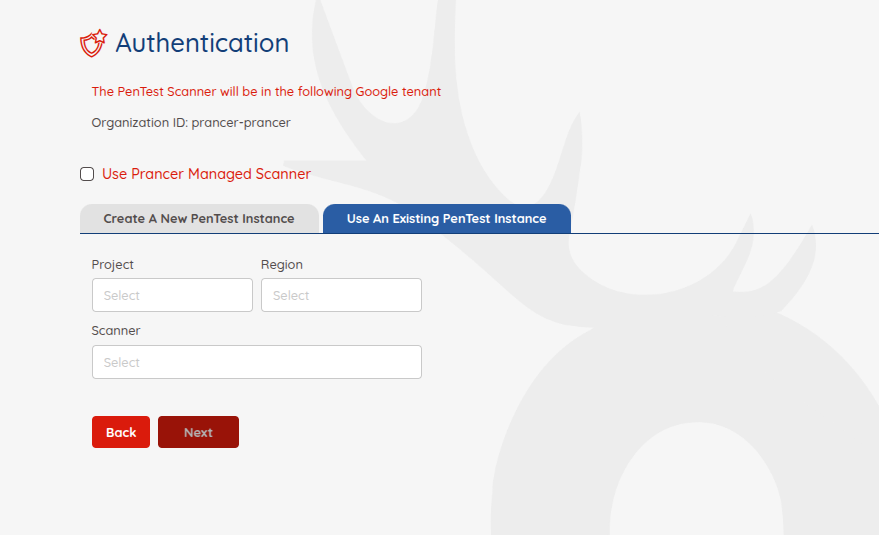
Pick the project, region, and cluster.
Option B — New cluster
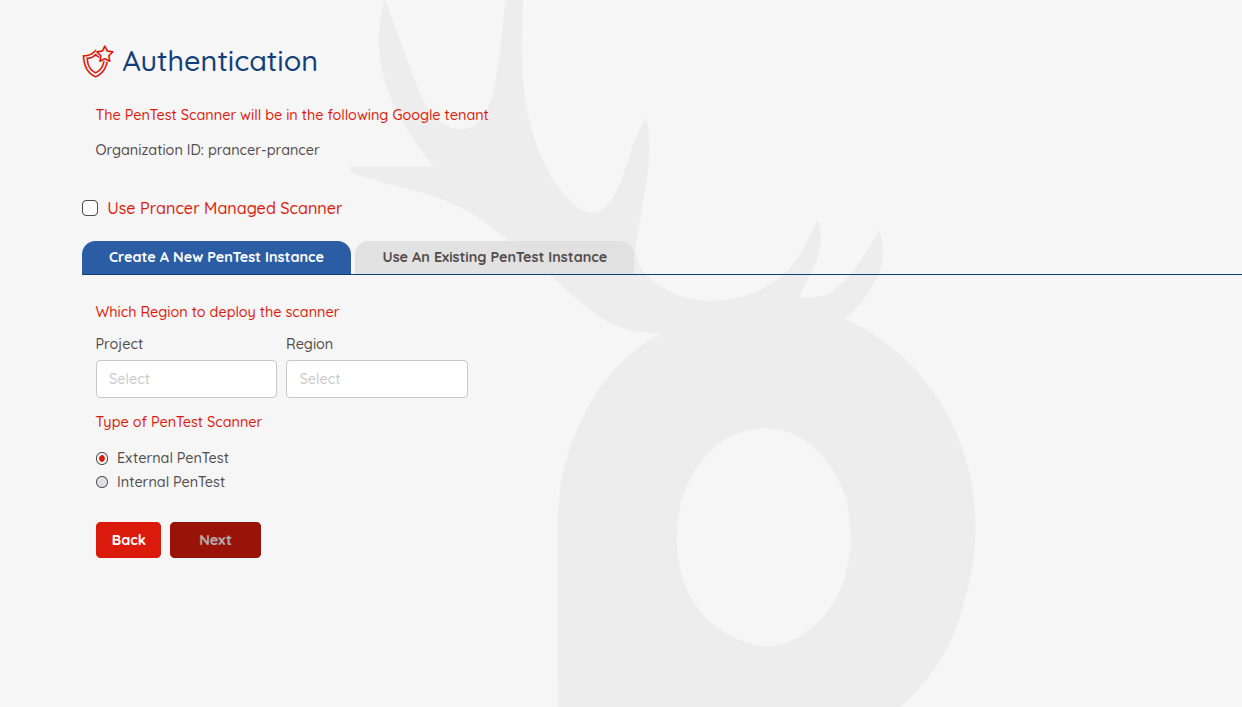
Pick the project and region.
Warning: the default VPC network must exist for new-cluster provisioning to succeed.
Step 4 — Target selection
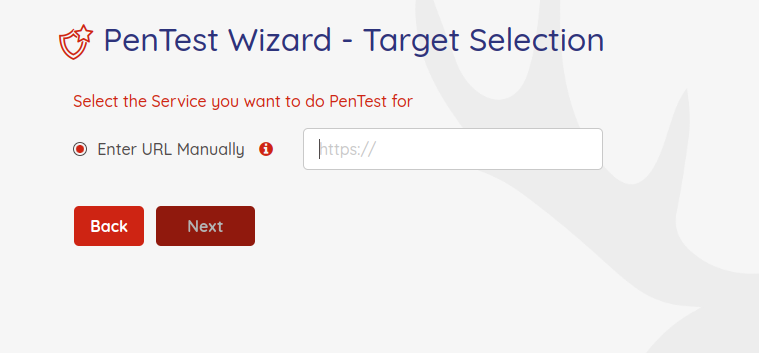
Enter the URL by hand. The endpoint can be hosted in GCP or anywhere on the public internet.
Image gap: GCP CSPM auto-discovery isn't yet wired to this wizard step. Consider adding it to match the AWS/Azure flows.
Step 5 — Authentication
Supported methods: Form-based, HTTP / NTLM, JSON-based, JWT Token.
Warning: PAC never stores secrets. Credentials are pulled from GCP Secret Manager at runtime.
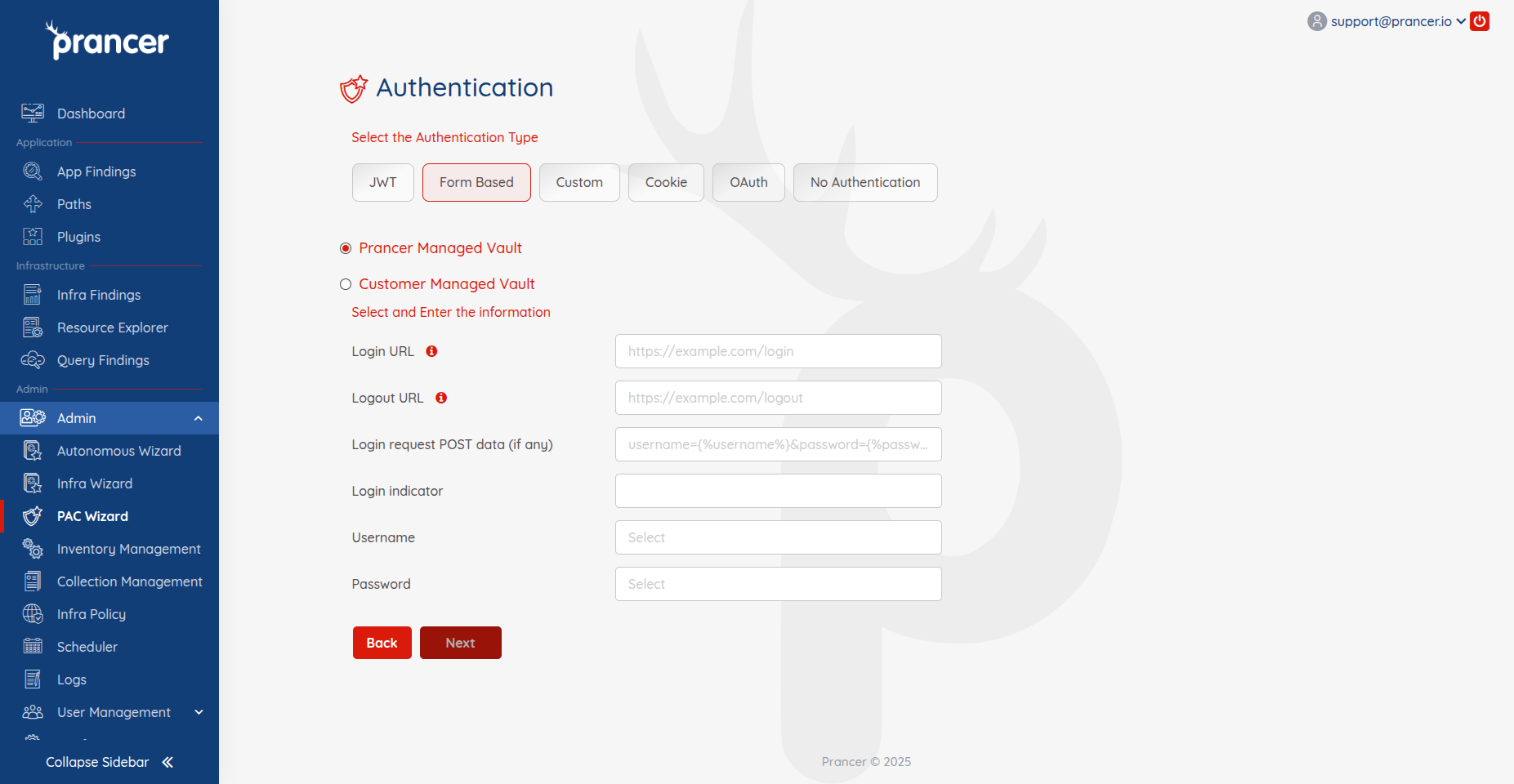
Pick the project that holds the secrets.
Example — Form-based auth
| Field | Example |
| ------- | --------- |
| Login URL | /login |
| Logout URL | /logout |
| Login Request Post Data | identity={%username%}&password={%password%} |
| Login Indicator | A string only present when logged in. |
| Username / Password | Pick from Secret Manager. |
Step 6 — Review the PAC file
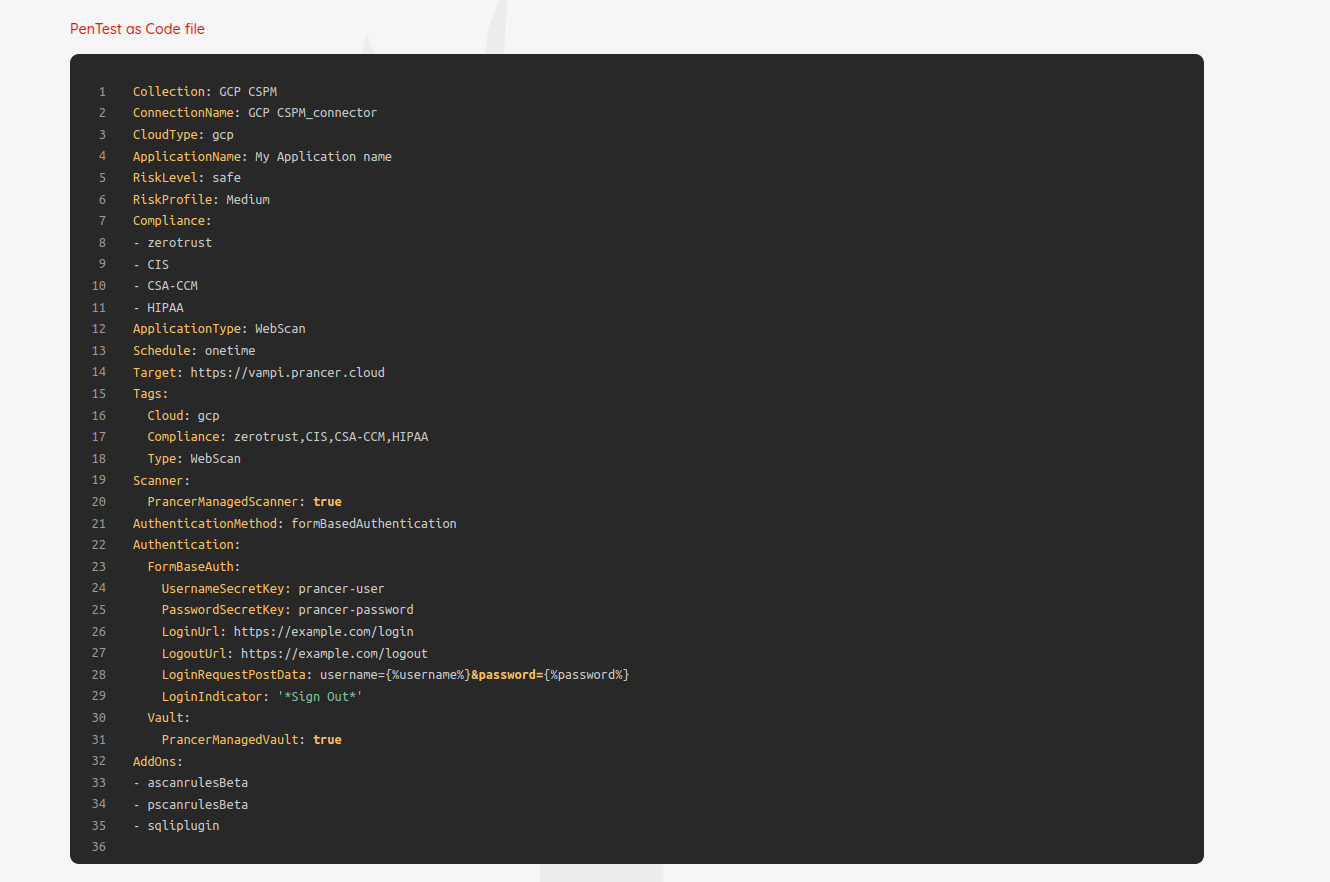
Tweak the cluster name and other defaults to match your conventions, then click Submit.
What happens next
PAC calls your GCP Cloud Function, which provisions the GKE cluster, runs the pentest, and pushes findings to the Pentest Findings page.
Next steps
- GCP Cloud Function setup — required prerequisite.
- Triage findings
- Reference: PAC file