Documentation / Reporting and Insights
Report Generator
Report Generator
The Report Generator turns PAC pentest results into branded HTML / PDF reports using customisable templates. Upload a template once per collection, then generate a styled report from any PAC file in that collection.
Before you start
- A completed PAC pentest with findings — see Pentest Findings.
- Permission to upload templates in the target collection.
- Basic familiarity with HTML / Go templates if you intend to customise the layout. The full template data model is documented in PDF Generator Structure.
Customise the HTML template
The default template is a standard HTML file with a few Go-template directives. The most common change is the severity filter — for example, only render Critical and High findings:
<!-- User can specify severity condition here -->
{{if or (eq $value.Risk "critical") (eq $value.Risk "high")}}
<div class="page">
Tip: Keep an unmodified copy of the default template as a fallback. Validate small edits by uploading and re-generating the report rather than rewriting the template in one pass.
Generate a report
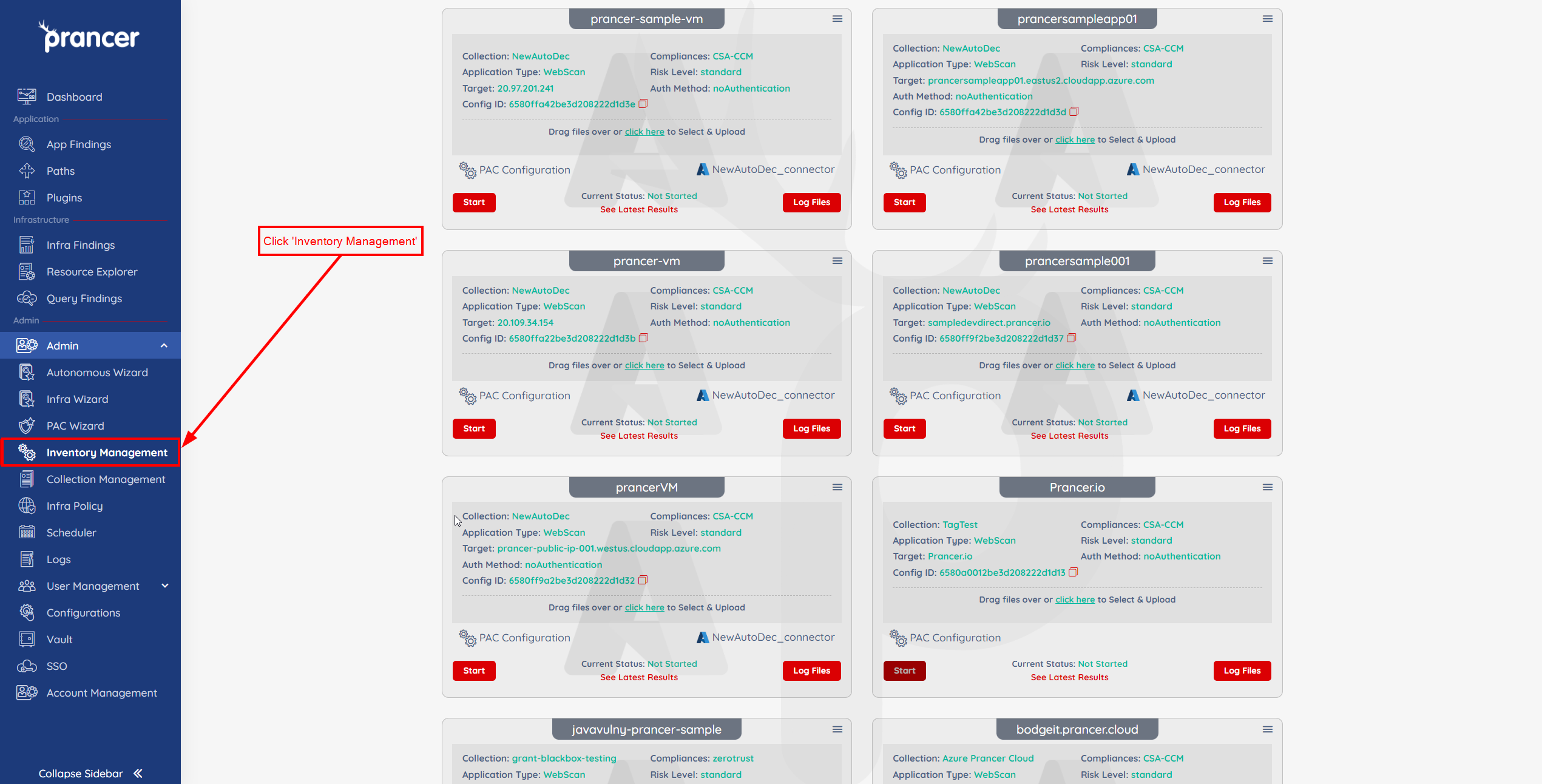
1. Open Inventory Management. !Inventory Management
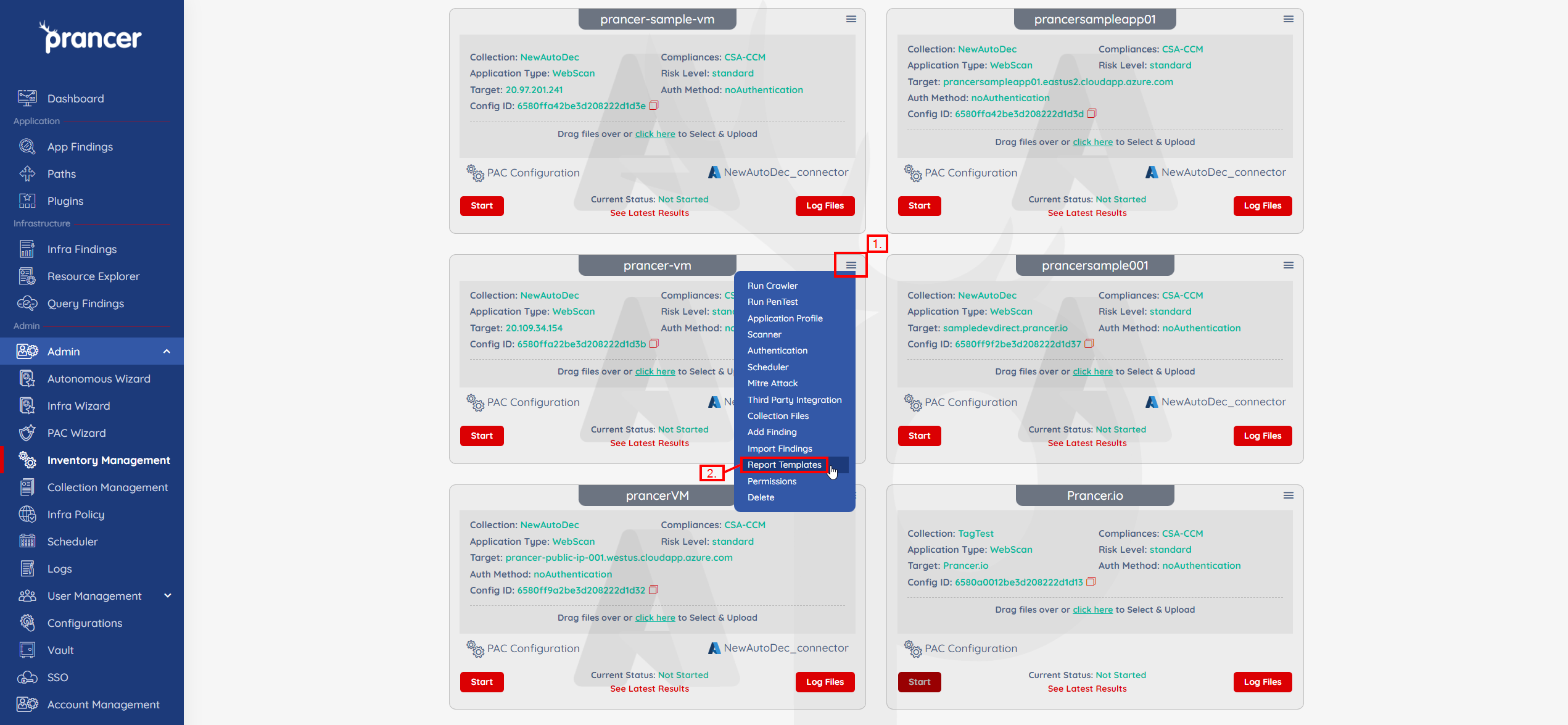
2. Open the collapsed sub-menu and select Report Templates. !Report templates
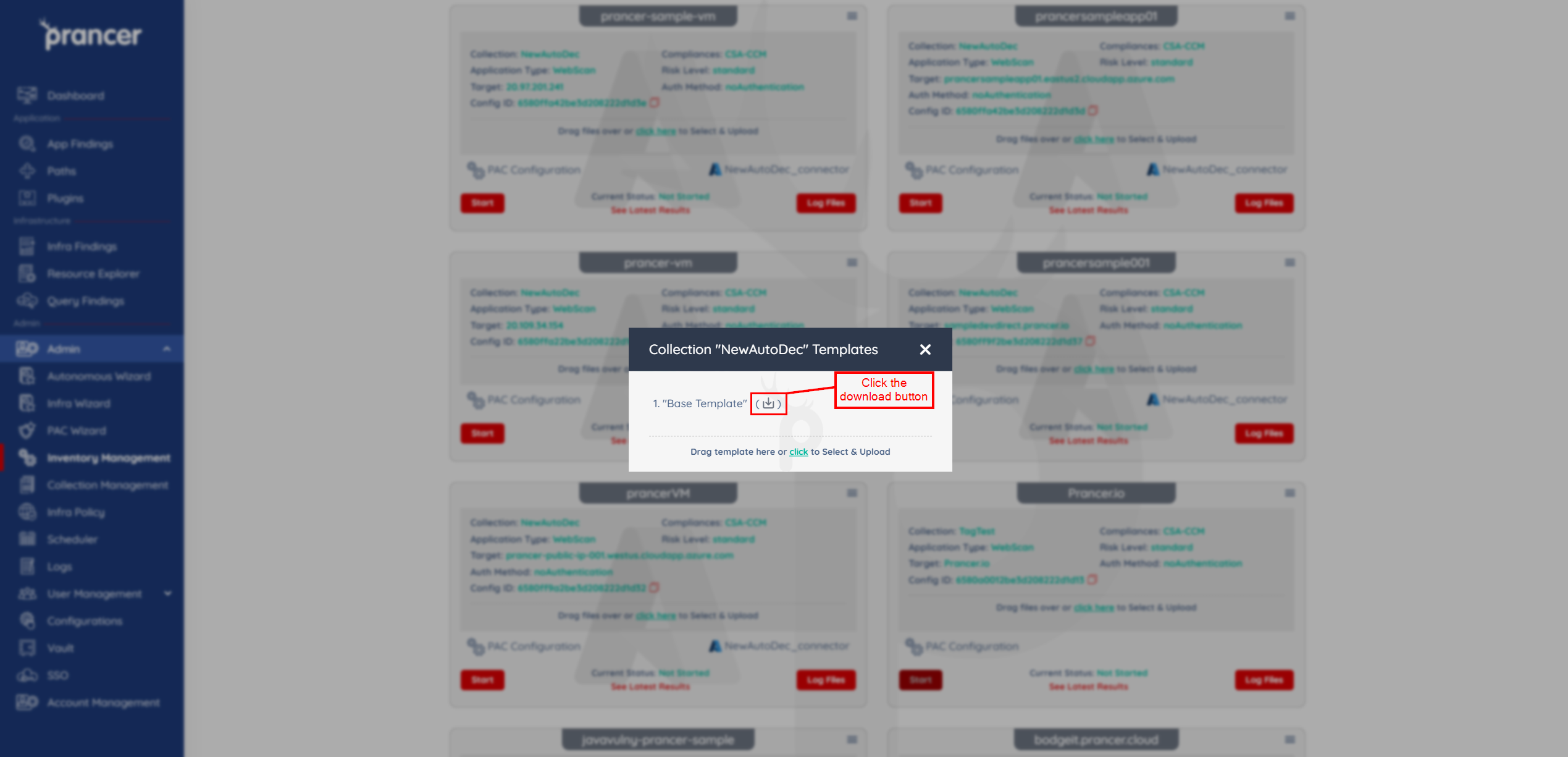
3. Click Download to grab the default template, then edit it locally. !Download default template
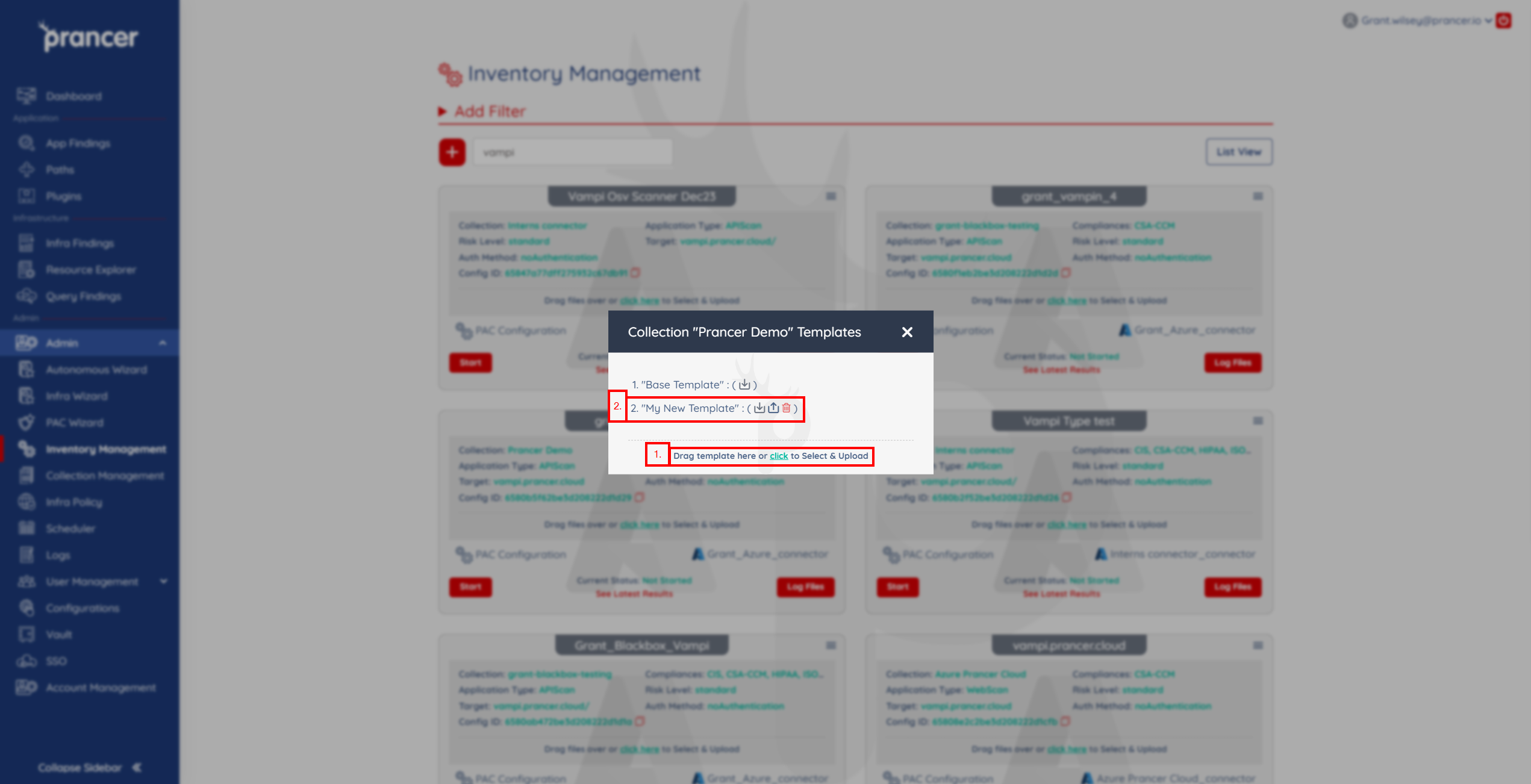
4. Upload your edited template (drag & drop or file picker). It becomes available for every PAC file in the same collection. Use the inline icons to download, update or delete previously uploaded templates. !Upload template
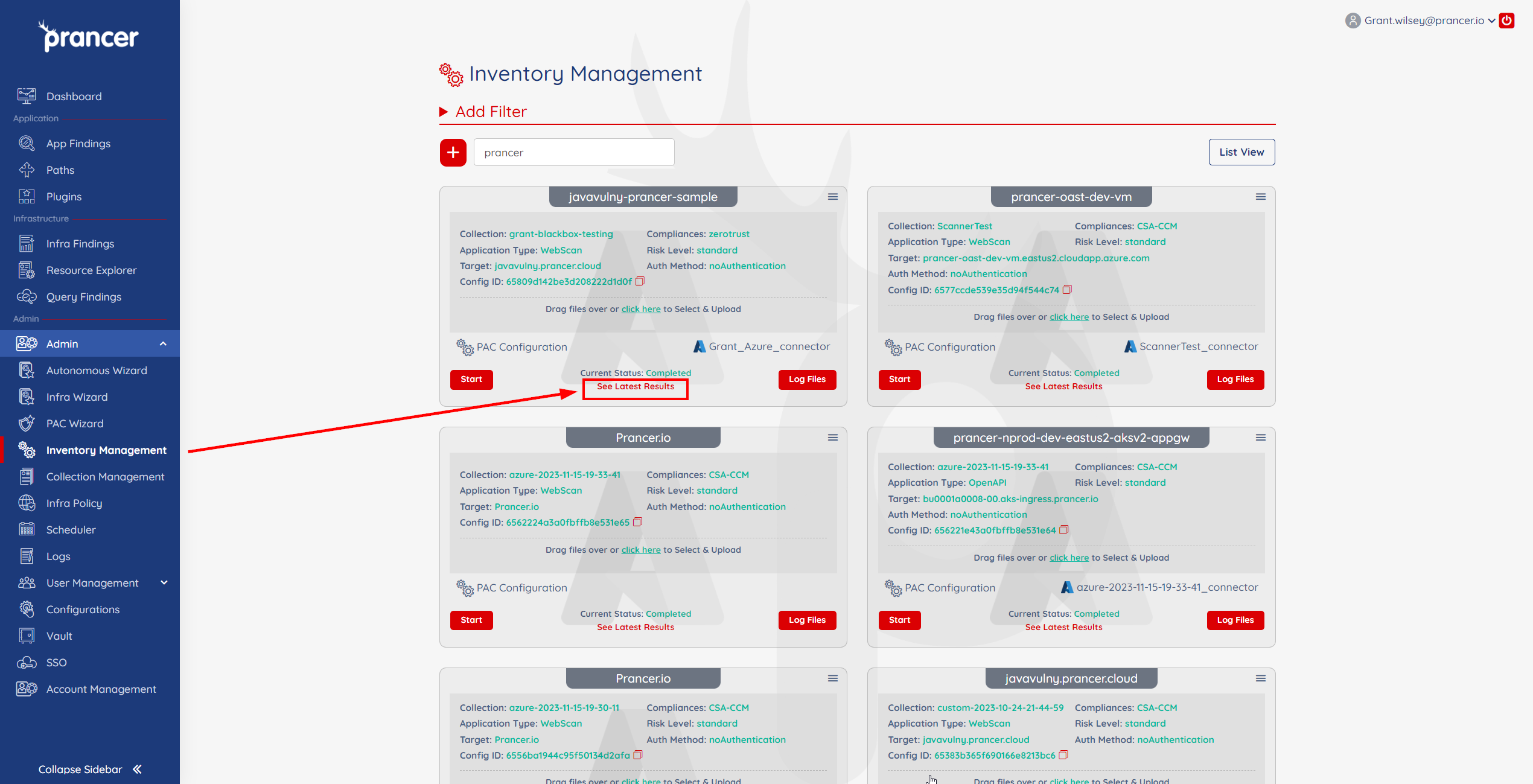
5. Open the PAC file's findings via See Latest Results. !See latest result
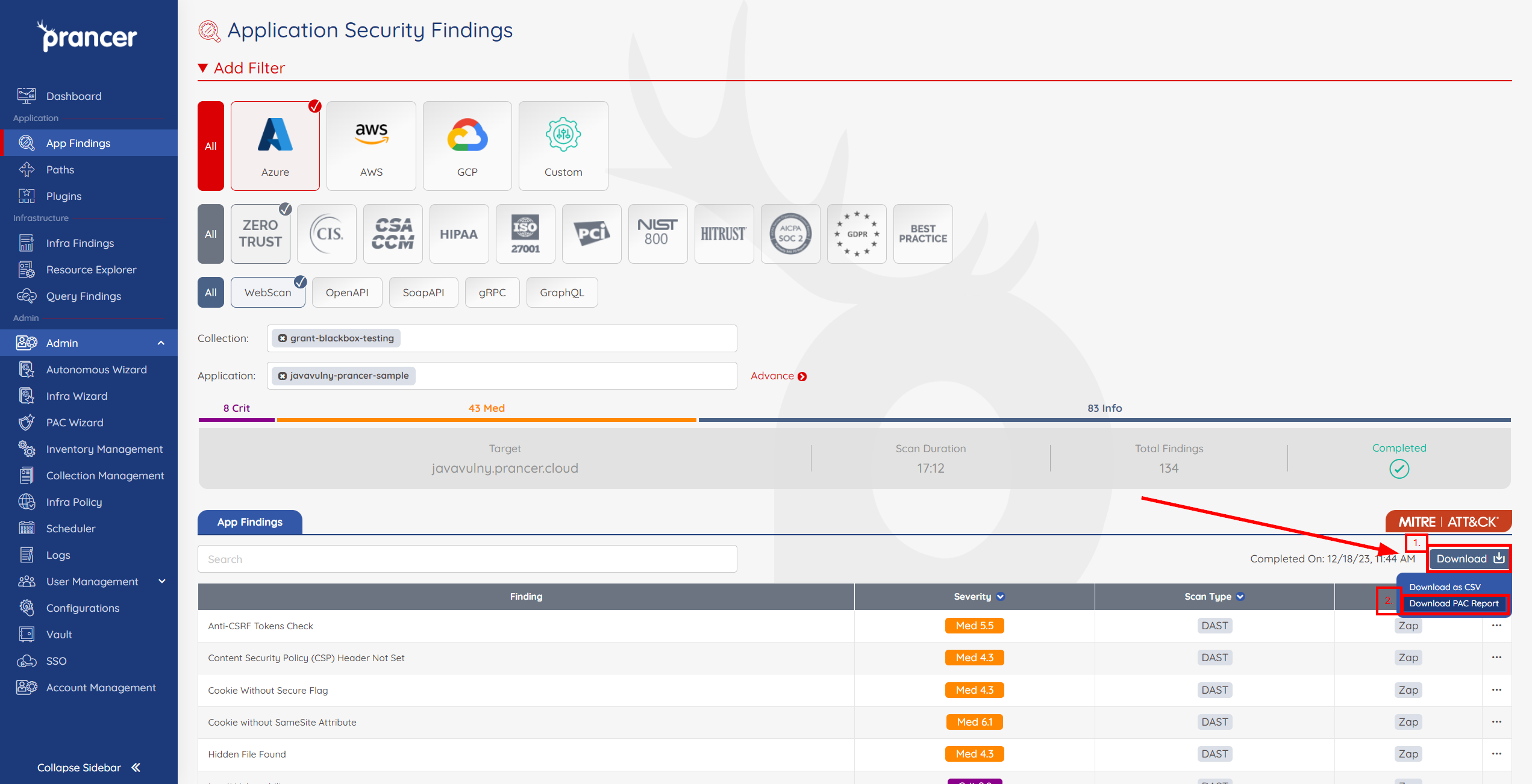
6. From the Findings page, click Download → Download Pac Report. !Download PAC report
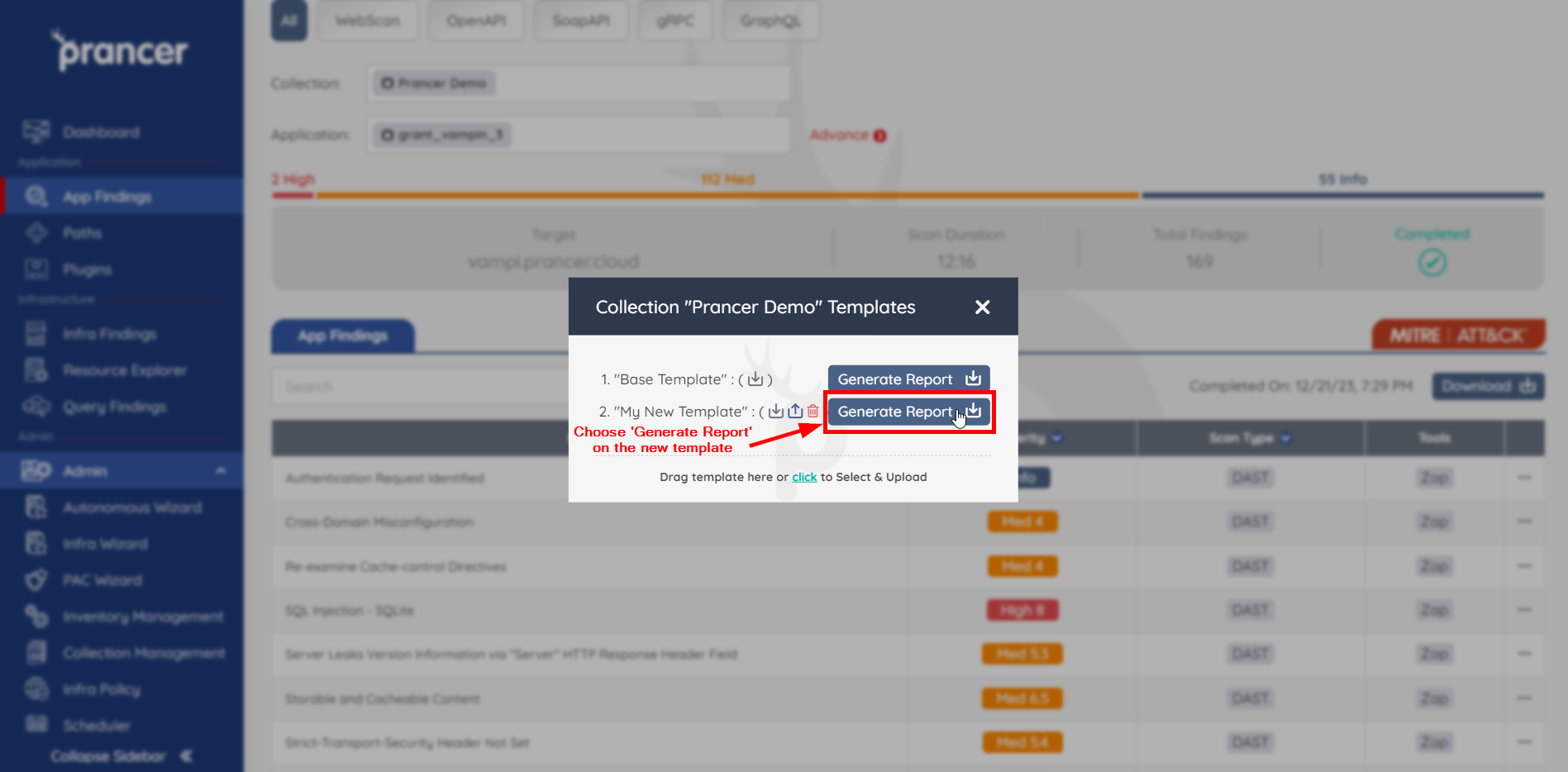
7. Pick your template and click Generate Report to download the formatted output. !Generate report
Note: Templates are scoped to a single collection. If you maintain multiple tenants/collections, upload the template into each one separately.