Documentation / Home
User-Management
User Management
Tenant admins invite teammates, define roles, and control exactly what each user can see and do in Prancer.
Note: newly registered users have no permissions by default — you must assign them a role before they can do anything in the portal.
Before you start
- You're an admin in the tenant.
- You know what each role should be allowed to do — define roles first, invite people second.
What admins can do
- Create, edit, and delete roles.
- Invite staff users by email.
- Assign and change role assignments.
- Monitor user status (Pending vs. Registered).
- Remove users.
Manage roles
Open User Management → Roles to see existing roles, create new ones, and edit permissions.
Create a role
1. Click Add Role. 2. Enter a role name. 3. Tick the permissions this role should grant. 4. Click Save.
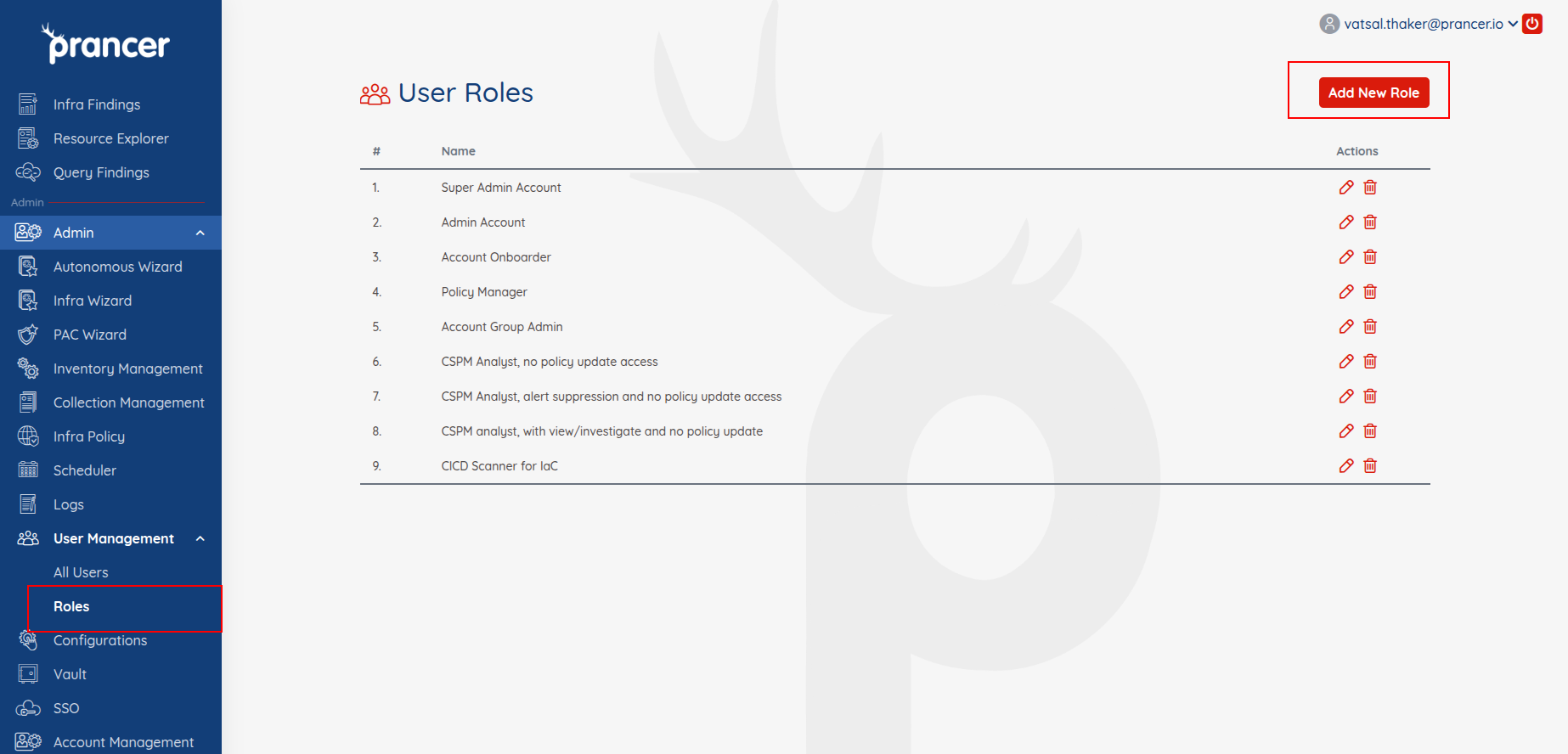
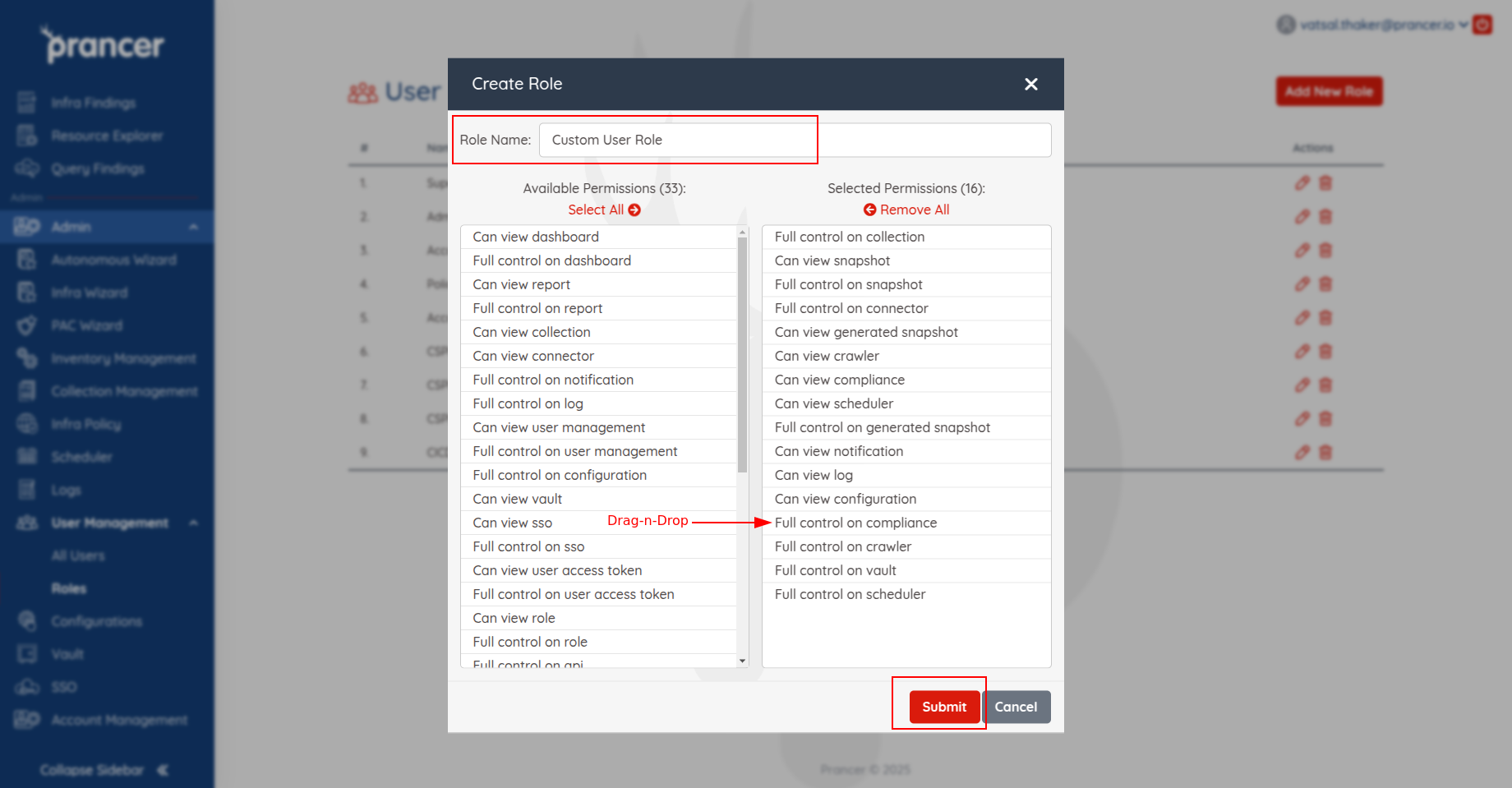
Tip: start with broad roles (viewer,pentester,admin). Add fine-grained roles only when you really need them — fewer roles is easier to audit.
Invite a user
1. Open User Management → Staff and click Invite. 2. Enter the user's email address and send the invitation. 3. The user receives an email with a registration link. 4. After they set a password, their status flips from Pending to Registered.
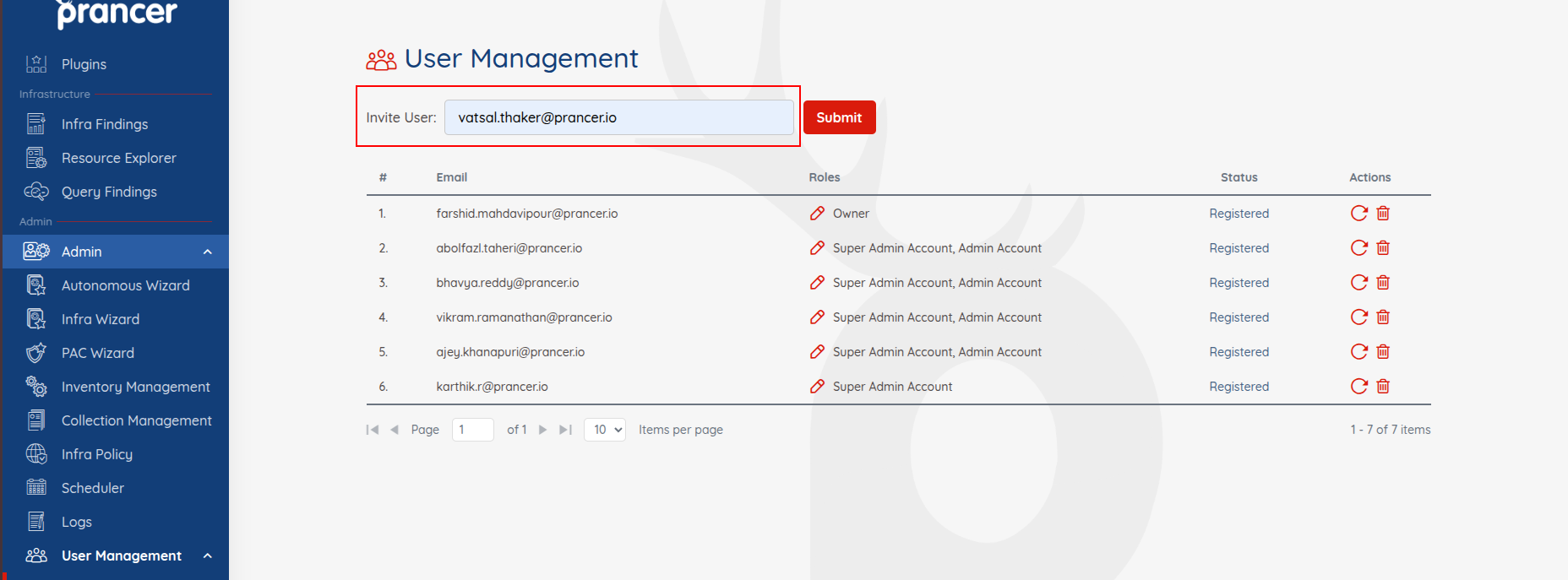
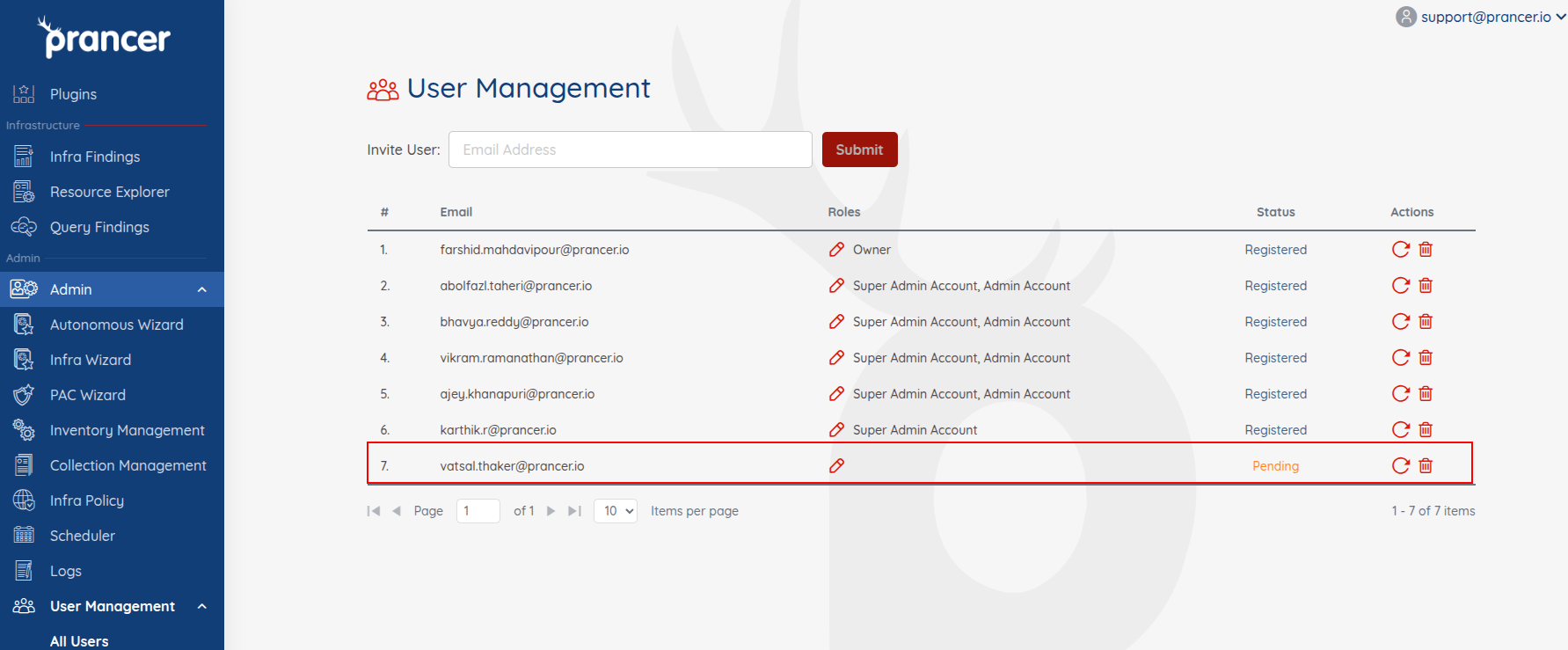
Note: seat counts depend on your subscription plan — see Account Management.
Assign or change permissions
1. Click a user's row in the staff list. 2. Tick or untick roles to grant or revoke access. 3. Click Save.
The user immediately gains (or loses) the corresponding features.
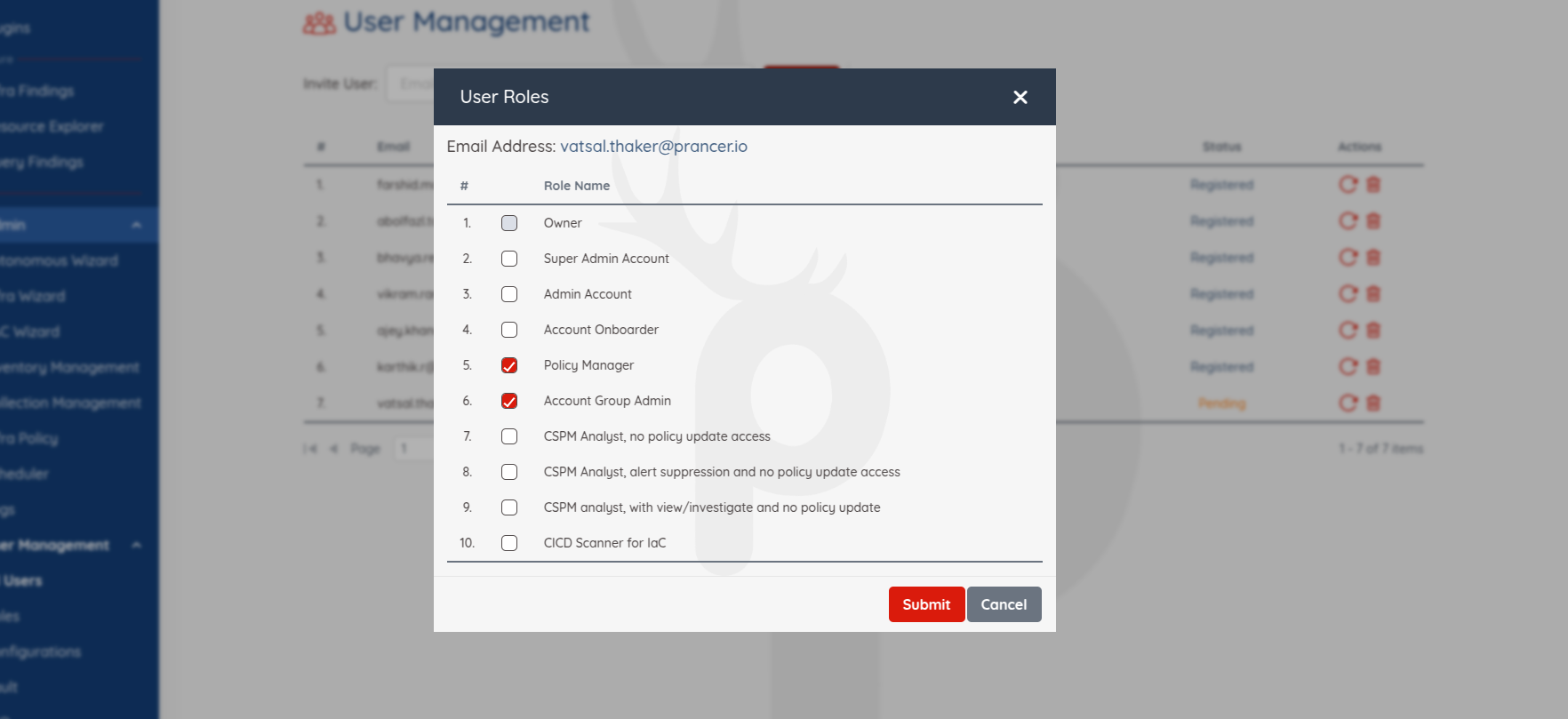
!Permission update confirmation
Next steps
- Enable Single Sign-On so users sign in with corporate Azure accounts.
- Review your subscription seat count.