Documentation / Home
Scheduler
Scheduler
Run Compliance and Crawler jobs on a schedule — once, hourly, daily, weekly, or monthly — without anyone having to click a button.
Before you start
- A collection with at least one connector and master snapshot/compliance file.
- A clear idea of how often the job should run *(start daily, tune from there).*
1. Schedule a job
1. Open the Scheduler page. 2. Click Schedule New Test. 3. Fill in the form (see fields below) and click Submit.
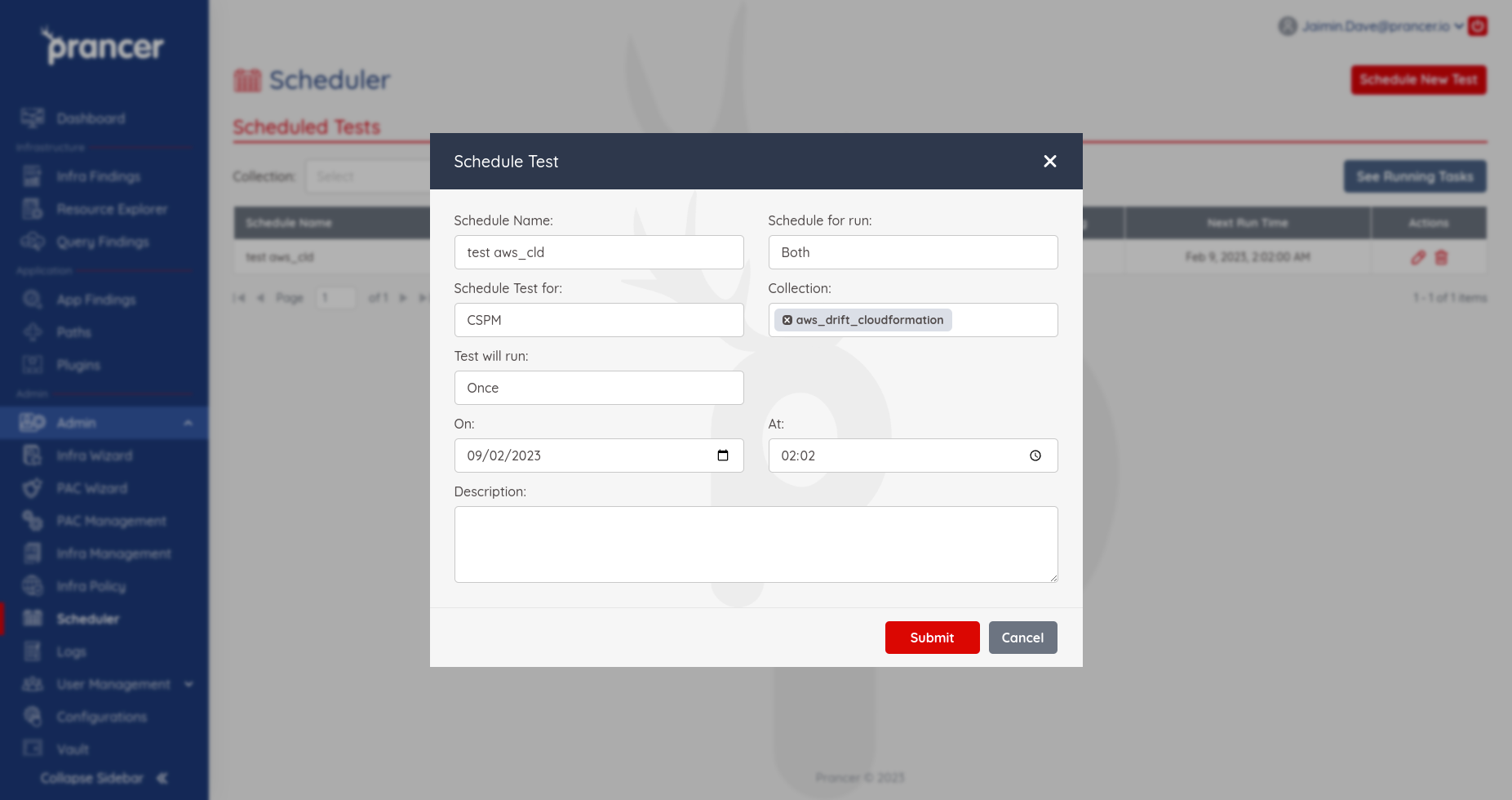
Fields
| Field | What to enter |
| ------- | -------------- |
| Scheduler Name | A descriptive label, e.g. prod-aws-daily-compliance. |
| Container | The collection to run against. |
| Scheduler For Run | Test (compliance), Crawler (snapshot refresh), or Both. |
| Scheduler Test For | IAC, CSPM, or PAC — must match the collection type. |
| Test will run | Once, Hourly, Daily, Weekly, or Monthly. |
| Recur every | Gap between runs. E.g. Daily + 2 = every other day. |
| On | First run date. |
| At | Time of day. |
| Description | Free-text notes for your team. |
Tip: the next run time appears in the schedule list — sanity-check it before walking away.
2. Edit or delete a scheduled job
!Scheduler list with edit/delete actions
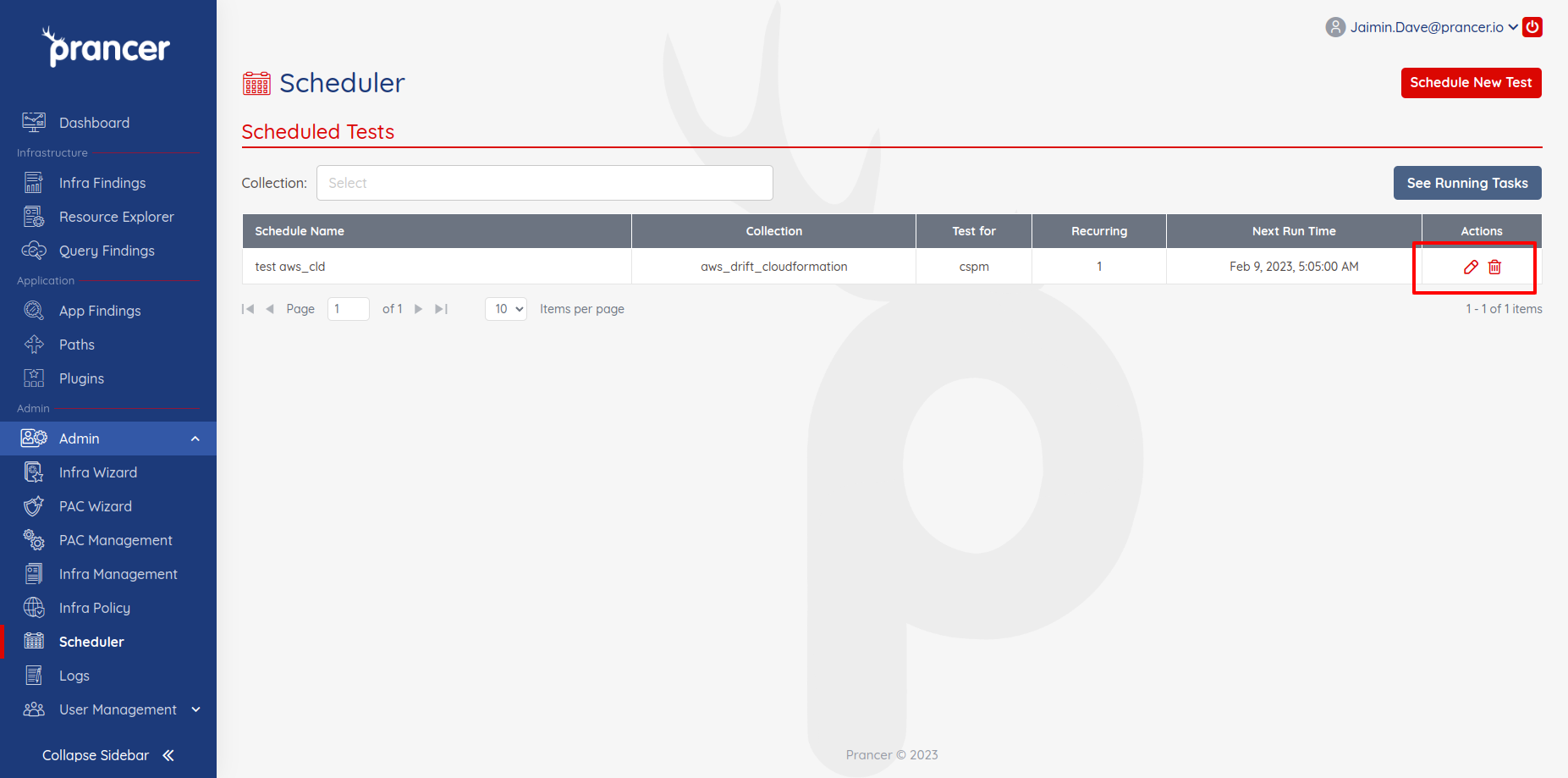
- Edit — pencil icon. Loads the existing config; Submit saves changes.
- Delete — trash icon. Confirm in the dialog to remove.
3. Watch currently running tasks
Click See Running Tasks to see live state.
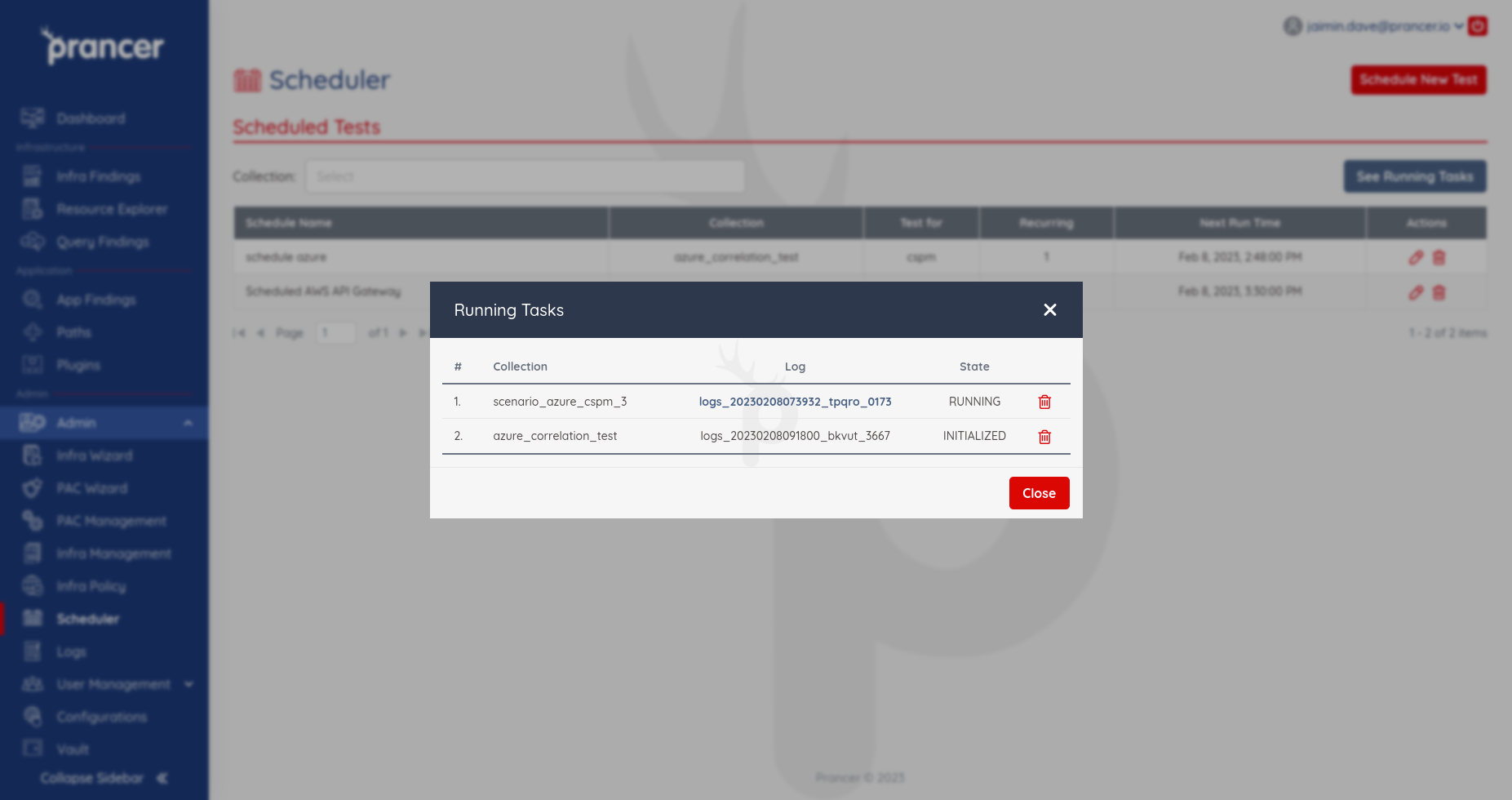
| State | Meaning |
| ------- | --------- |
| INITIALIZED | Triggered, queued for the runner. |
| RUNNING | Actively executing. |
Note: only one task per tenant runs at a time. New jobs queue behind in-flight ones — overlapping schedules won't run in parallel.
Next steps
- Inspect outcomes in Logs.
- Push results to Jira/Slack via Third-party integrations.