Documentation / Home
Third-party Integrations
Third-Party Integrations
Push Prancer findings into the tools your team already uses — ticketing systems (Jira, Azure Boards), chat (Slack, Teams), SIEM (Microsoft Sentinel), and Git providers (GitHub, GitLab, Bitbucket). Configure once per collection and every new finding flows automatically.
Before you start
- A collection you want to wire up.
- Admin/API credentials for the third-party tool *(Jira API token, Azure DevOps PAT, Sentinel workspace, etc.).*
Open the integrations page
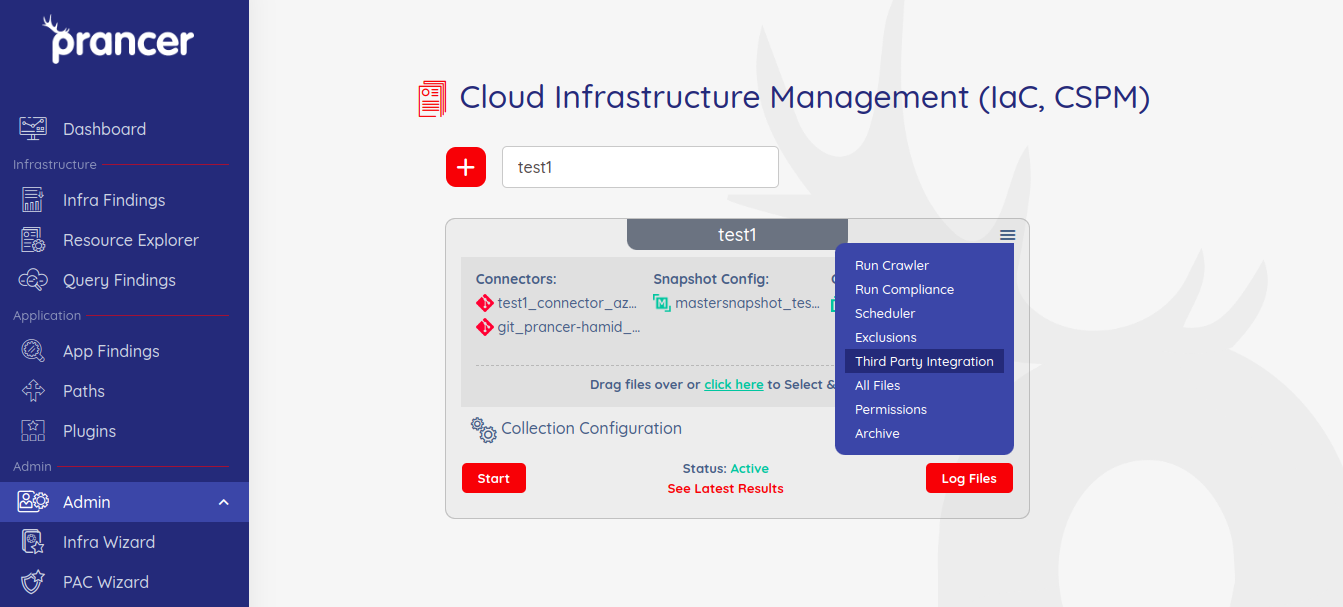
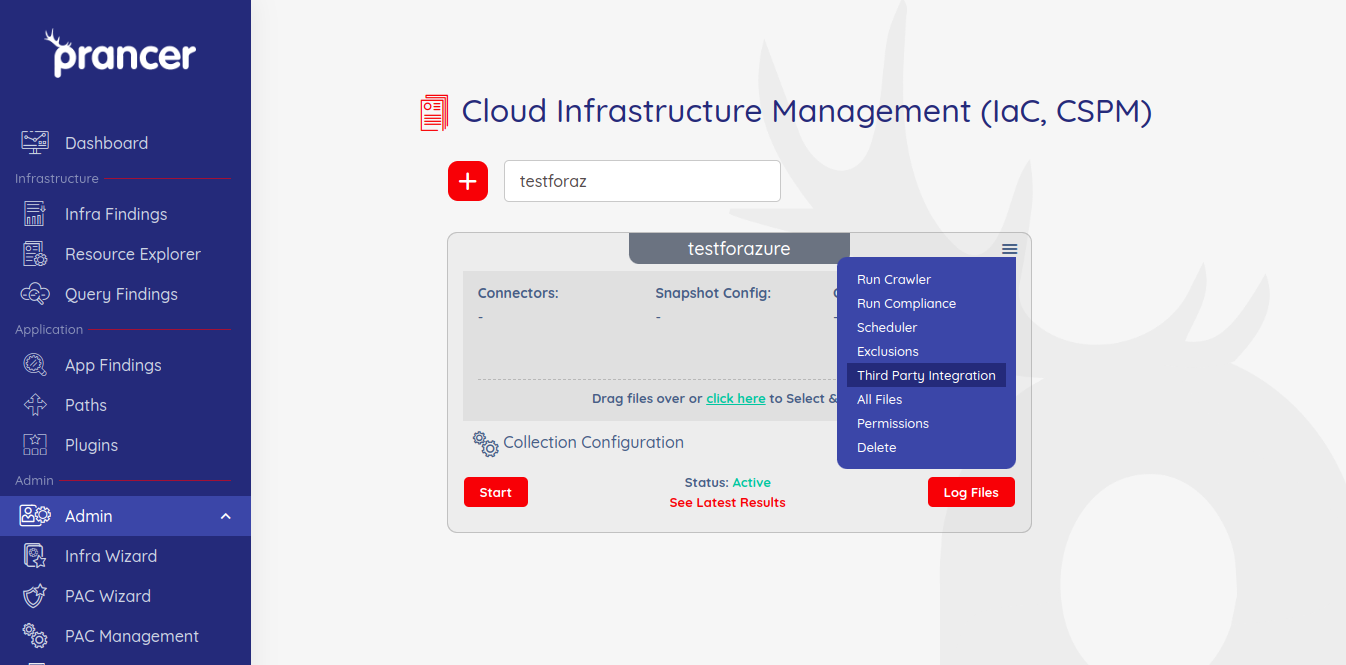
Click the dropdown on a collection and choose Third Party Integrations.
!Collection menu with Third Party Integrations option
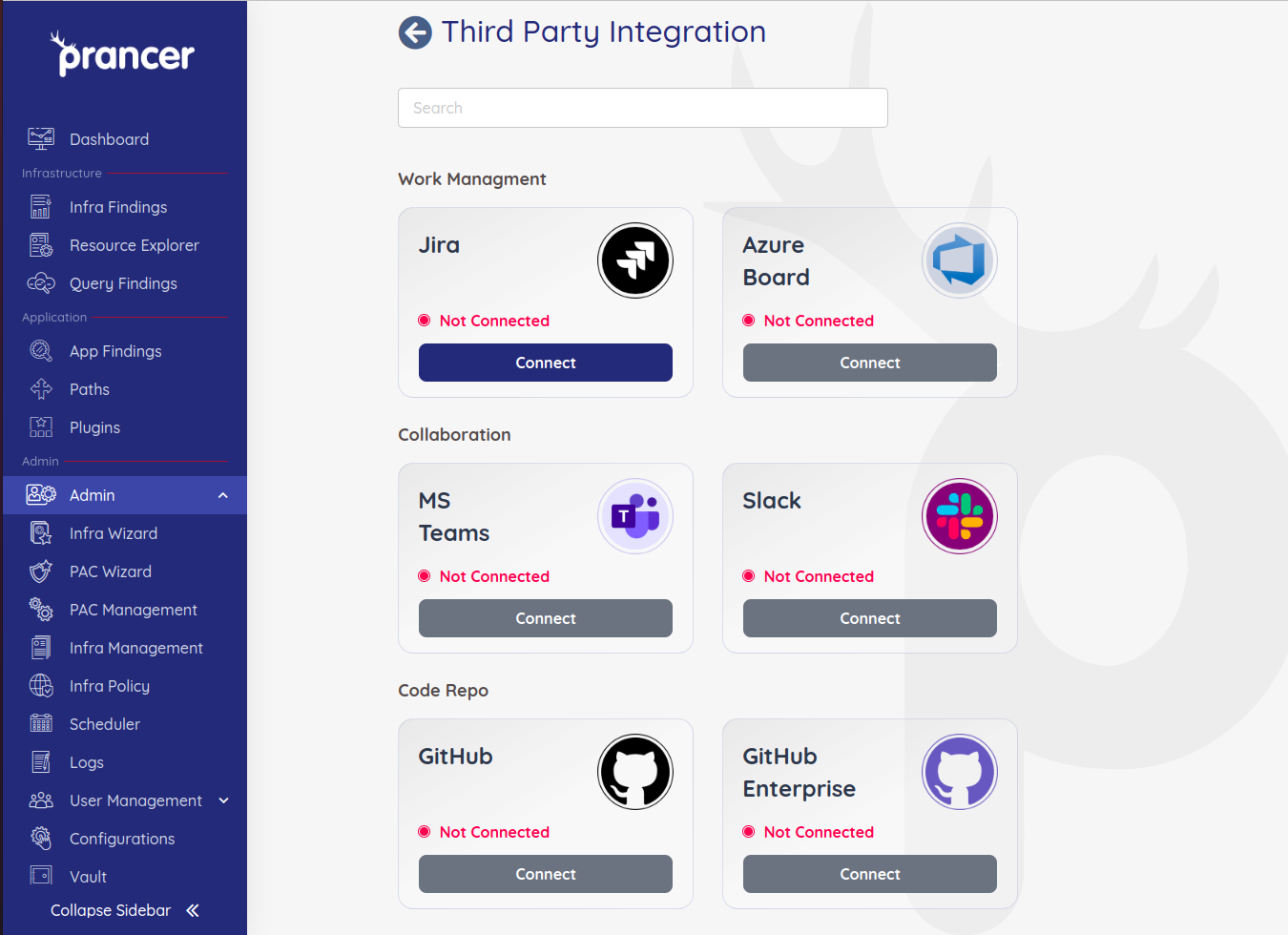
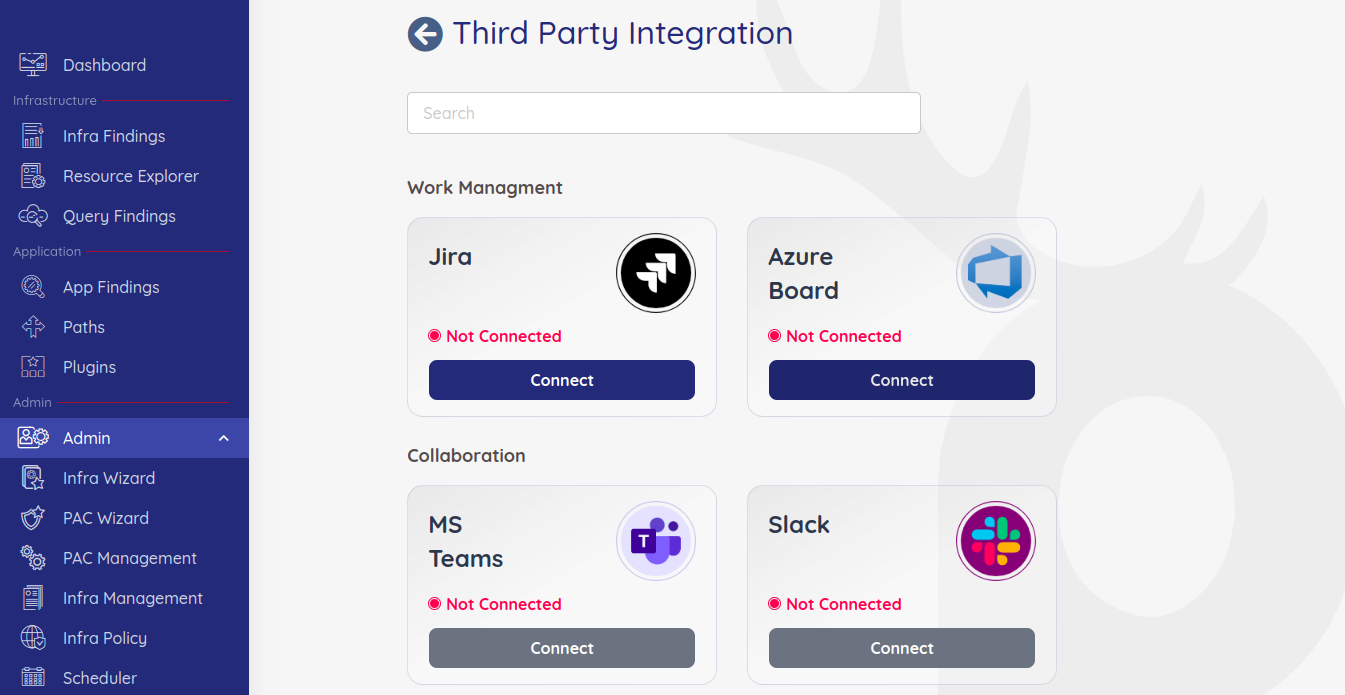
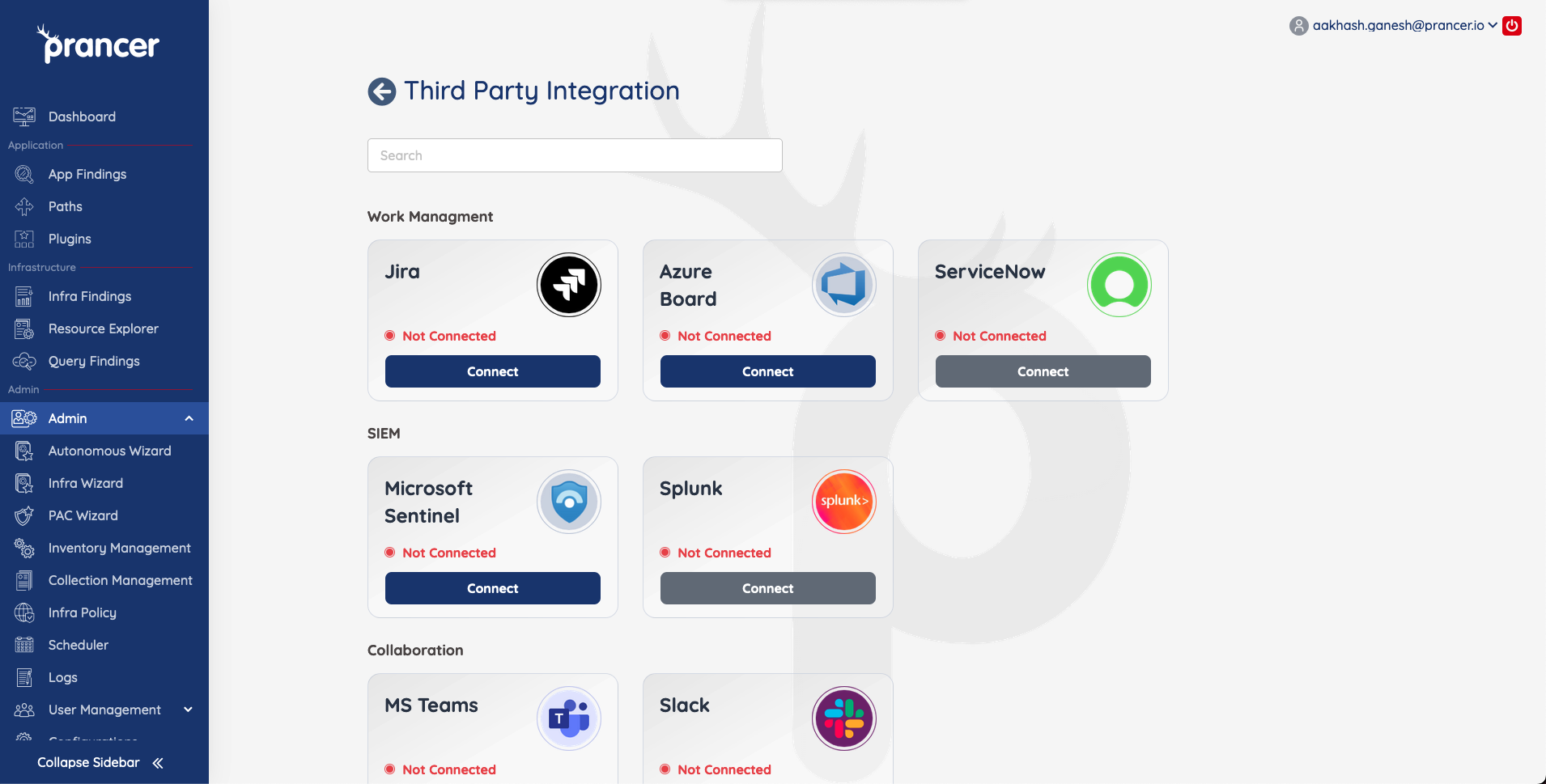
You'll see every integration available — click Connect on the one you want.
!List of available integrations
Ticketing
Jira
Before you start: create an Atlassian API token at id.atlassian.com/manage-profile/security/api-tokens. Copy it immediately — it can't be viewed again later.
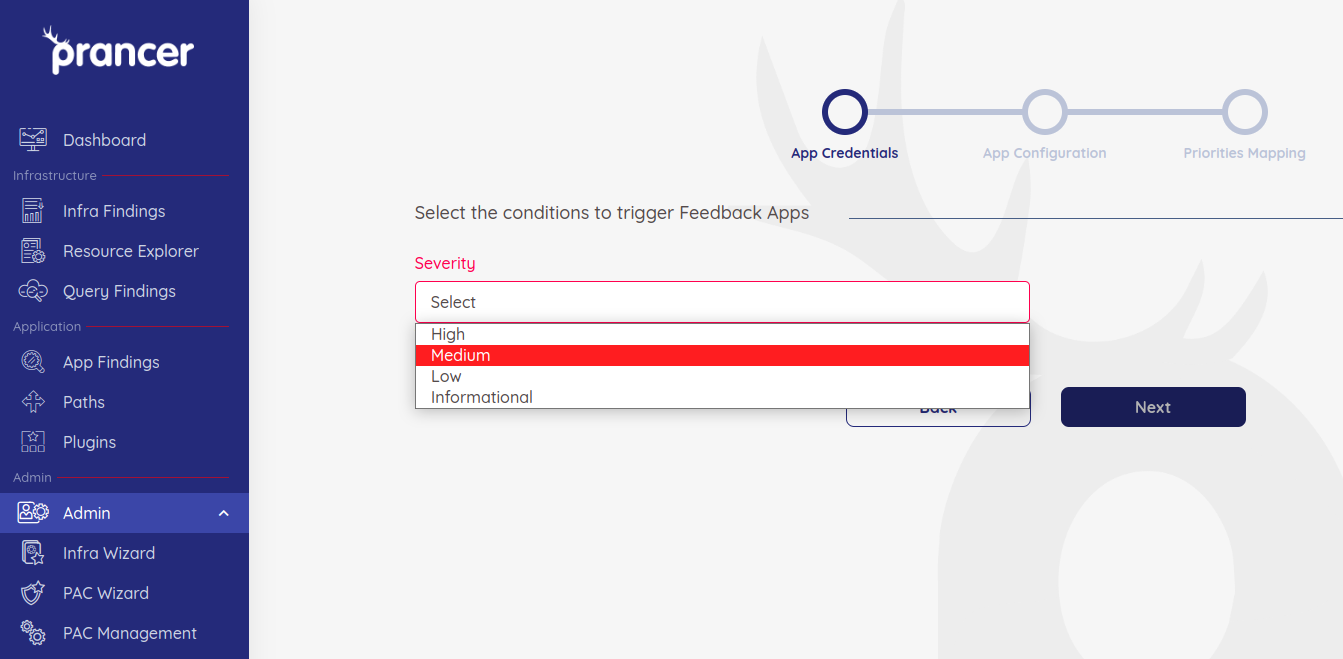
1. Pick the severity threshold — only findings at or above this severity become tickets.
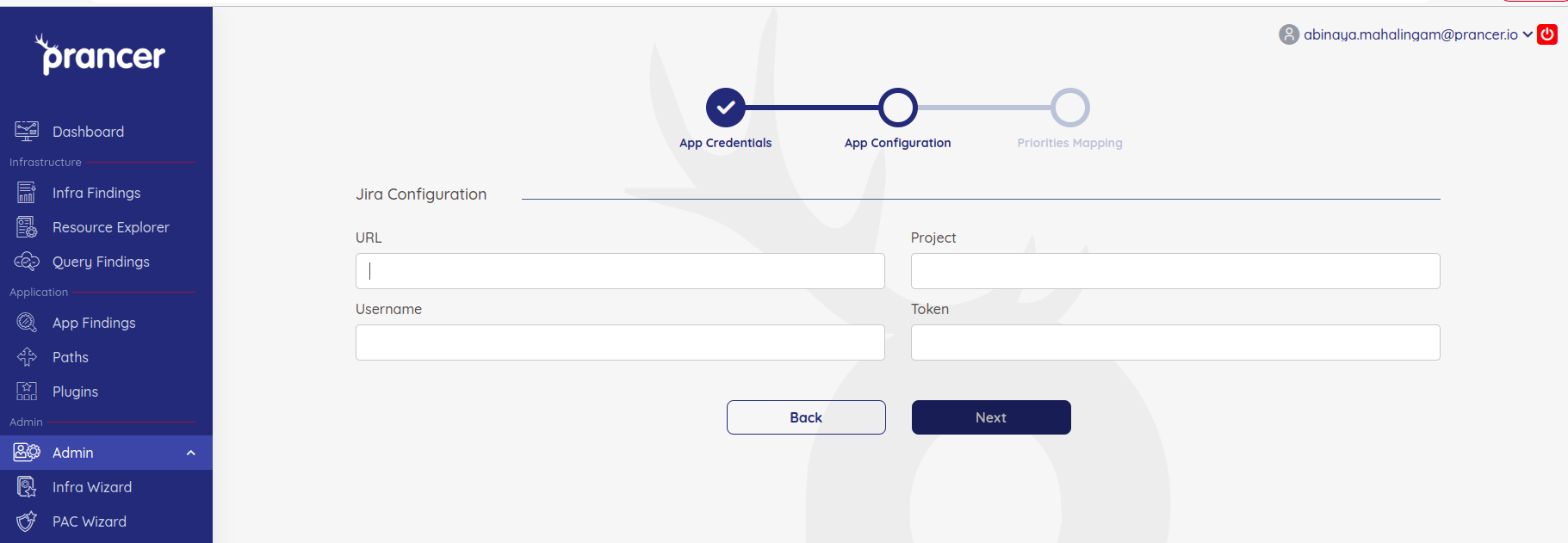
2. Enter the connection details: URL, Project, Username (email), and the API token.
3. After Prancer authenticates, choose the issue type, labels, and default status for new tickets.
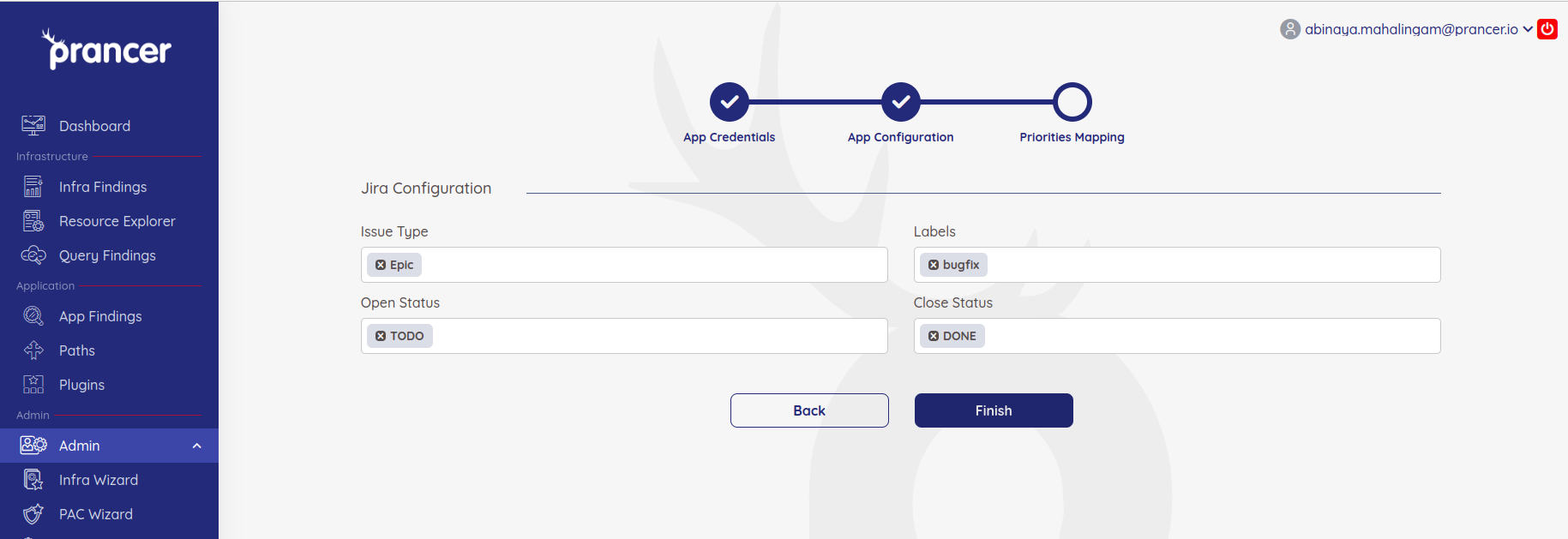
4. Click Finish. Jira now appears as a ticket destination on findings.
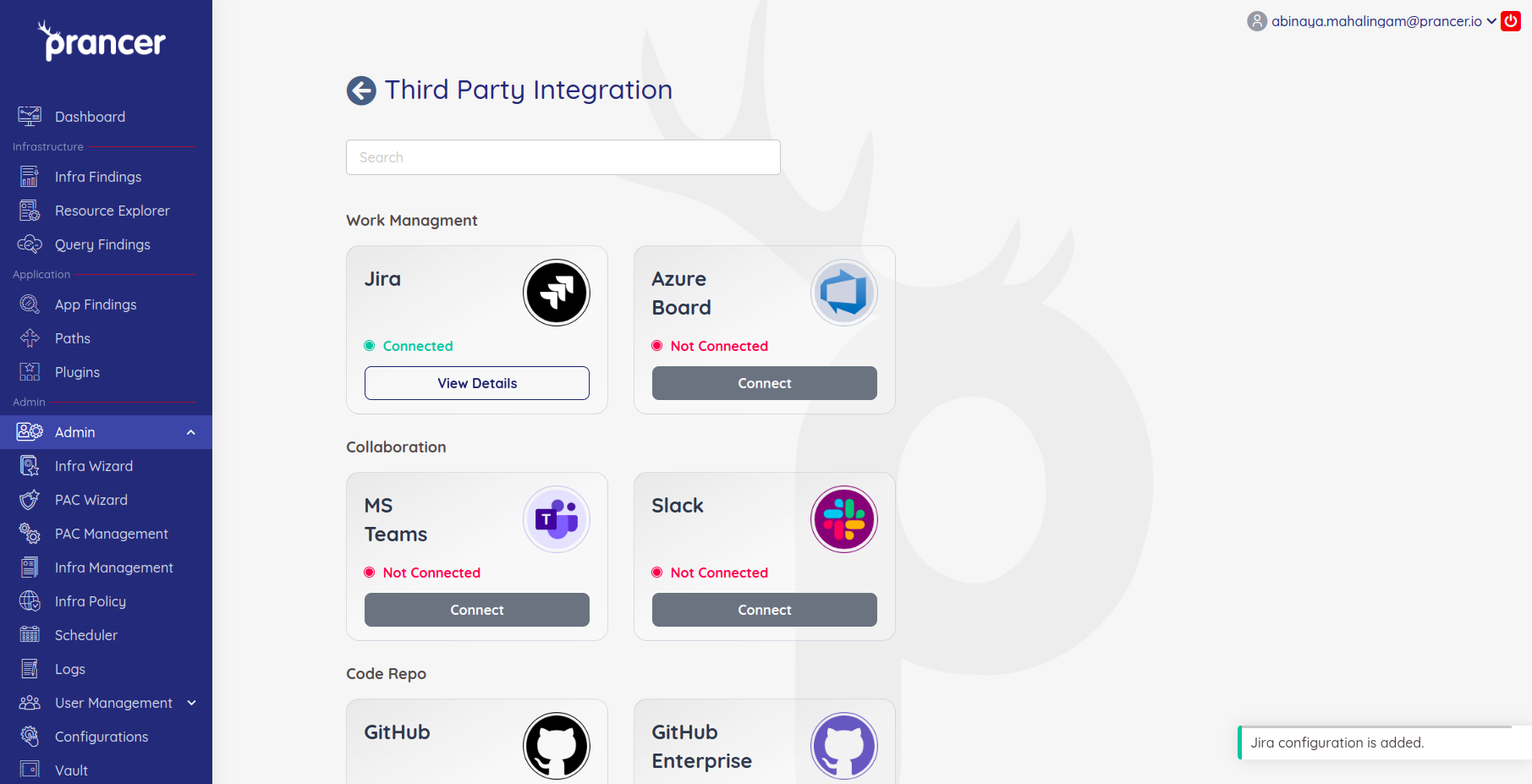
Azure Boards
The flow mirrors Jira.
1. Open Third Party Integrations on the collection.
2. Click Connect on Azure Boards.
3. Pick the severity threshold.
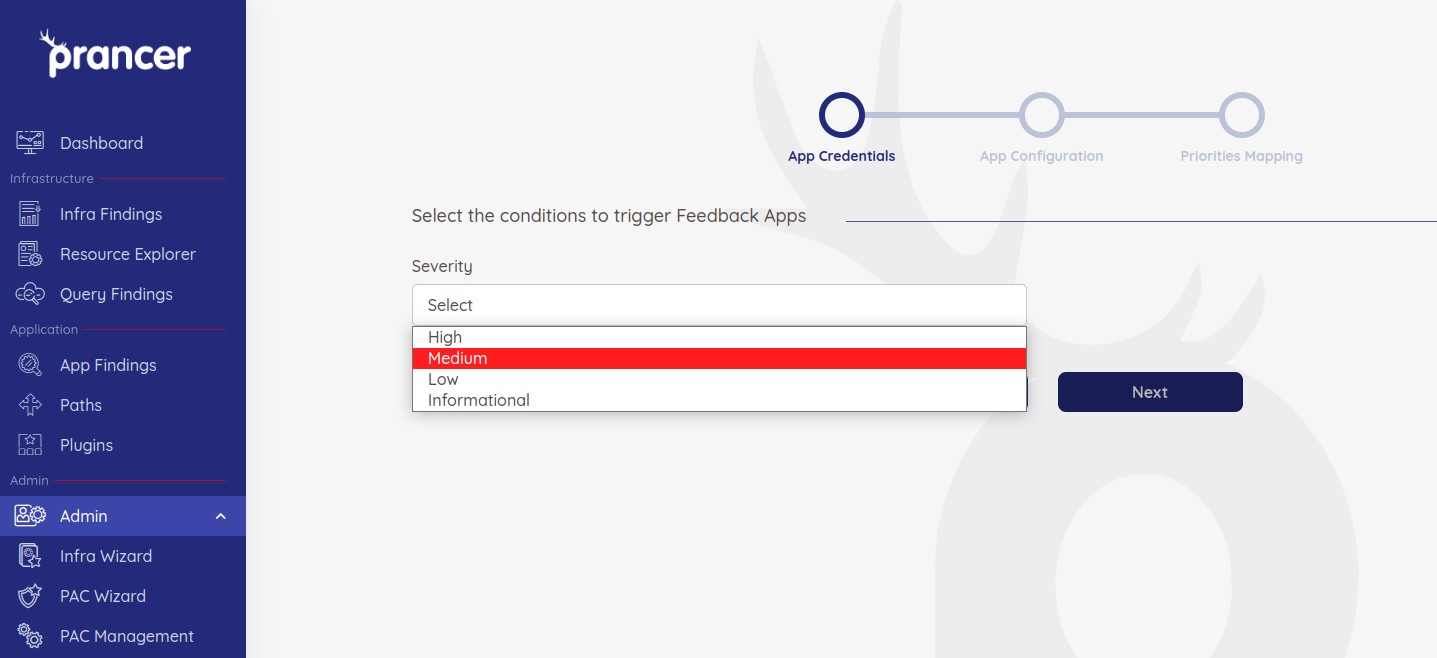
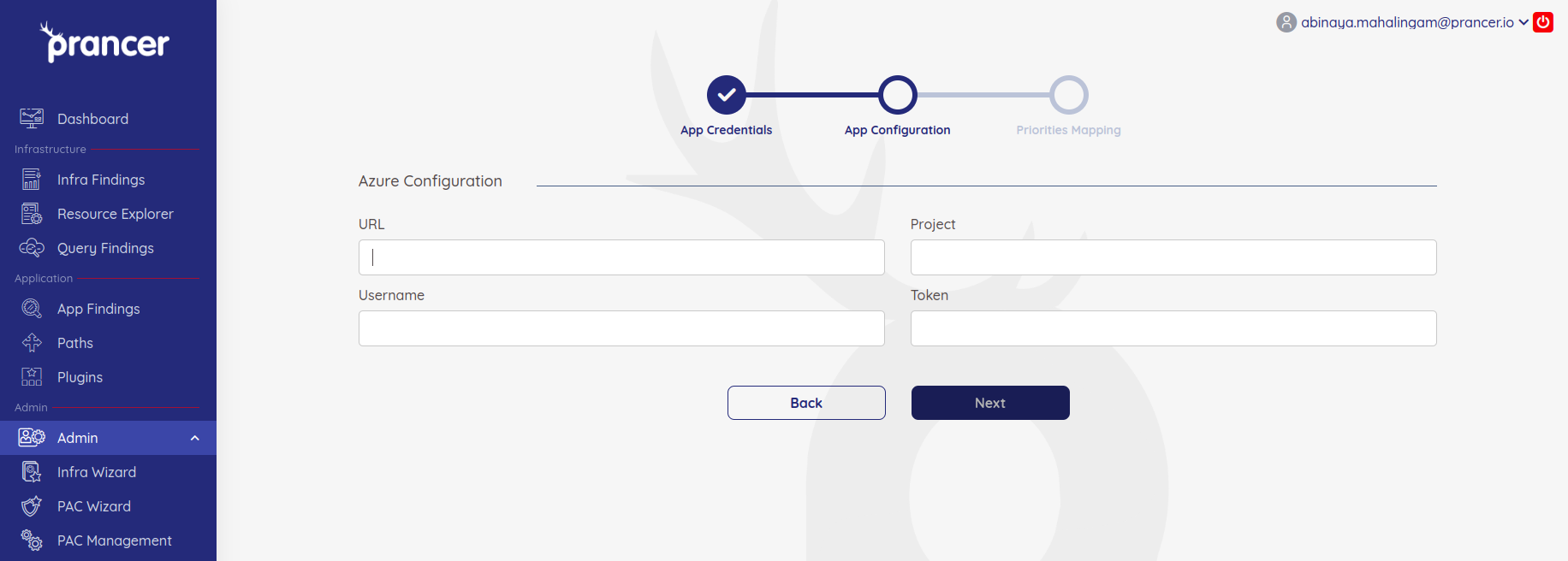
4. Provide the URL, Project, Username, and a Personal Access Token (PAT).
How to create a PAT: Sign in to https://dev.azure.com/{your-org} → user settings → Personal access tokens → + New Token. Scope it appropriately, set an expiry, and copy it immediately — it can't be viewed again.
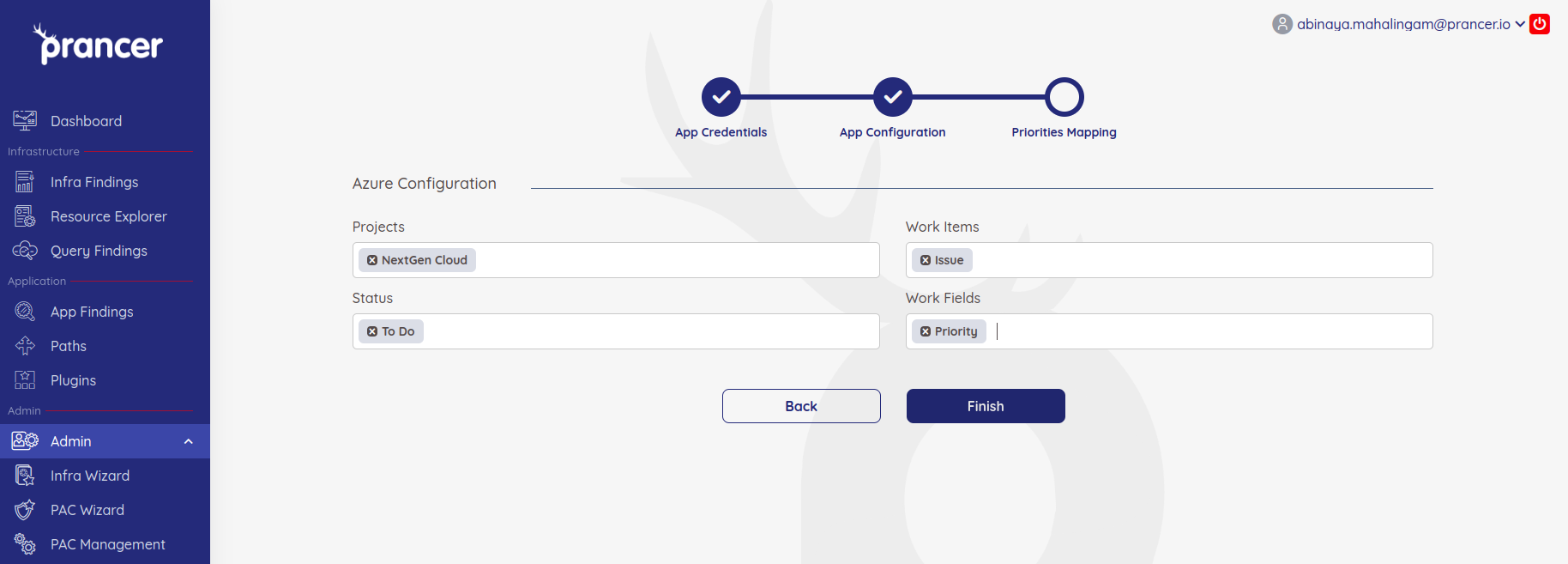
5. Choose project, work item type, status, and fields.
!Azure Boards work item config
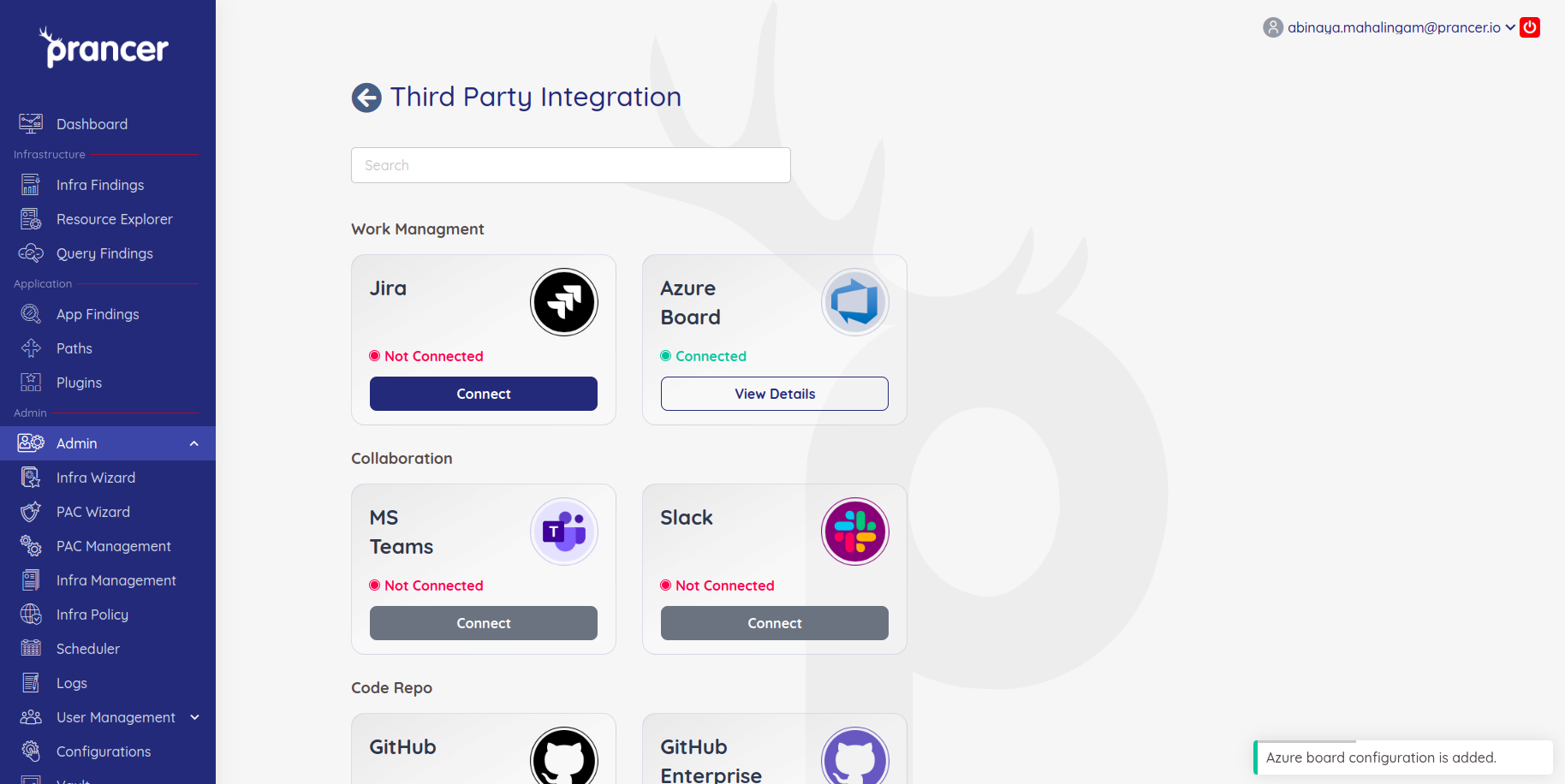
6. Click Finish.
!Azure Boards integration done
Warning: treat the PAT like a password. For Microsoft Entra-backed orgs you must sign in with the PAT within 90 days or it goes inactive.
SIEM — Microsoft Sentinel
Send every scan result straight into your Sentinel workspace.
Before you start: create a Sentinel workspace and register an Azure AD app with permission to push logs via the Client Credentials OAuth flow.
1. On the collection's hamburger menu, click Connect on the Microsoft Sentinel tile.
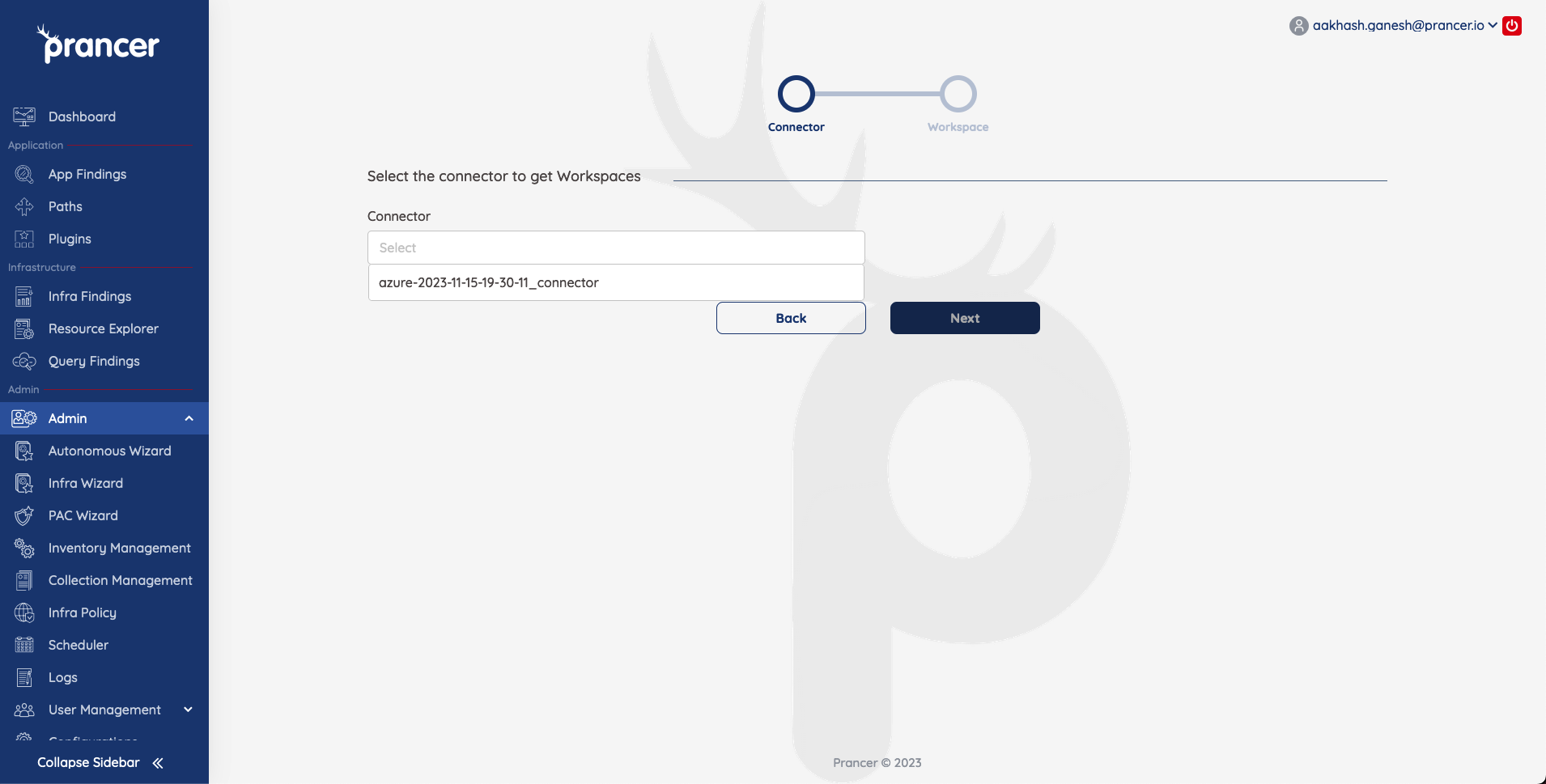
2. Pick the Azure connector to use *(add more by adding more connections to the PAC collection).*
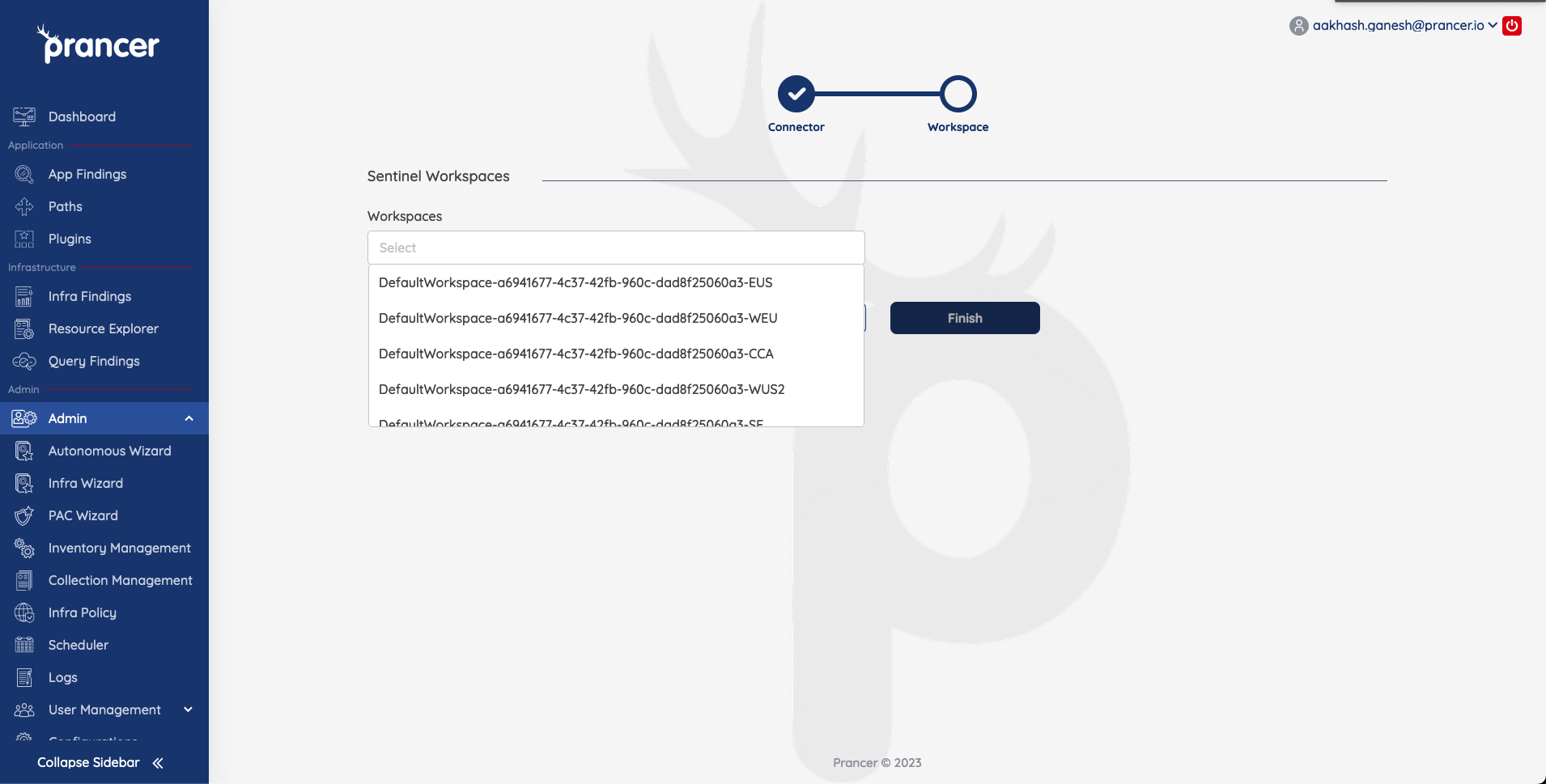
3. Choose the workspace to send results to.
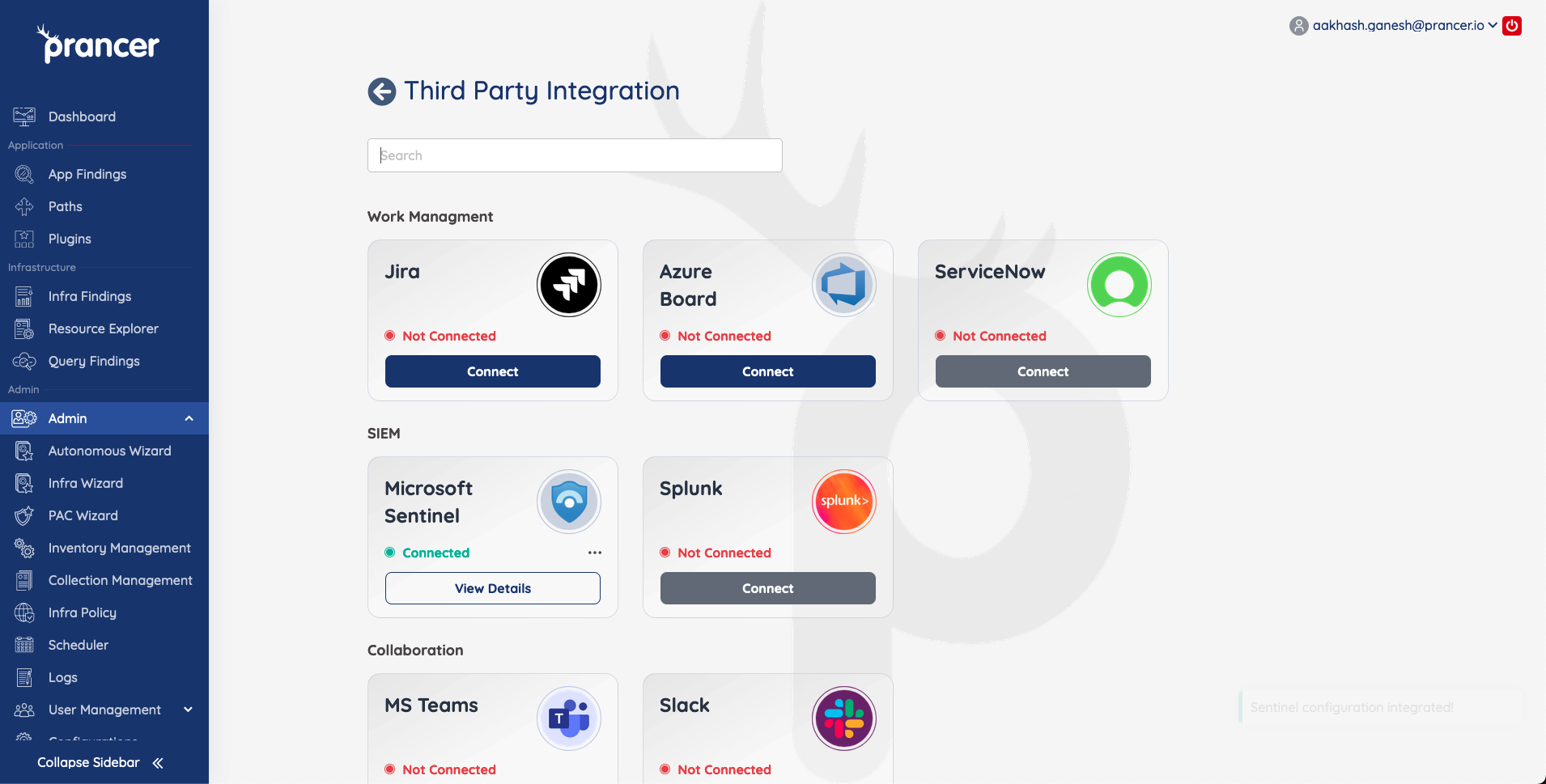
The next scan automatically forwards results to Sentinel.
→ More detail: Sentinel Integration.
Tips for Sentinel
- Workspace — create it in the right subscription, resource group, and region *before* connecting.
- App registration — register the app and grant it permission to push logs to the workspace via Client Credentials OAuth.
- Connector — finish the connection on the Prancer Third Party Integration page in the SIEM section.
Create tickets from individual findings
Open a finding's URL, use the Actions menu, and pick Create Issue on \_\_ for the connected platform.
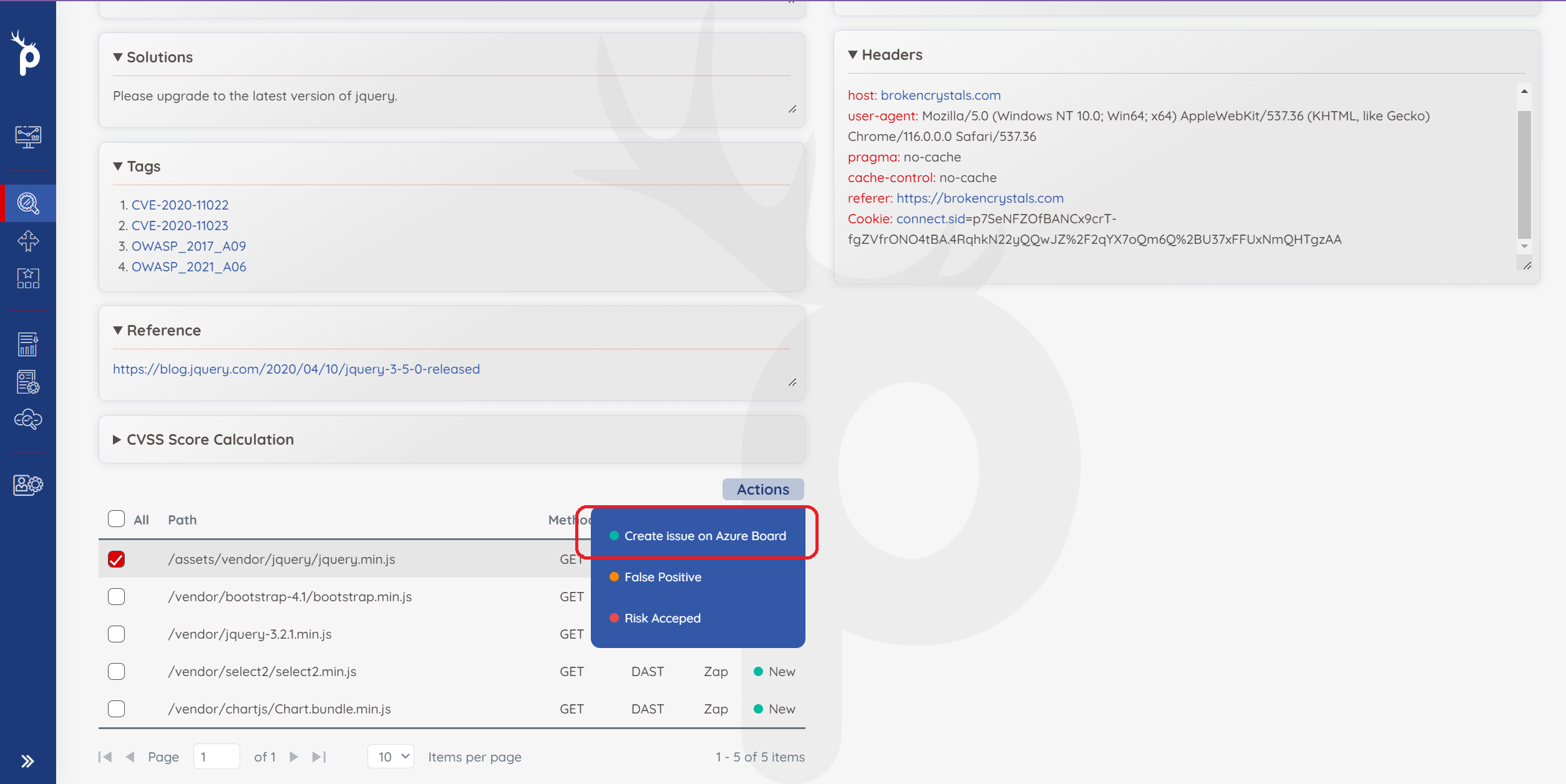
Tip: the connected platform must be configured at the collection level first — see the sections above.
Next steps
- Forward only the noisy stuff to chat: see Notifications.
- Auto-fix IaC findings via the GitHub App.