Documentation / Reporting and Insights
Resource Explorer
Resource Explorer
Resource Explorer is the inventory-first view of your environment. Use it to find any resource Prancer has crawled and see, at a glance, whether it currently passes or fails compliance — without writing a query.
Before you start
- A snapshot has been generated for at least one connector — see Snapshot.
- Compliance has been run so each resource has a Pass / Fail status — see Run compliance.
Search resources
Combine any of the following filters and click Run:
| Filter | Notes |
| --- | --- |
| Collection | The collection that owns the connector. |
| Connector | A connector inside the selected collection. |
| Subscription Id | Azure connectors only. |
| Account Id | AWS connectors only. |
| Project Id | GCP connectors only. |
| Branch Name | Git connectors only. |
| User | The user defined in the connector file. |
| Region | Cloud region (provider-dependent). |
| Resource Type | E.g. AWS::S3::Bucket, Microsoft.Storage/storageAccounts. |
Each row shows the resource name and its compliance status:
- ✅ Right icon — every test for this resource passed.
- ❌ Cross icon — at least one test failed.
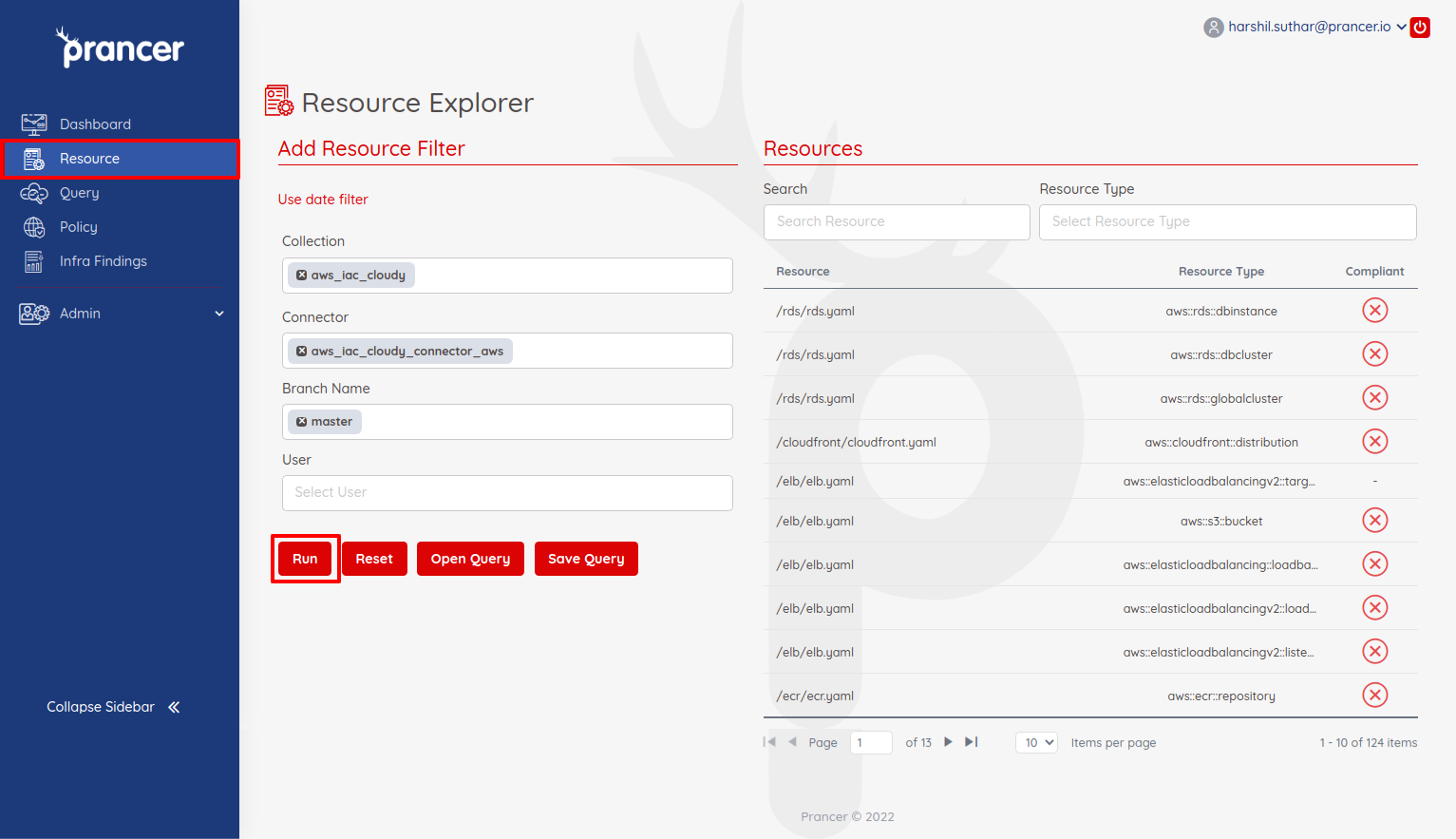
By default, the result reflects the latest scan. Pick a date range to query historical compliance state:
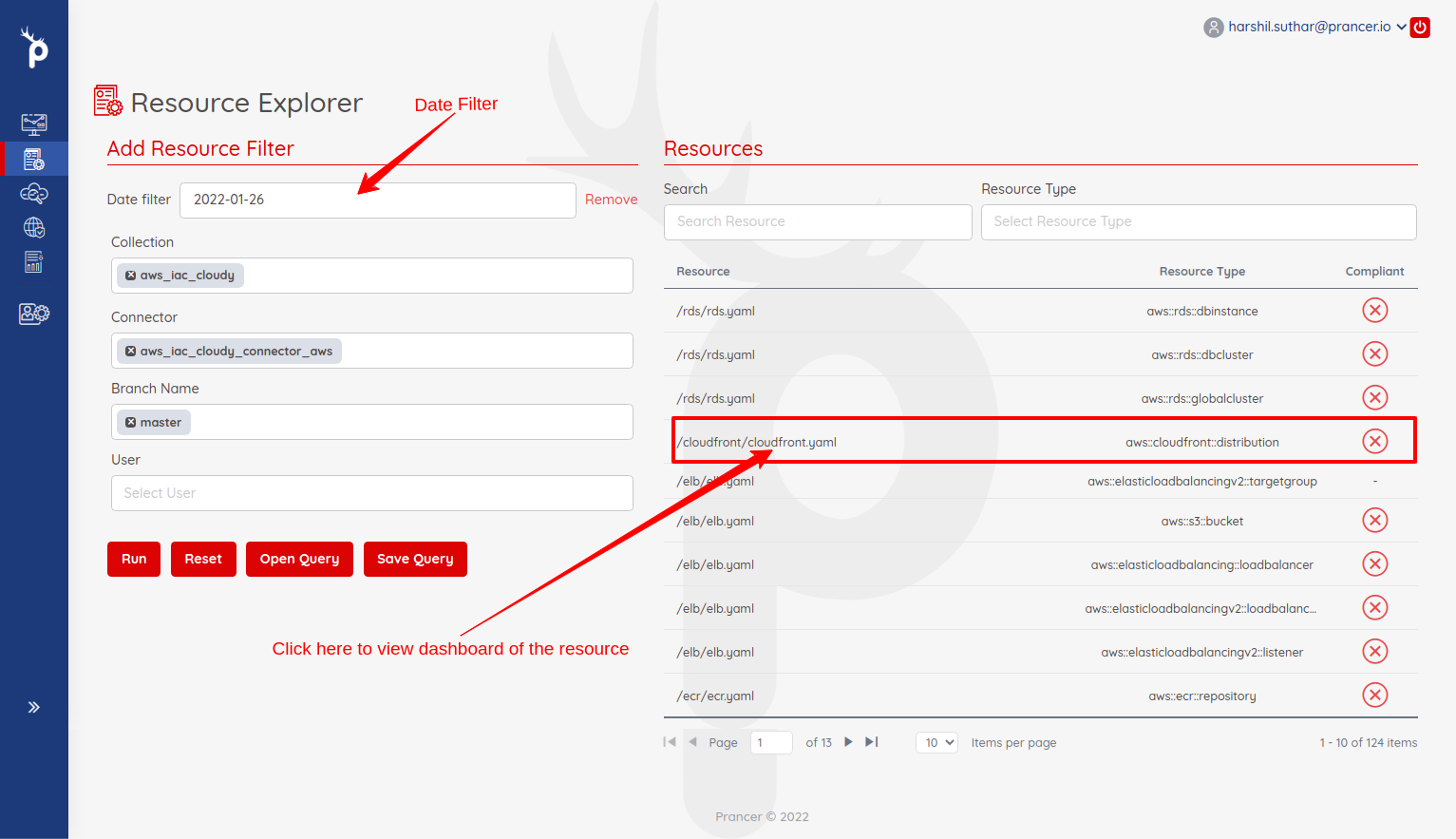
Inspect a resource
Select a resource to open its dashboard:
- Total Passed and Failed test cases.
- Current overall status.
- First crawl date and resource path.
- The full list of test cases with individual outcomes.
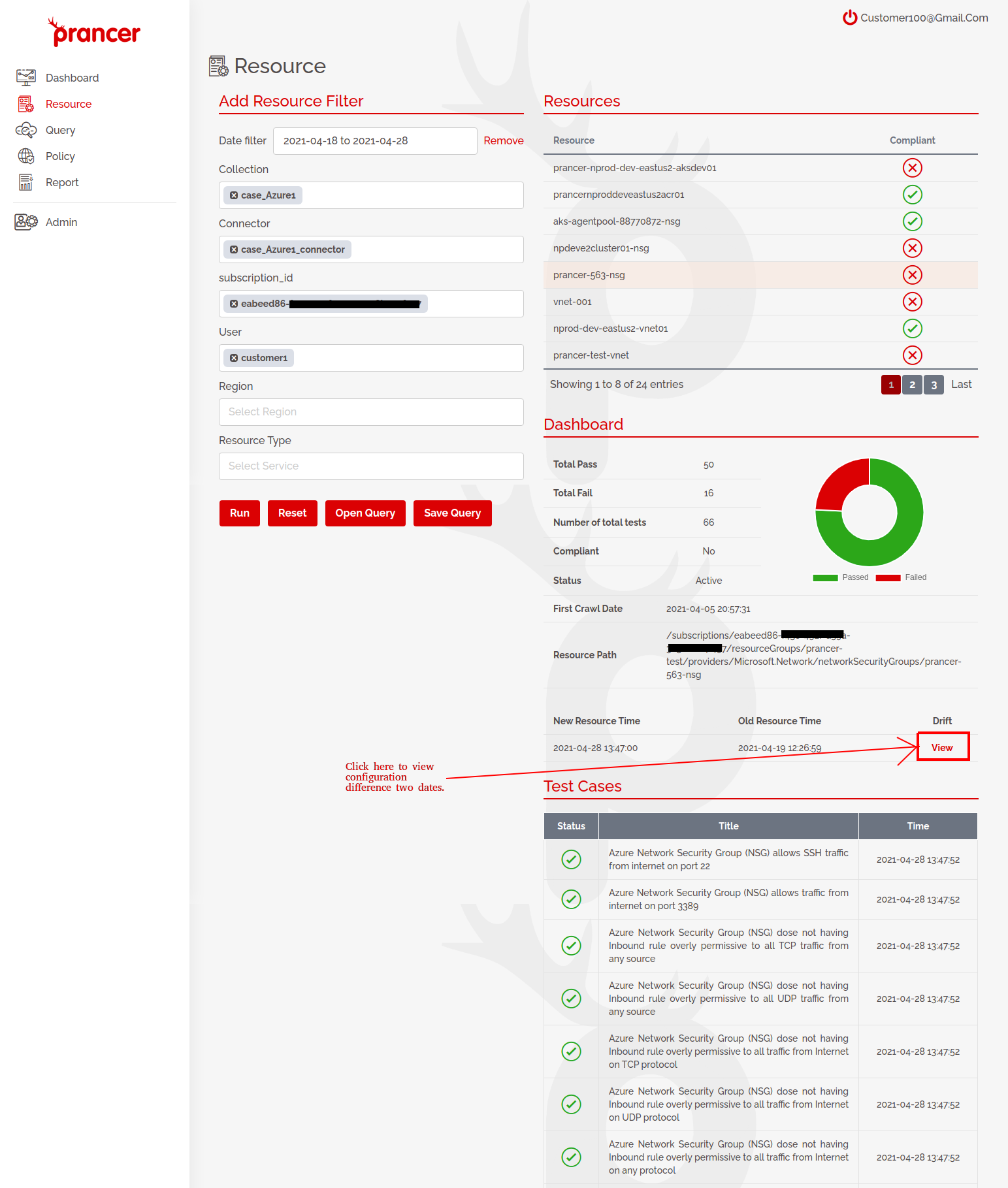
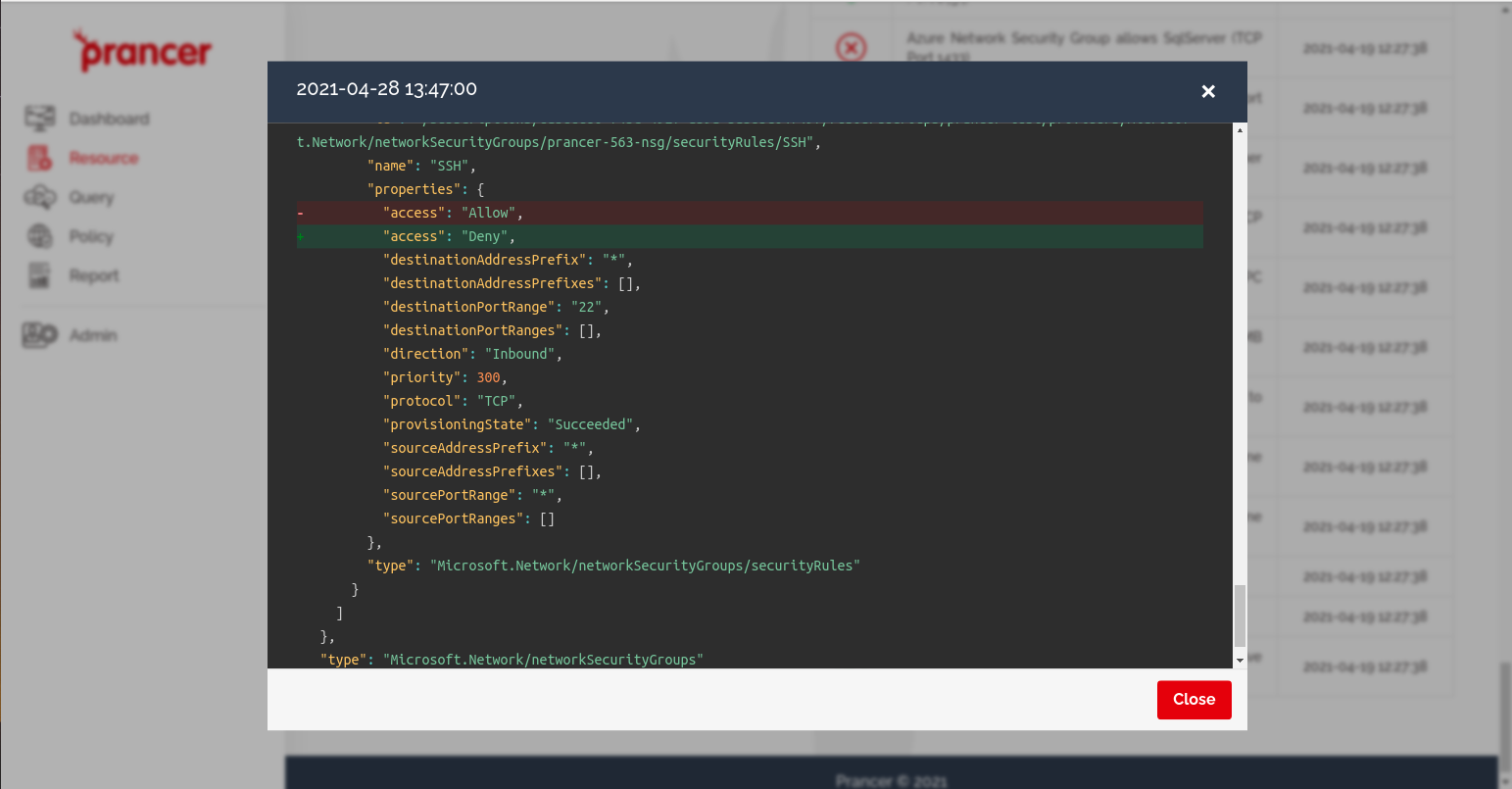
Detect configuration drift
For resources that came from IaC, click View Configuration Drift to see how the live configuration has changed since the last snapshot:
Tip: Save your most-used filter combinations so you can re-open the same scoped view in one click.