Documentation / PAC Management
PAC Management
Inventory Management
Inventory Management is the central hub for every PAC configuration in your tenant. From here you can search, edit, run, schedule, integrate, and permission your PAC files.
!Inventory Management overview
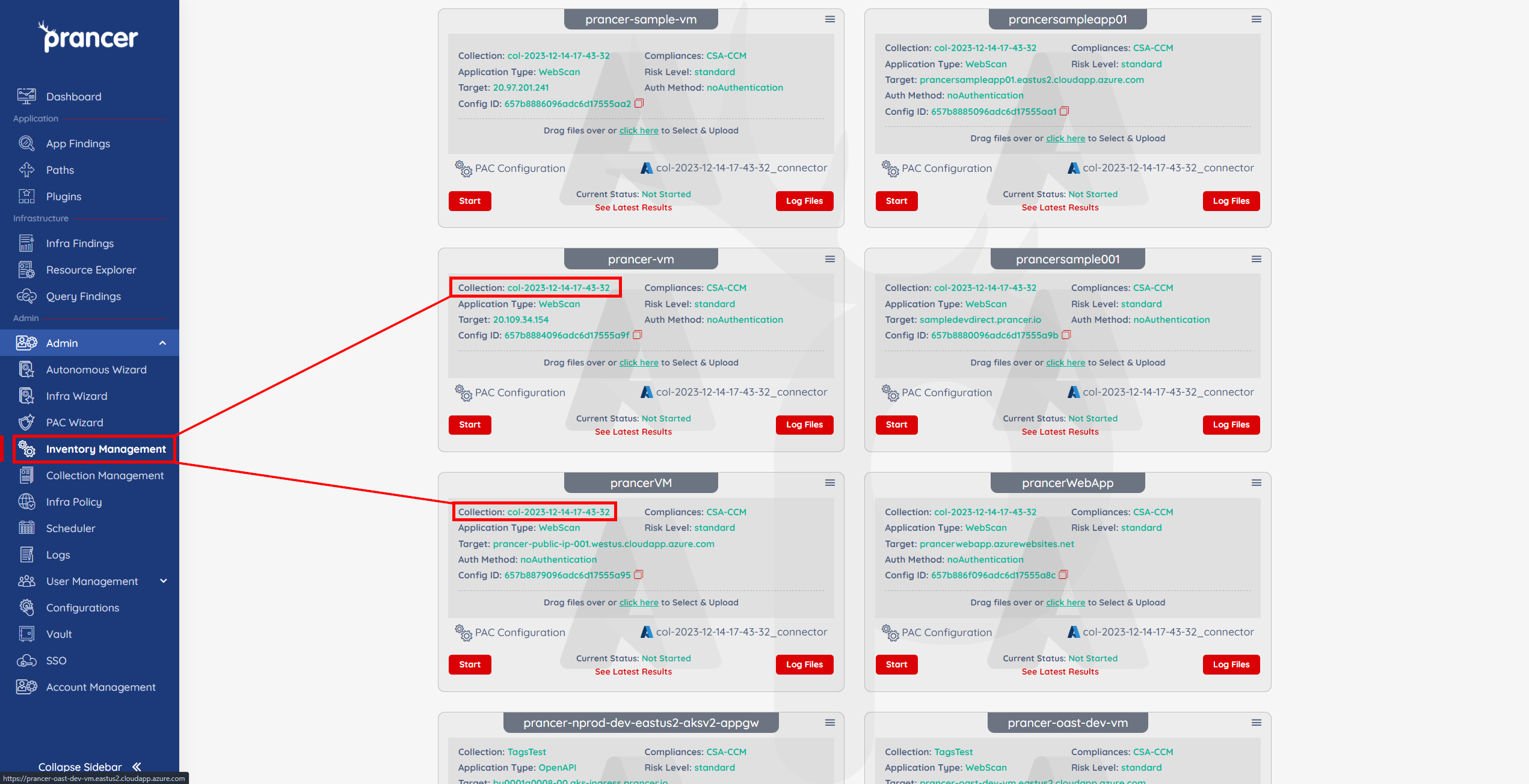
Before you start
- At least one collection.
- At least one PAC file — created via the PAC Wizard or imported.
Find a PAC file
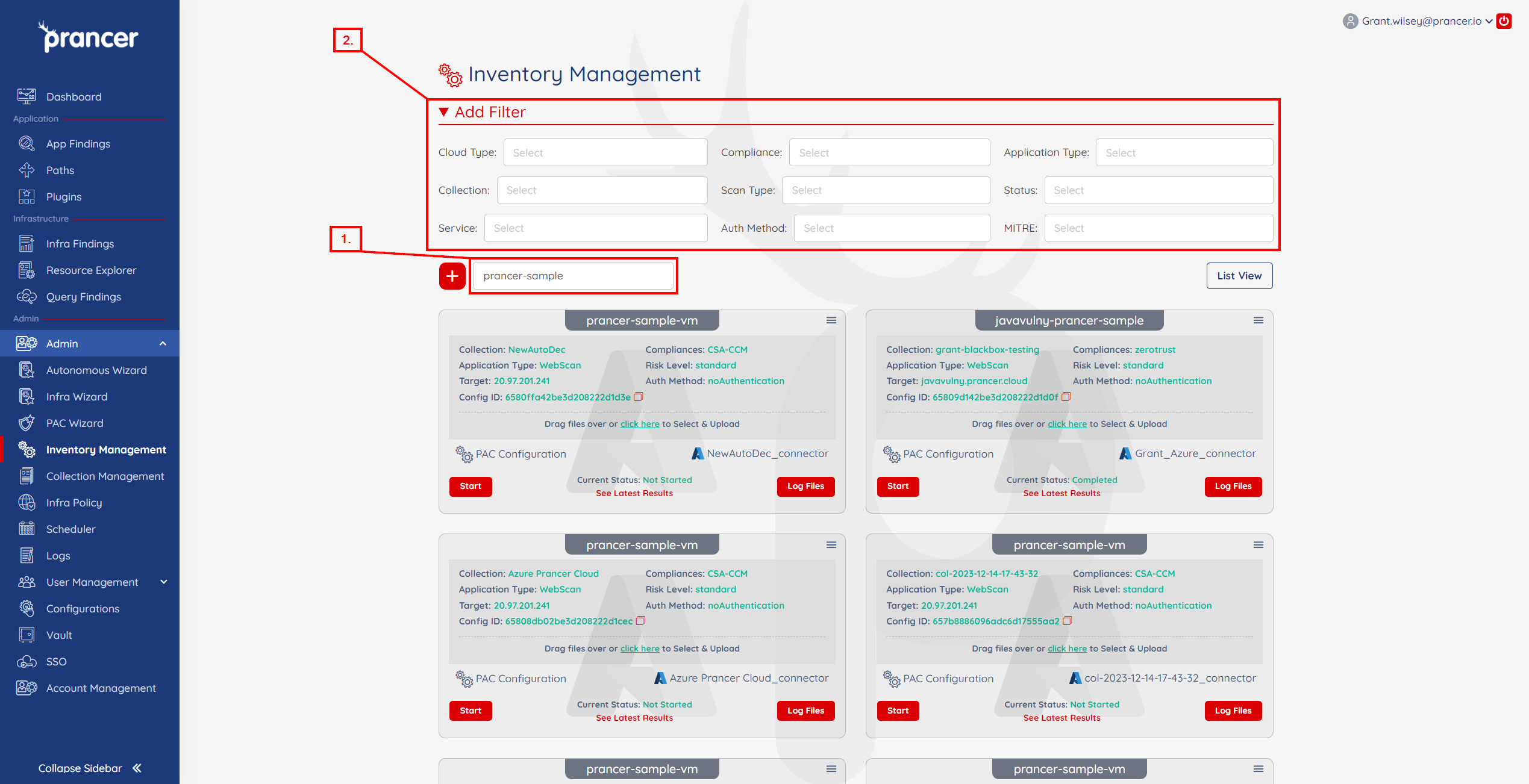
1. Search by title in the search bar. 2. Use Filters to narrow by cloud, compliance, application type, etc. — handy after the Autonomous Wizard discovers many targets.
Create or edit
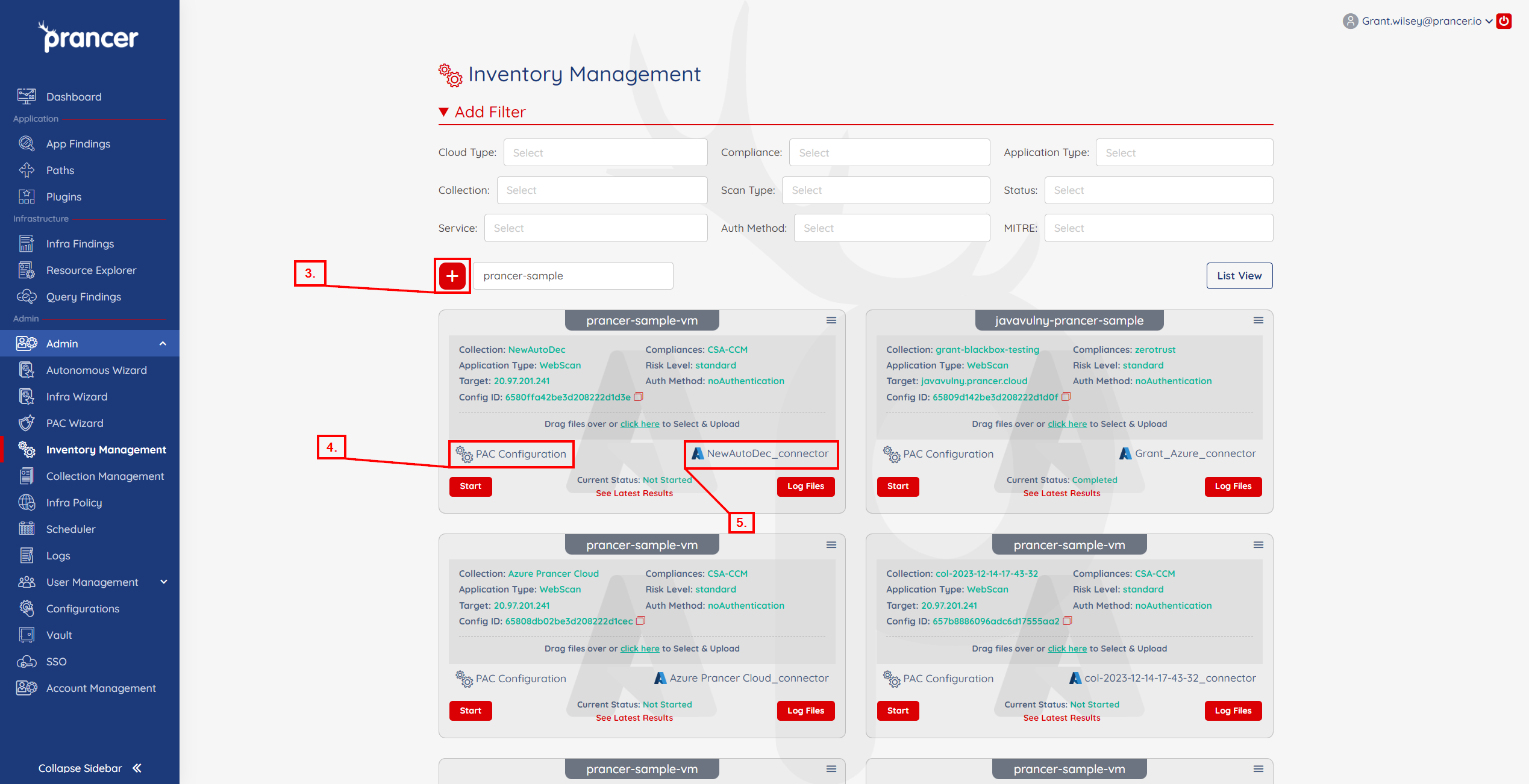
- + — start a new PAC file from a template.
- PAC Configuration — edit the existing PAC file inline.
- Connector name — edit the underlying connector.
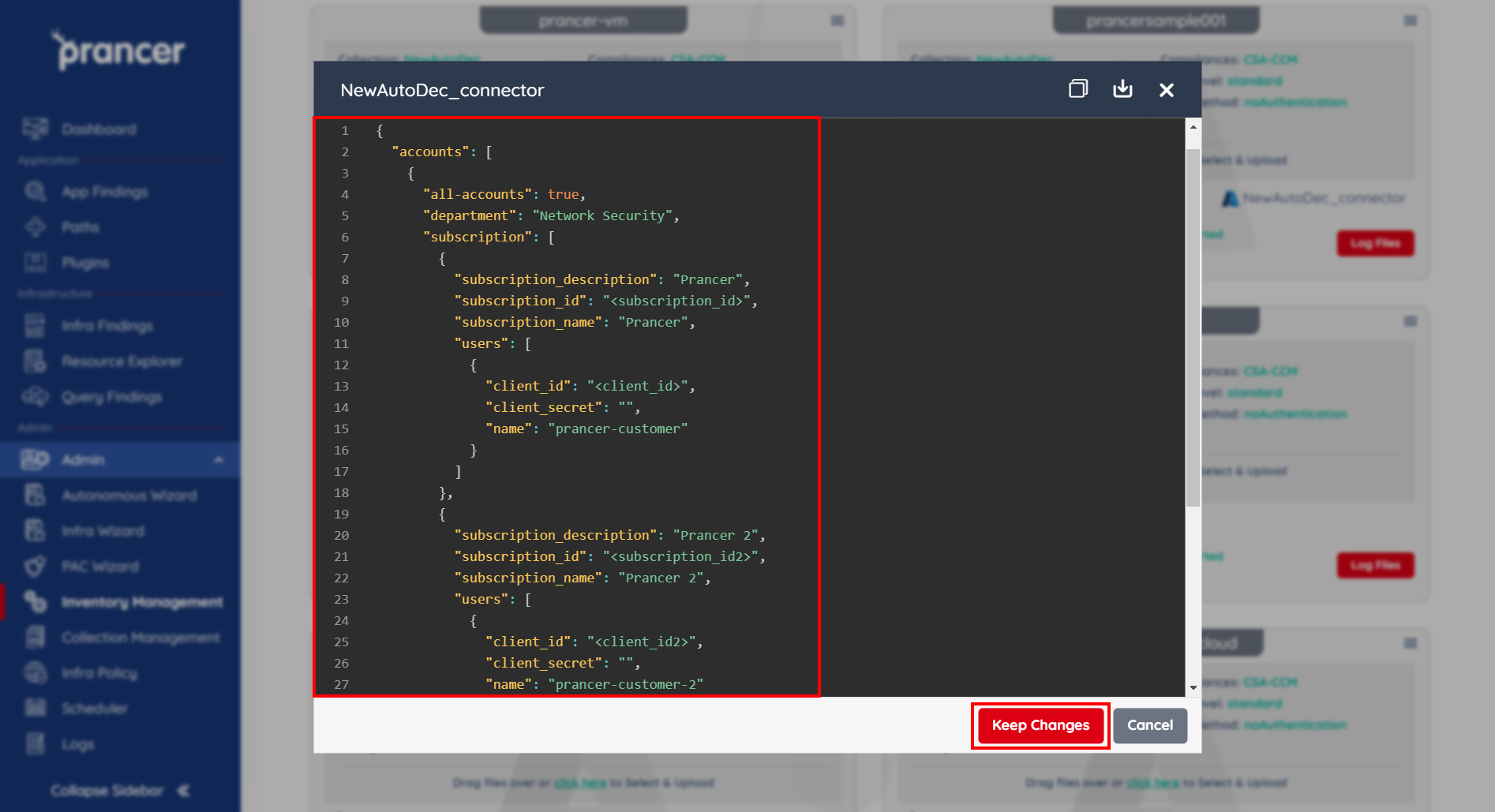
Tip: the inline editor validates YAML on save — fix syntax errors before they cause a scan to fail mid-run.
Per-file actions
Open the ⋮ menu on any PAC file for these actions.
1 — Run Crawler / Pentest
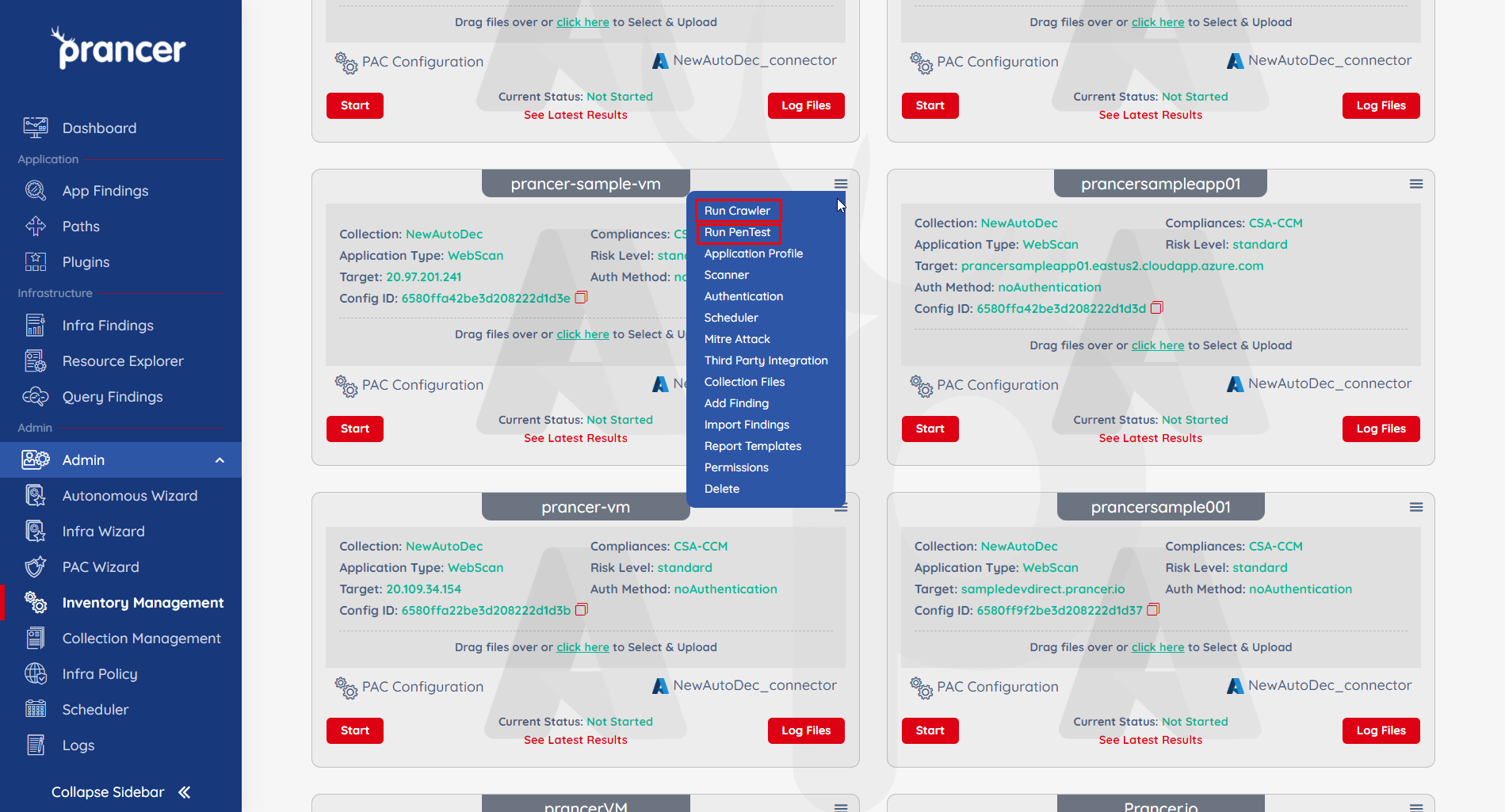
- Pentest — kick off an active pentest against the configured target.
- Crawler — discover endpoints without attacking them.
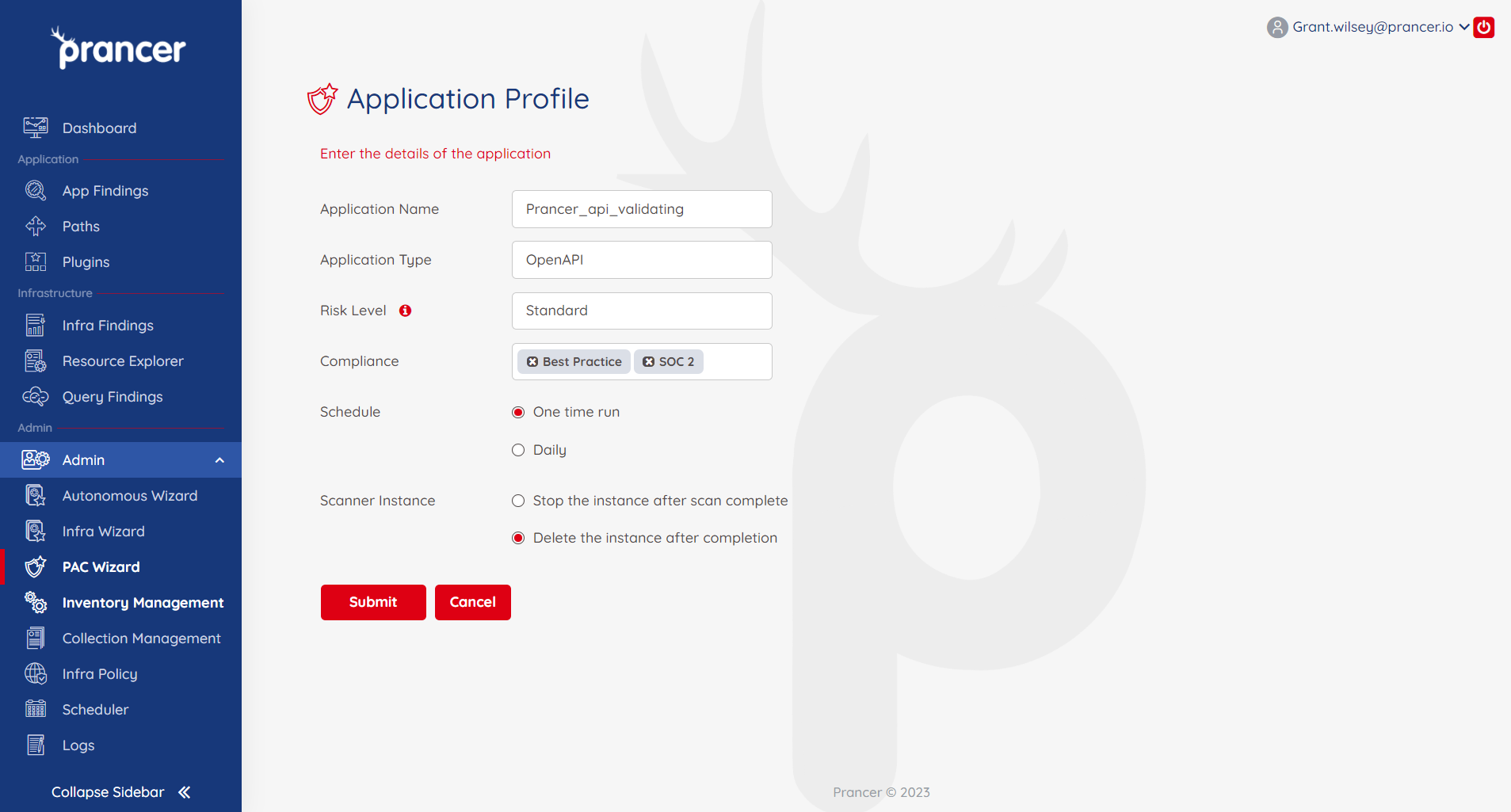
2 — Application Profile
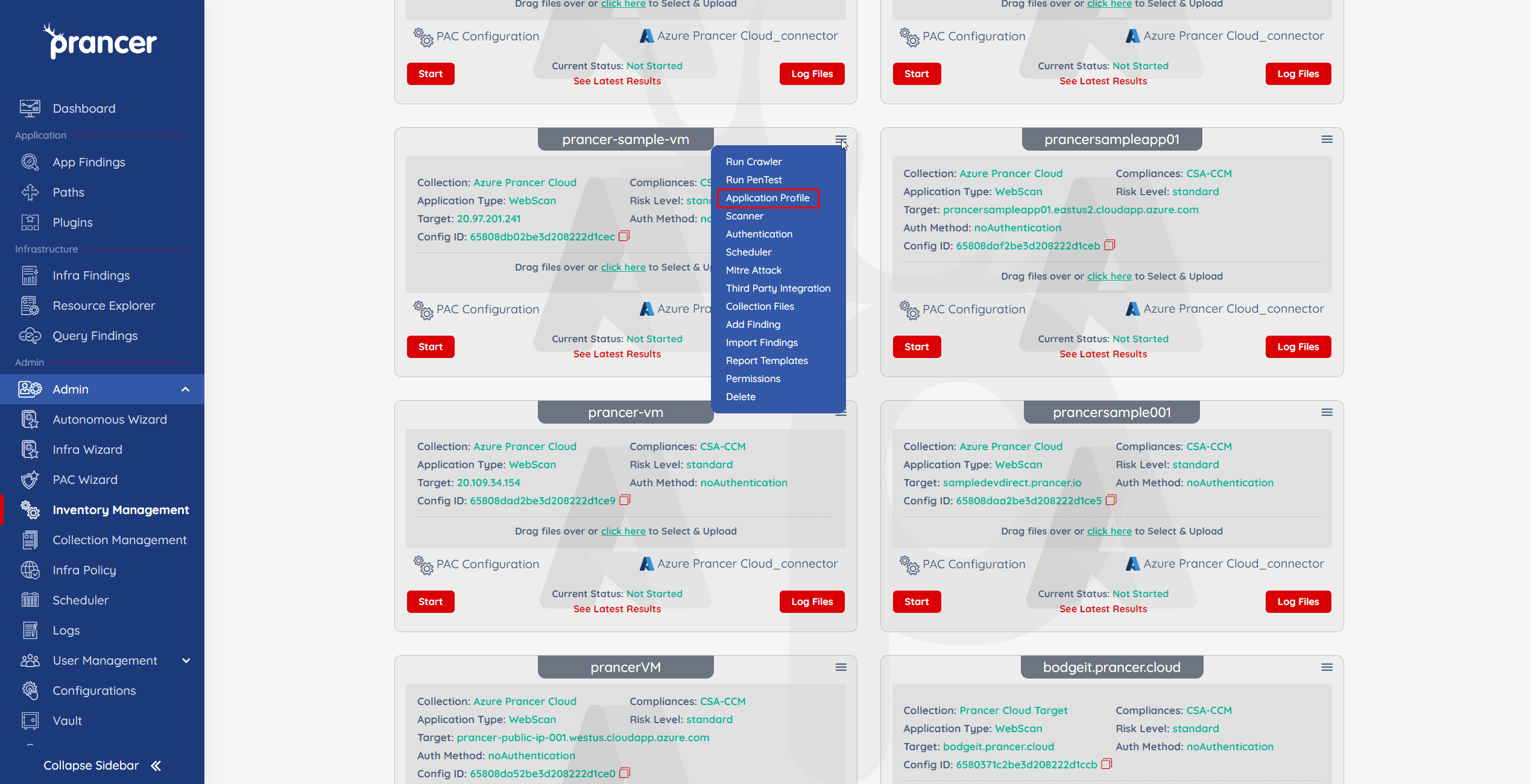
Adjust risk level, compliance set, schedule.
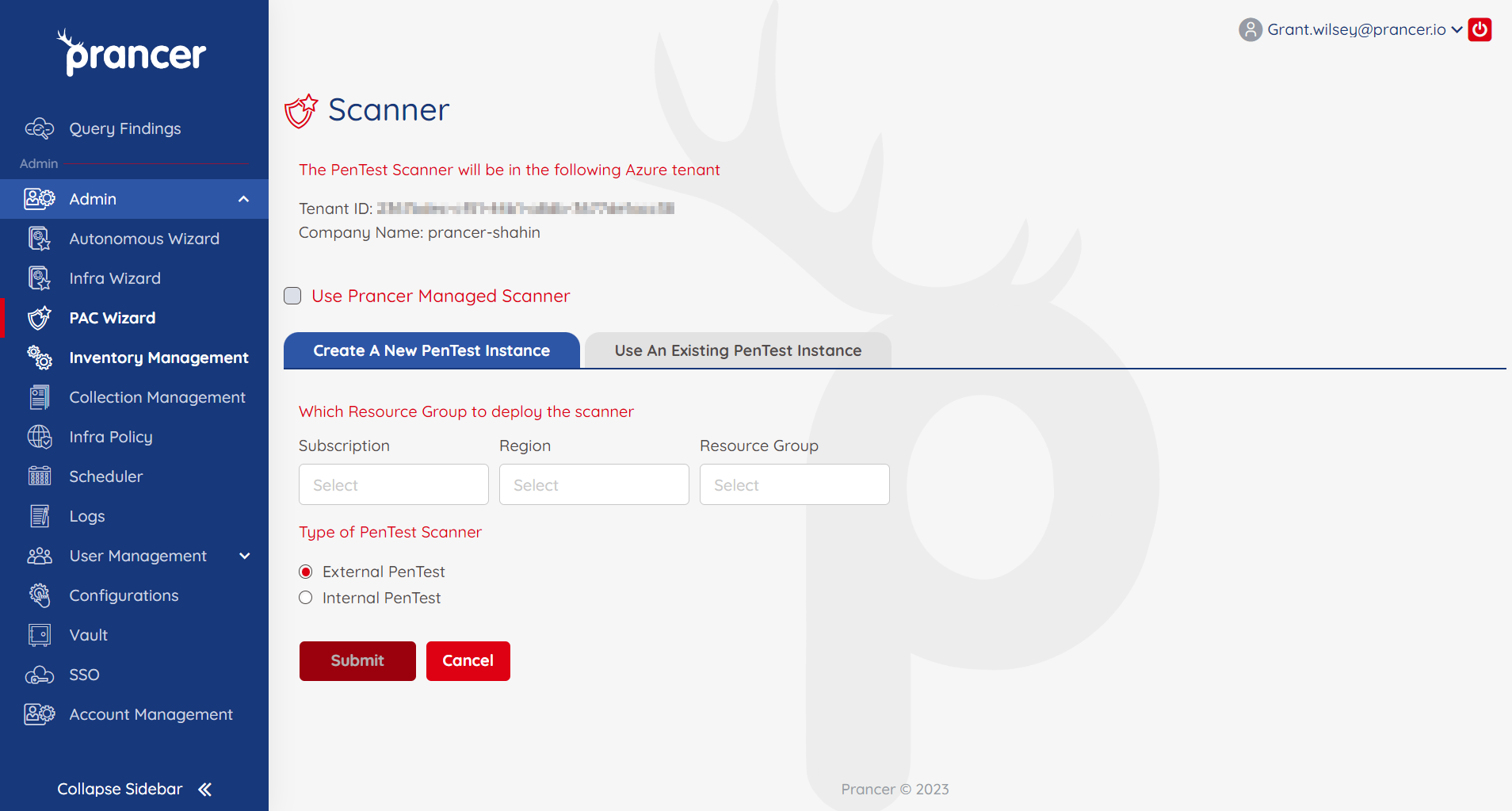
3 — Scanner
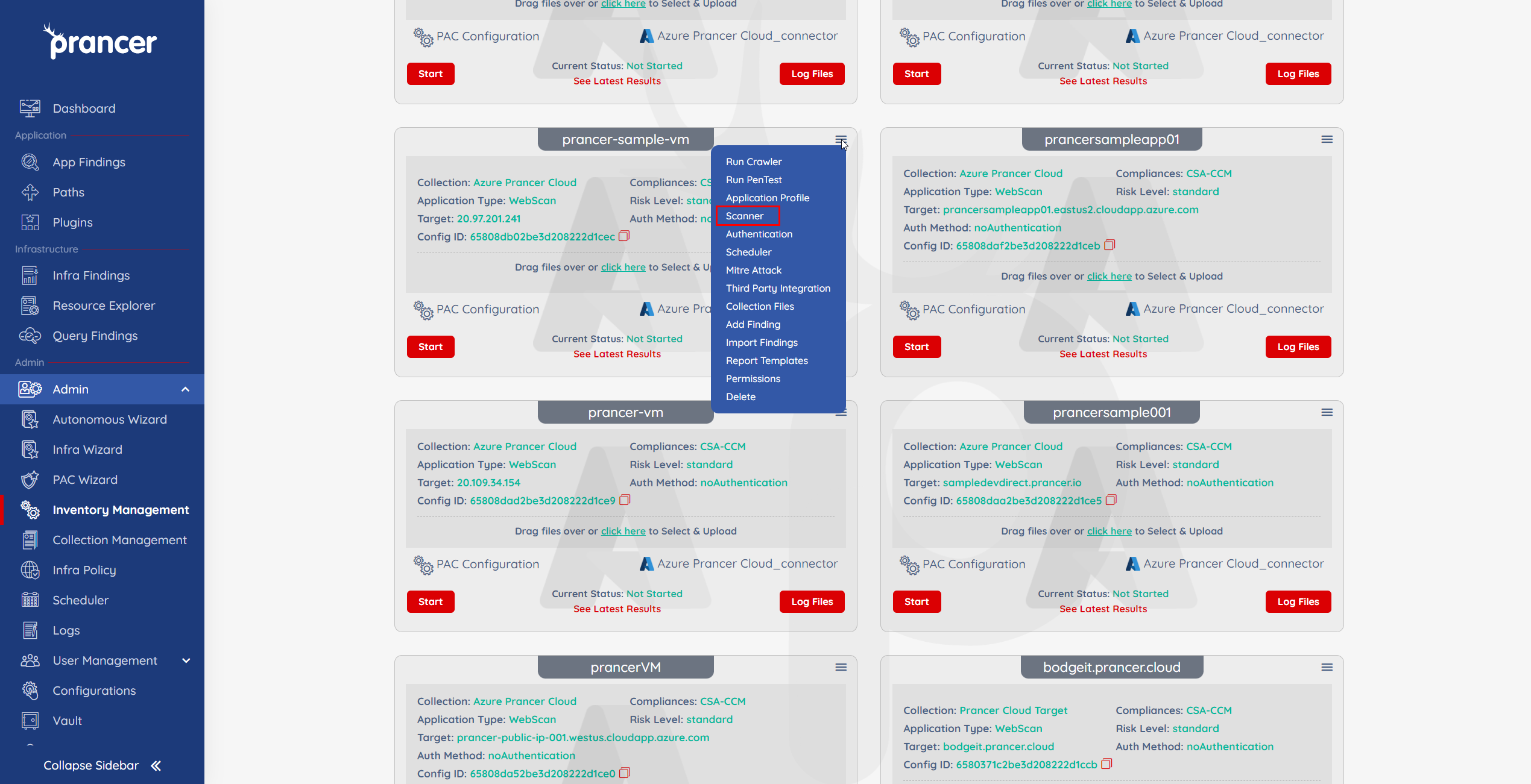
Edit scanner instances — useful for rapid region/RG changes between runs.
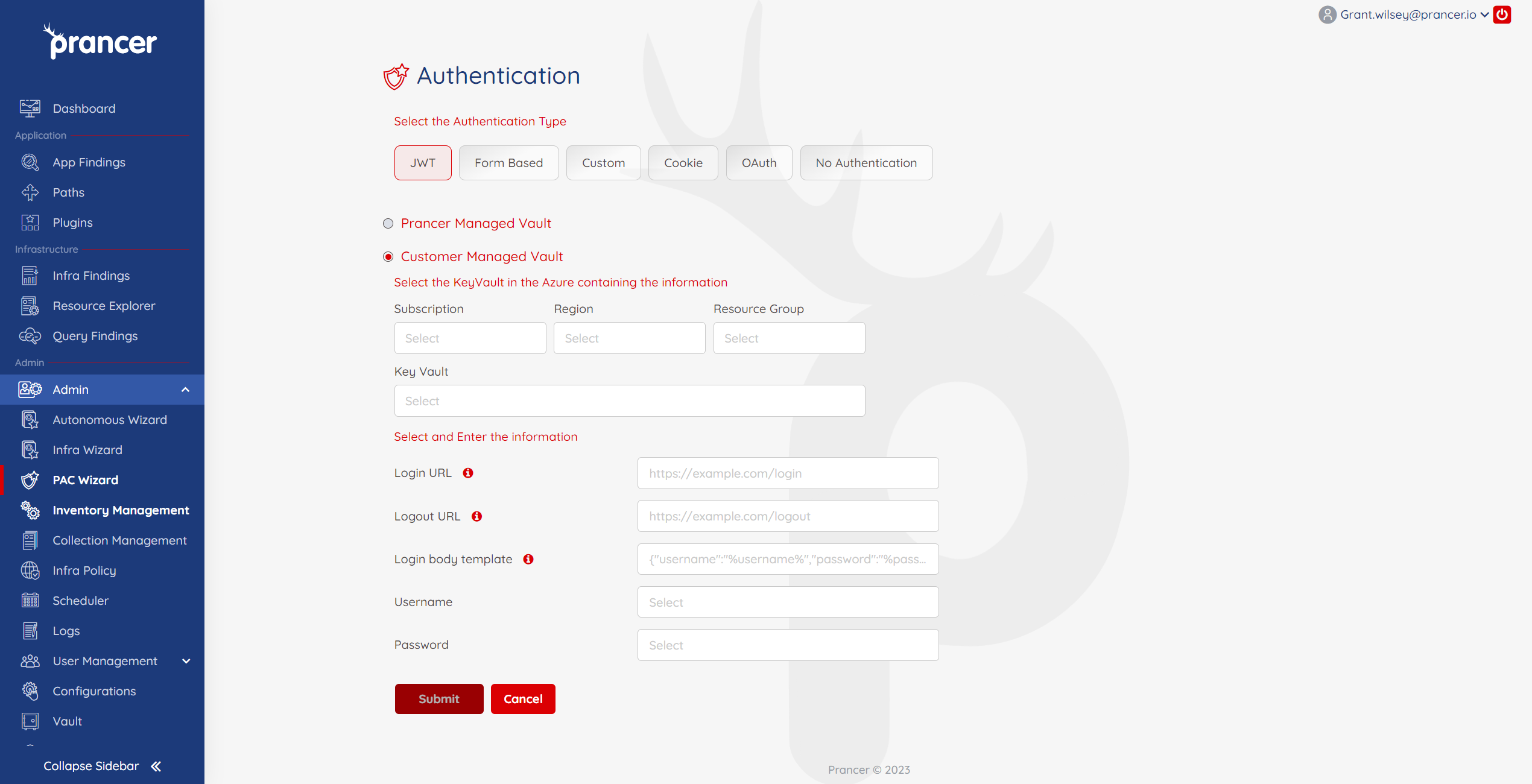
4 — Authentication
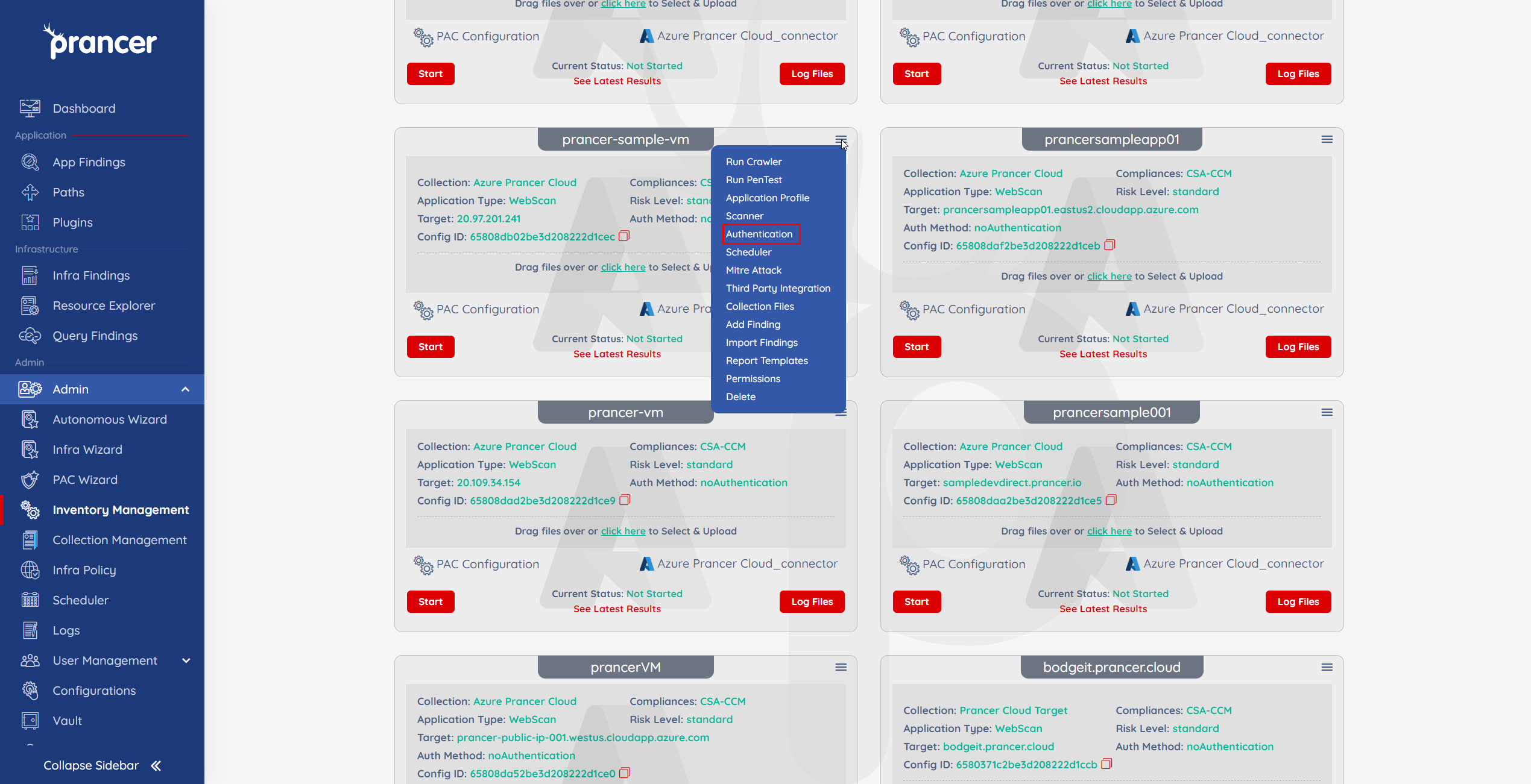
Jump back into the Authentication step of the wizard. Supports JWT, OAuth, Custom, and more — see Authentication.
5 — Scheduler
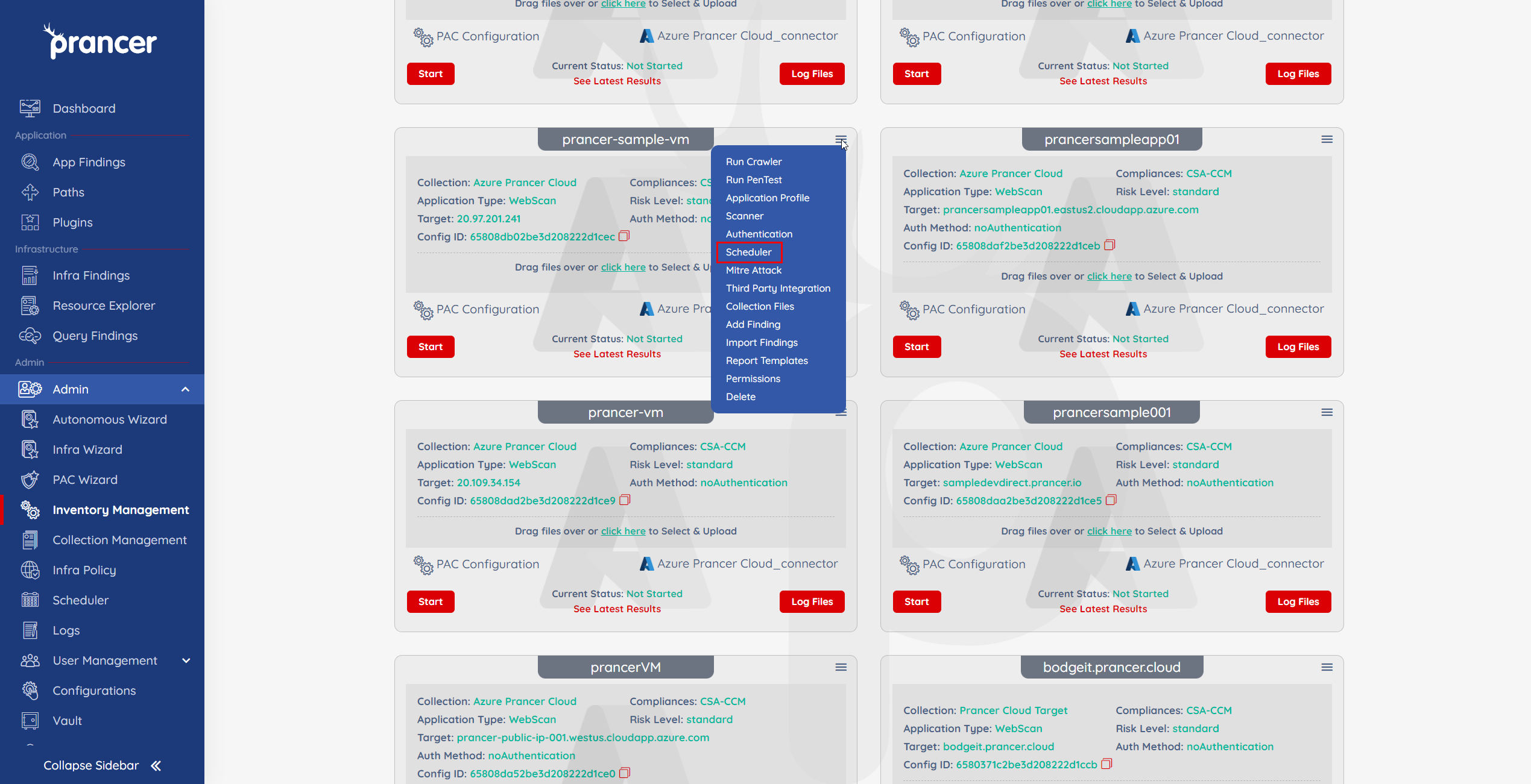
Open the Scheduler to schedule recurring runs.
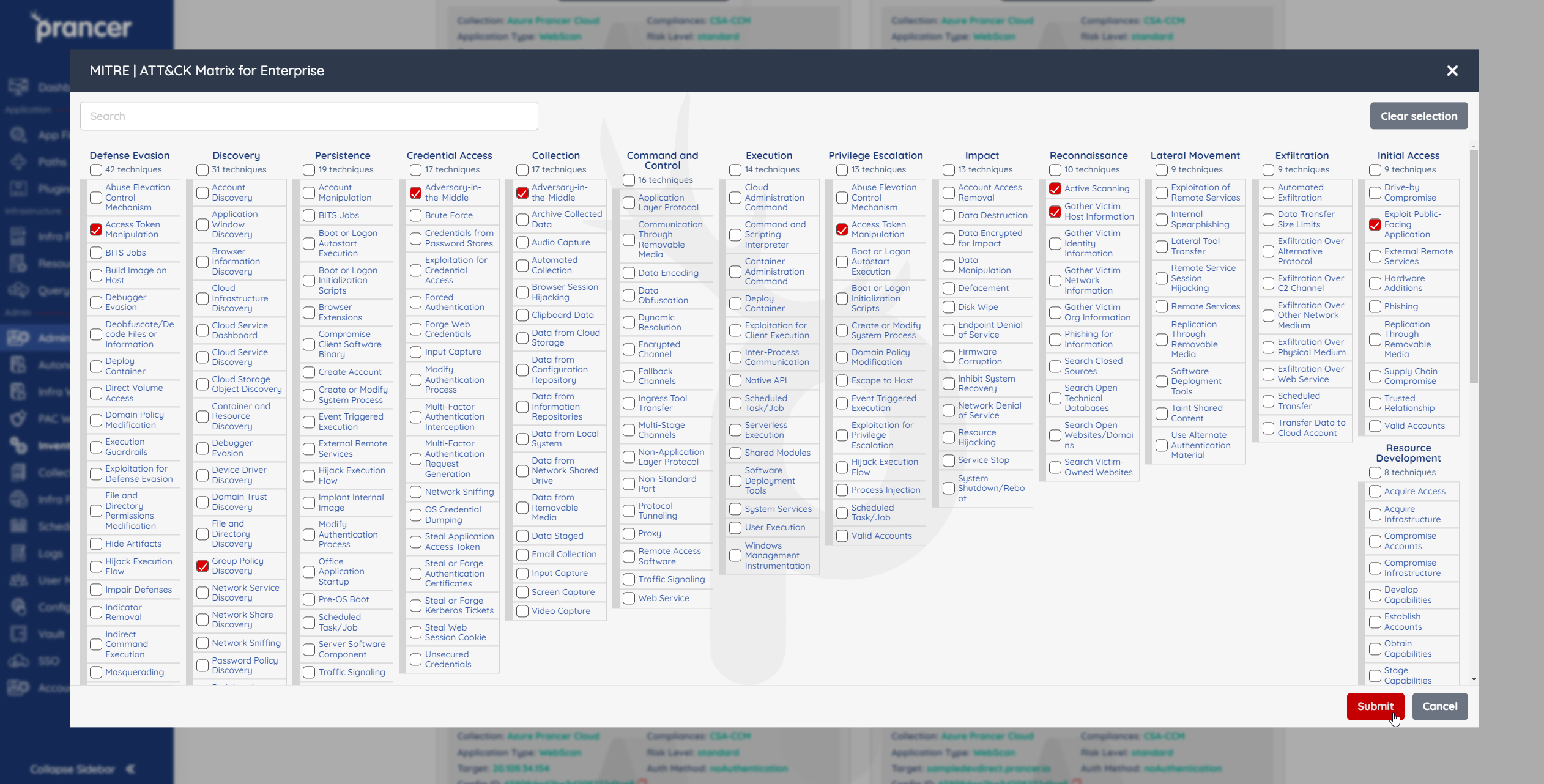
6 — MITRE ATT&CK
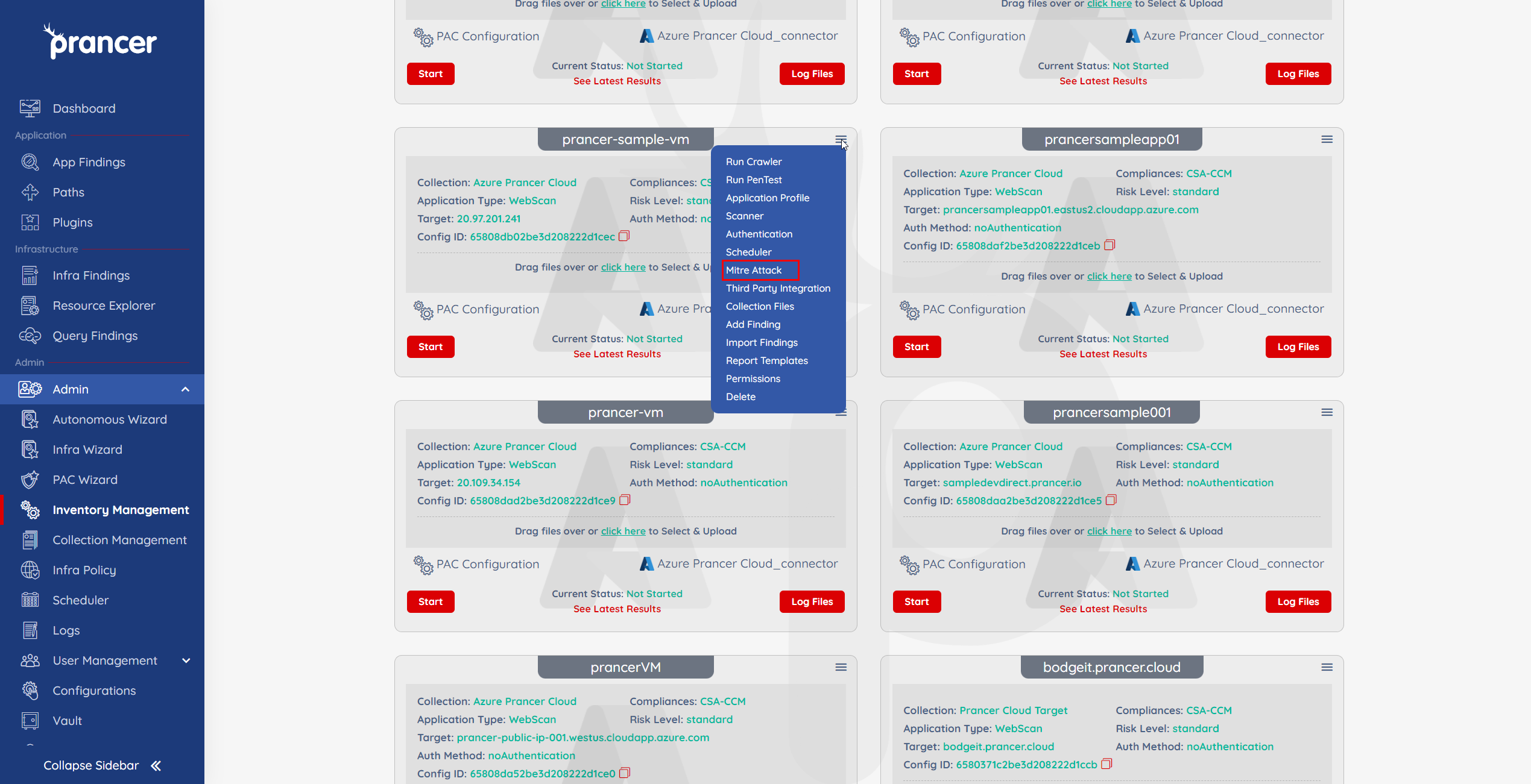
Tag findings with MITRE ATT&CK techniques — see MITRE ATT&CK Framework.
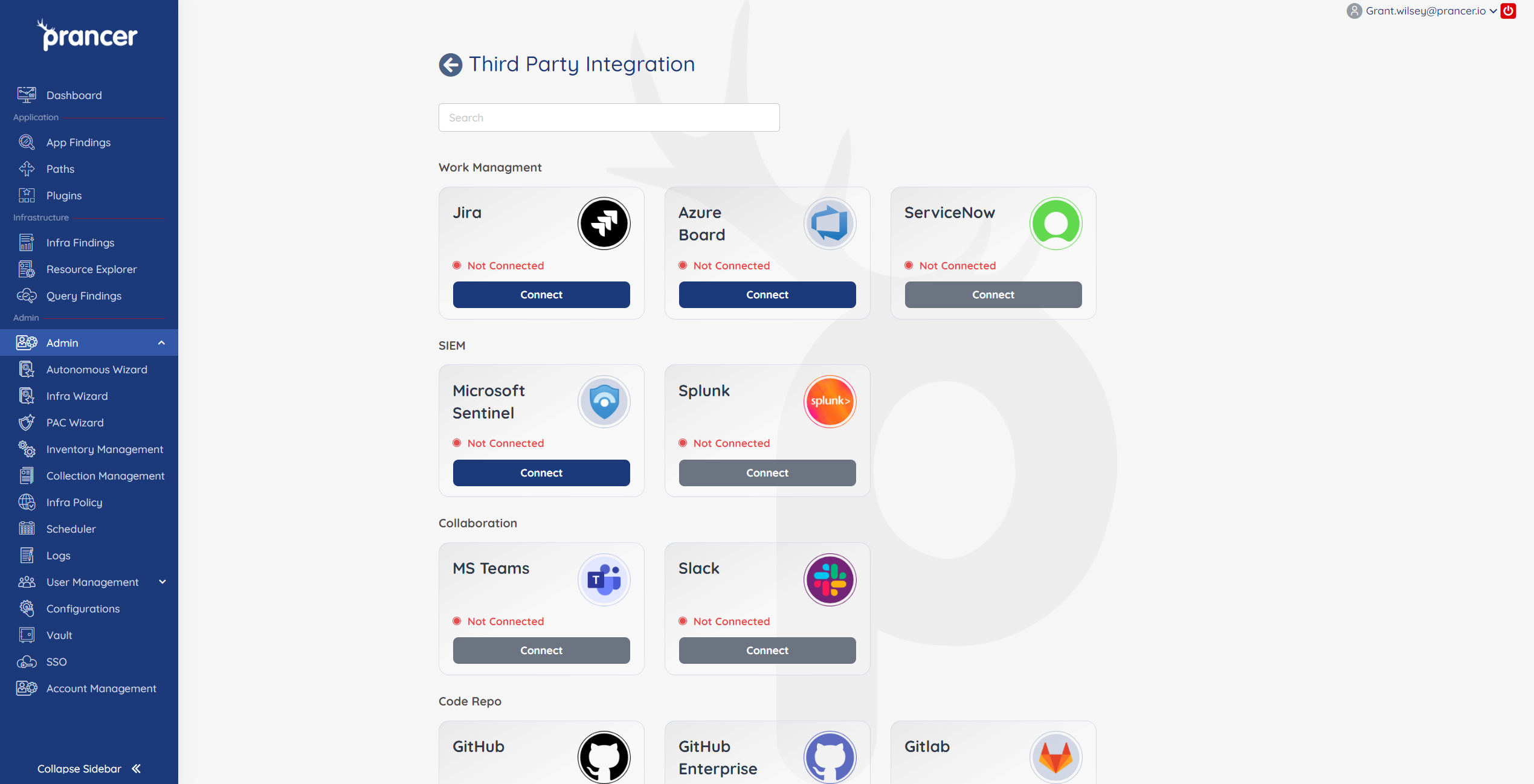
7 — Third-Party Integration
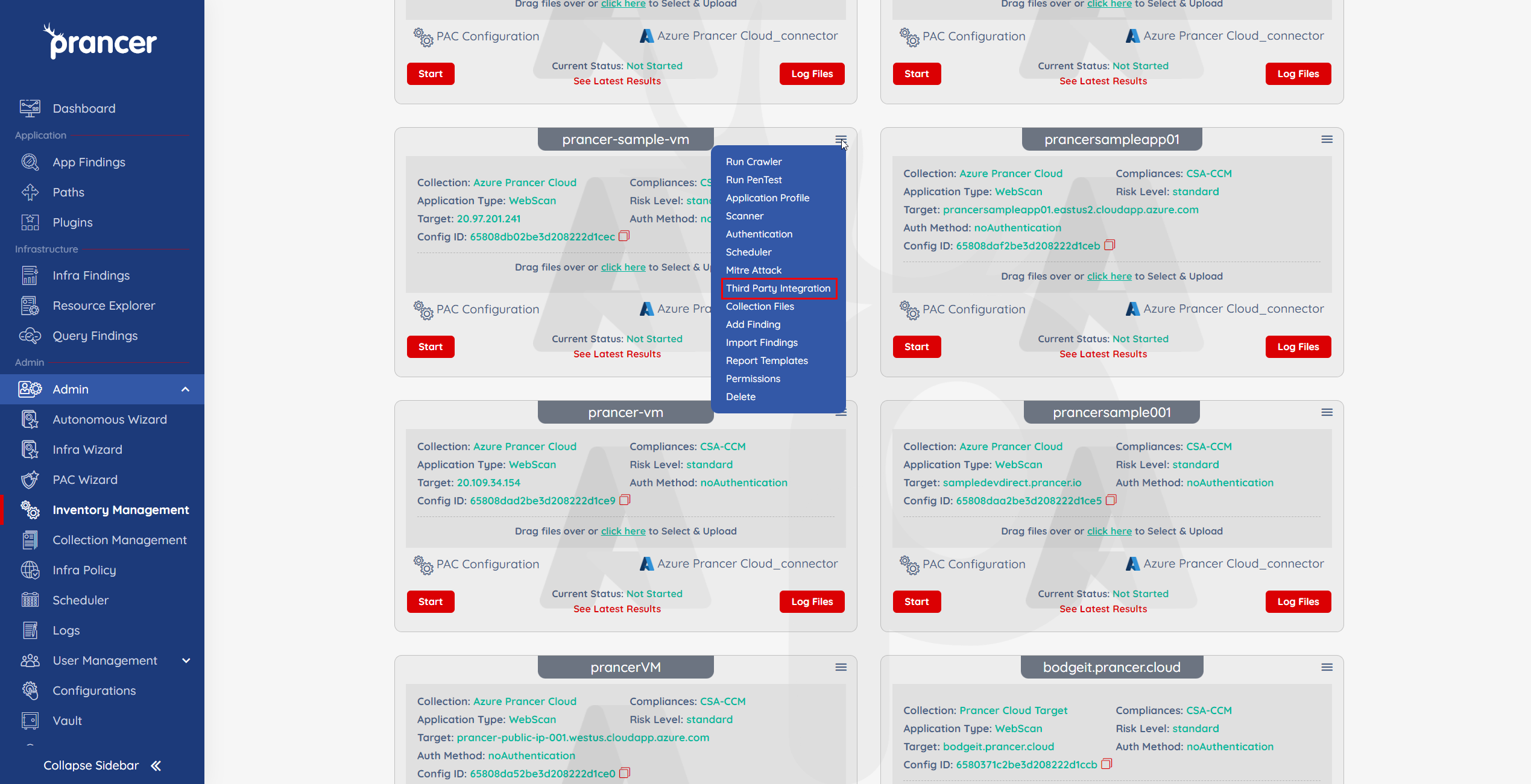
Push findings to Jira, Sentinel, Slack, etc. — see Third-Party Integrations.
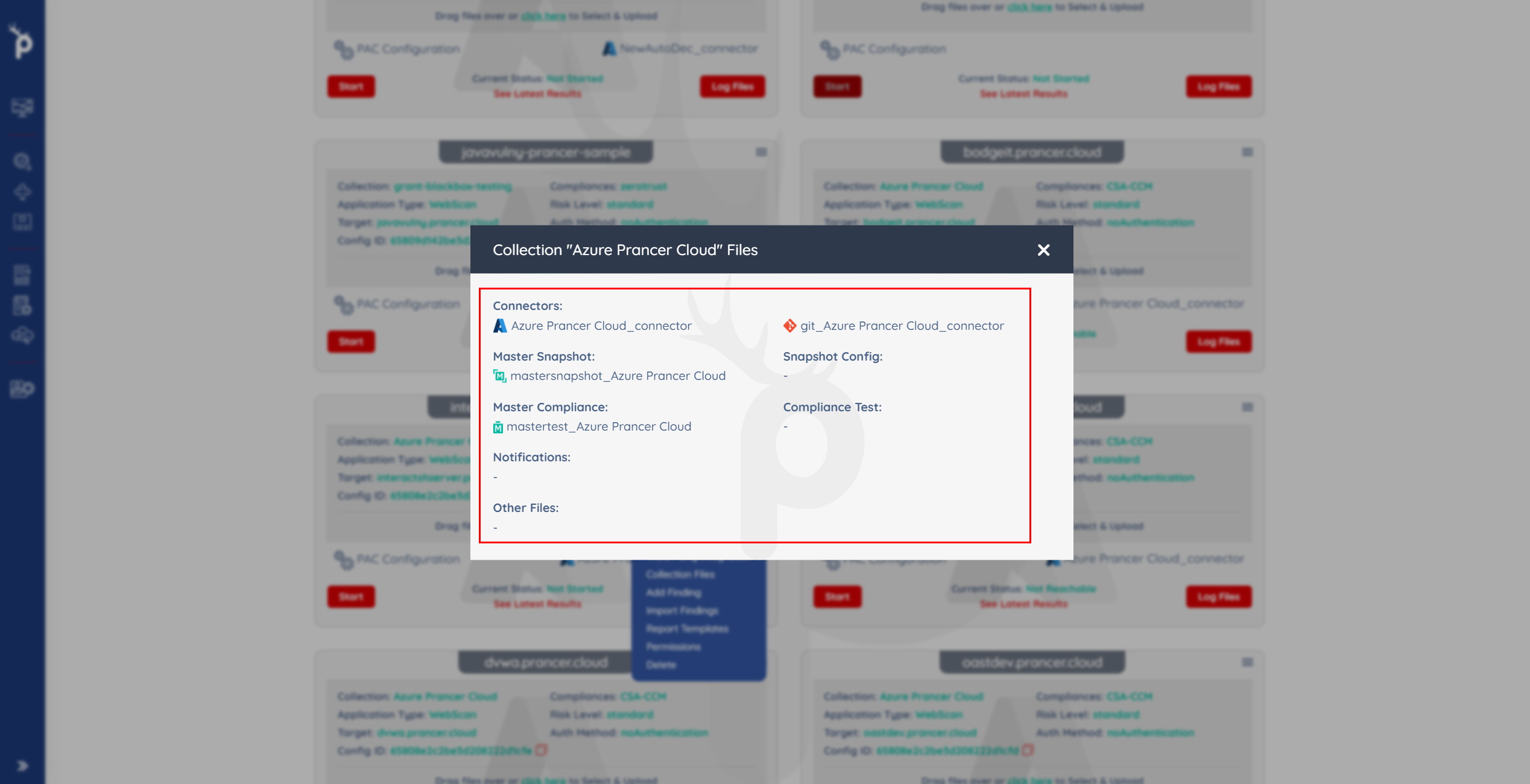
8 — Collection Files
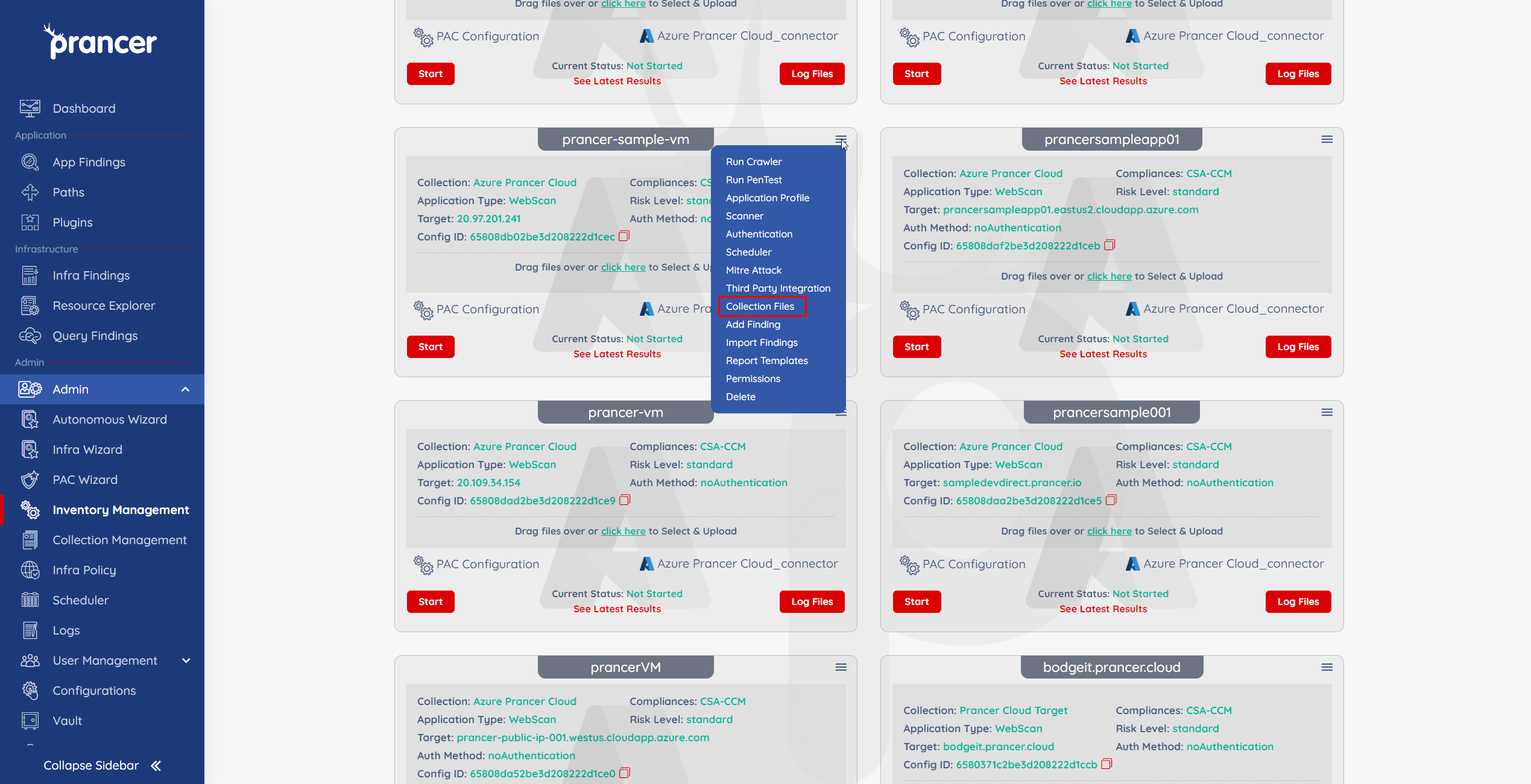
Browse all files in the collection this PAC file belongs to.
9 — Add / Import Findings
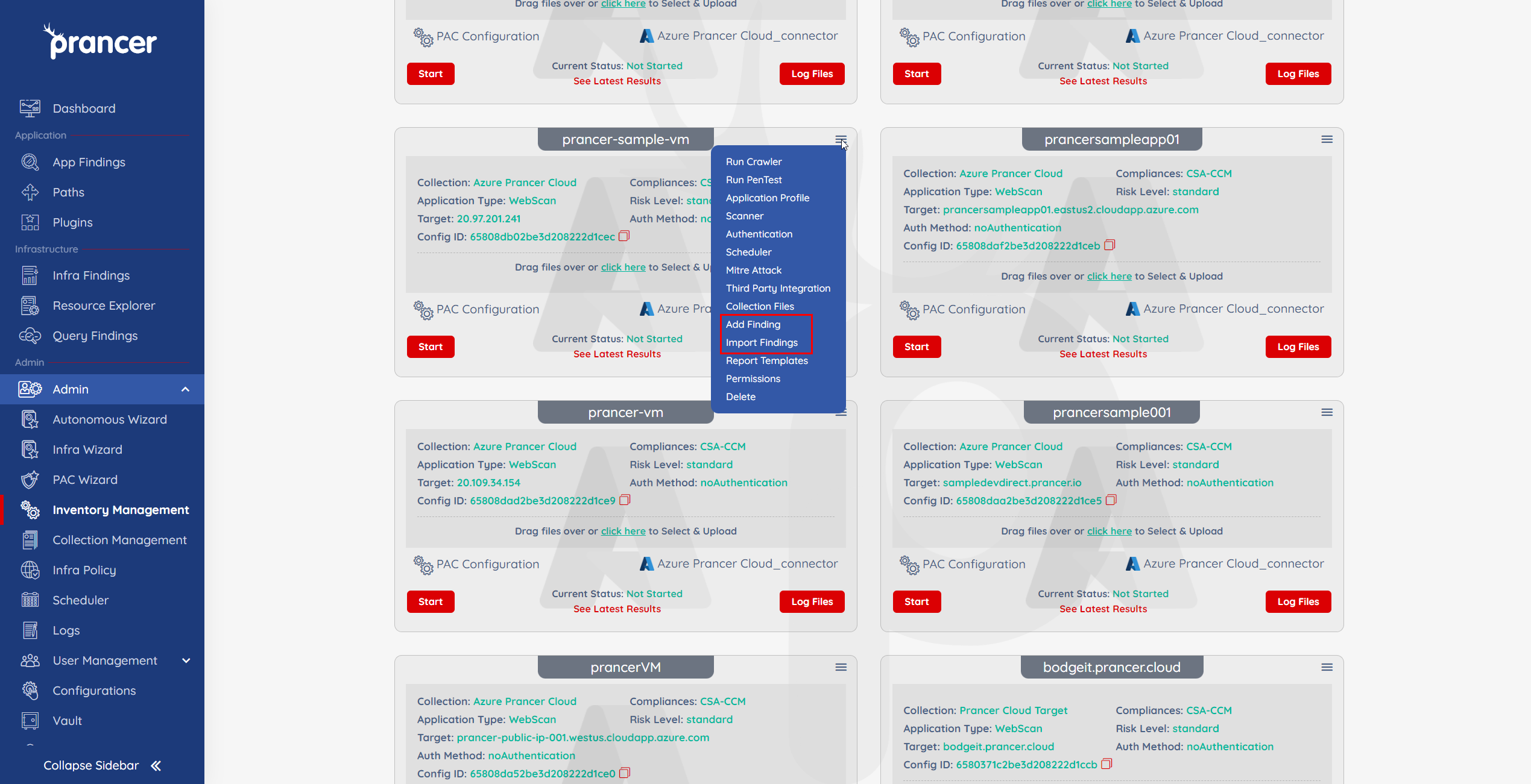
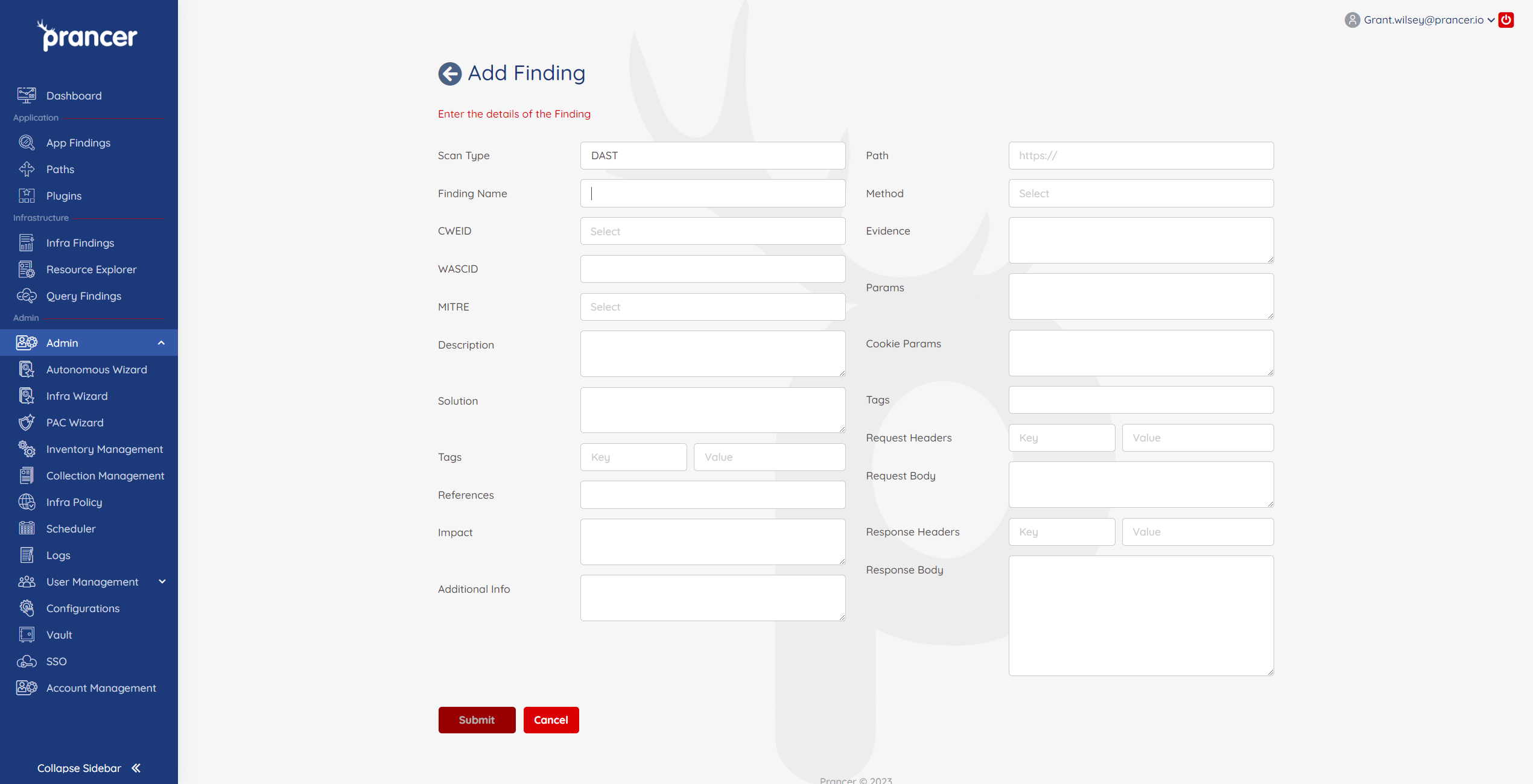
- Add Findings — manually create a finding to include in reports.
- Import Findings — bring in results from external scanners. Supported tools and required file types are listed in the dialog.
Imported findings appear on the Pentest Findings page and in any new report you generate.
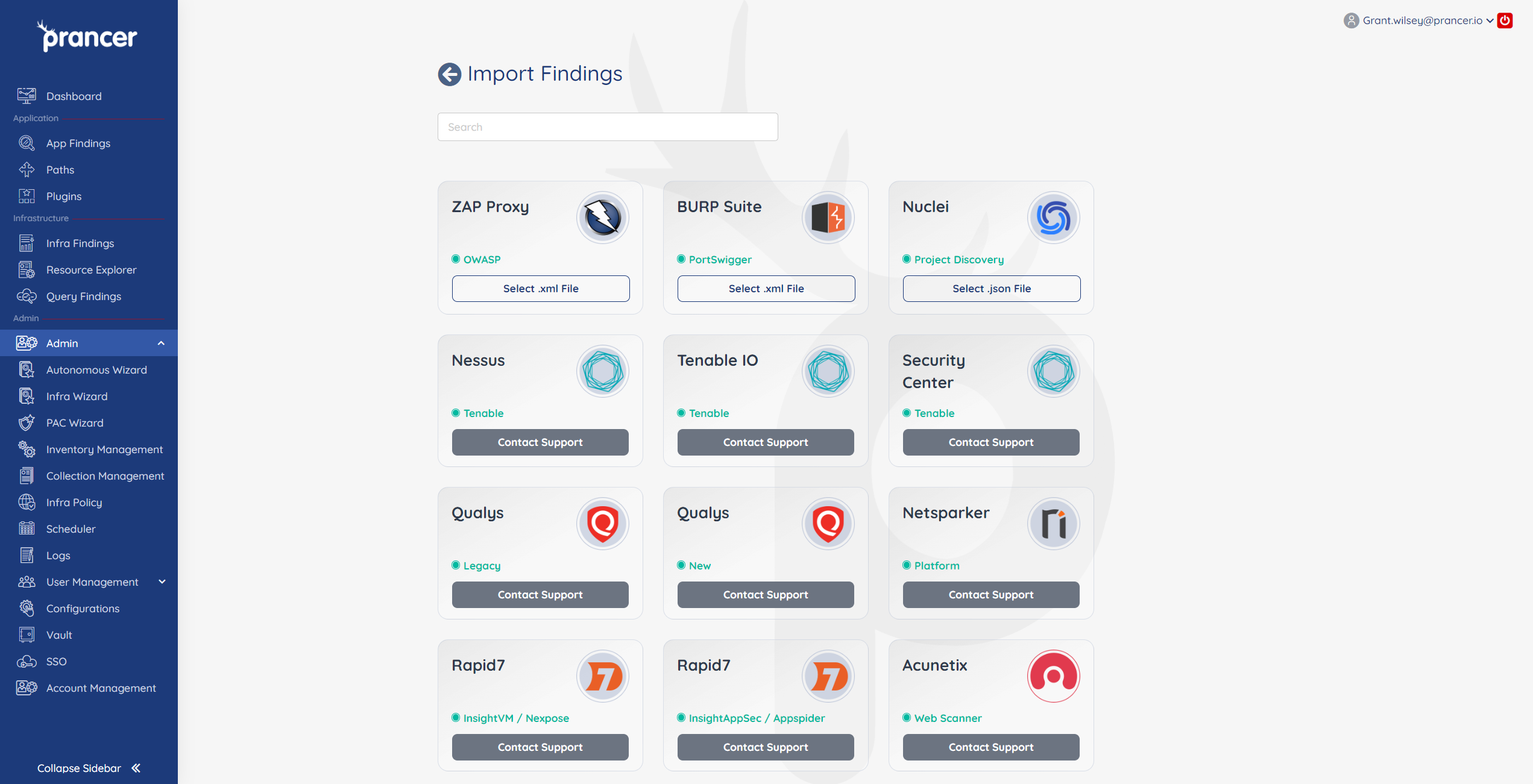
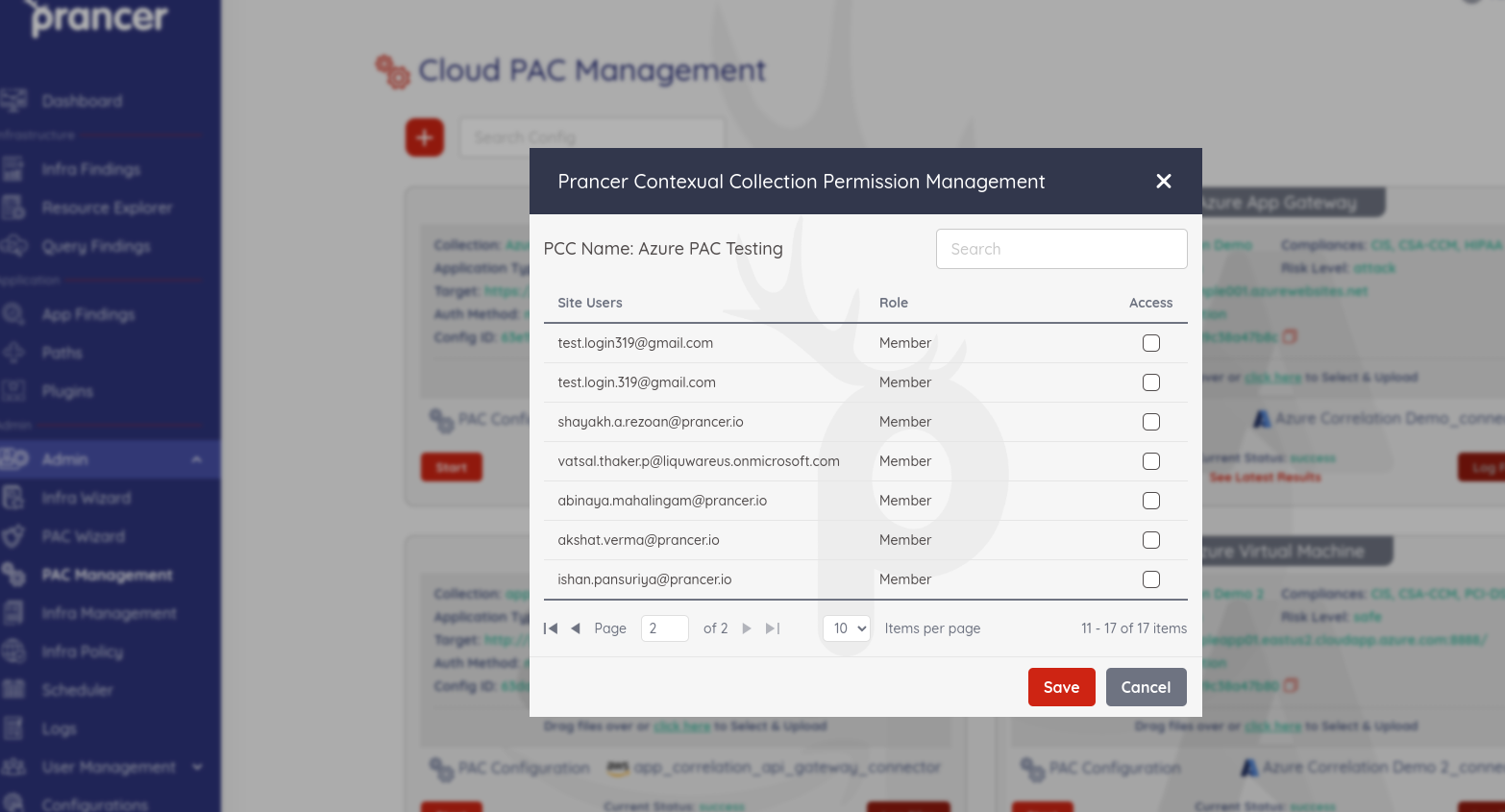
10 — Manage Permissions
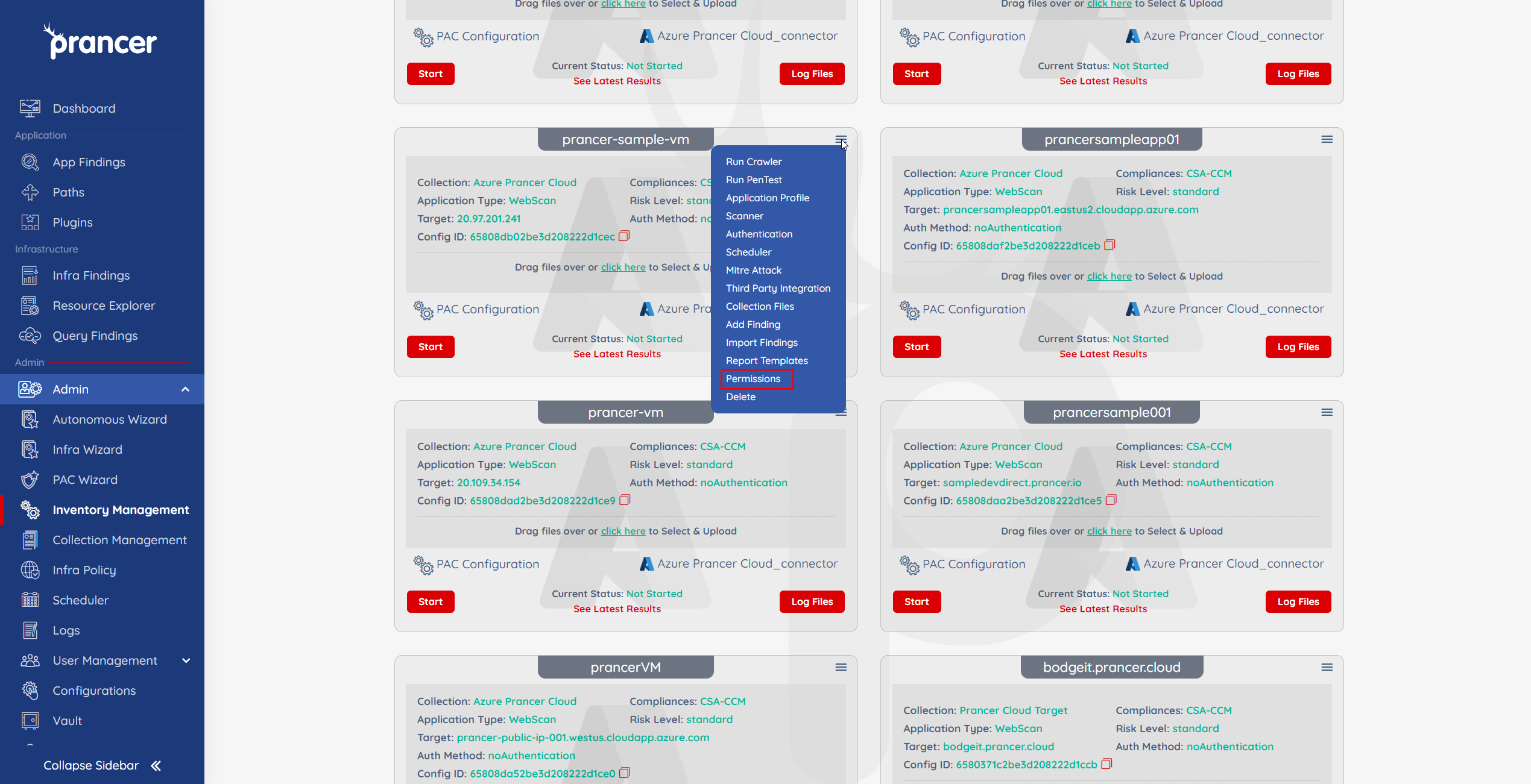
Restrict which users or roles can see/edit this PAC file.
11 — Delete
Warning: deleting a PAC file removes its configuration and history. There's no undo.
Next steps
- Reference: PAC file
- Triage results: Pentest Findings
- Automate runs: PAC CLI